What does that mean?
A plain-English guide to everyday tech jargon
When I’m helping someone with their computer, it’s often a word on the screen that holds things up. A form asks for a PDF, or a new laptop offers more memory. What does that mean in practice?
Look up the word you’ve come across, or browse a subject that interests you. There’s no need to memorise any of it.
Inside your computer
App or program
Software you open to do something, such as write a letter, send an email or edit a photograph.
CPU or processor
The chip that carries out instructions. It helps determine how quickly your computer can do its work.
Hardware
The physical parts of a computer, including its screen, keyboard and the components inside.
HDD (hard disk drive)
A hard disk drive stores files on spinning disks. It keeps them when the power is off. People often say “hard drive” for a computer’s storage, even when it has an SSD.
Operating system (OS)
The main software that runs your device. Windows, macOS, Android and iOS are examples.
RAM (memory)
Your computer’s working space while it is on. More RAM can help when several apps are open. Save your work to storage so it is there next time.
Restart or reboot
Starting a device again so its software loads afresh. If Windows is misbehaving, save your work and choose Restart from the power menu.
Software
The programs and instructions that run on your computer or phone. A web browser and a photo editor are both software.
SSD (solid-state drive)
A fast type of storage with no moving parts. Replacing an older HDD with an SSD often makes a PC feel much quicker.
Read why an SSD can speed up an older PC
Storage
Where files, photographs, videos and programs stay, even when the device is switched off.
Update
A newer version or fix for software. Some updates add features. Security updates fix known weaknesses.
Back to the glossary indexFiles, photos and storage
Backup
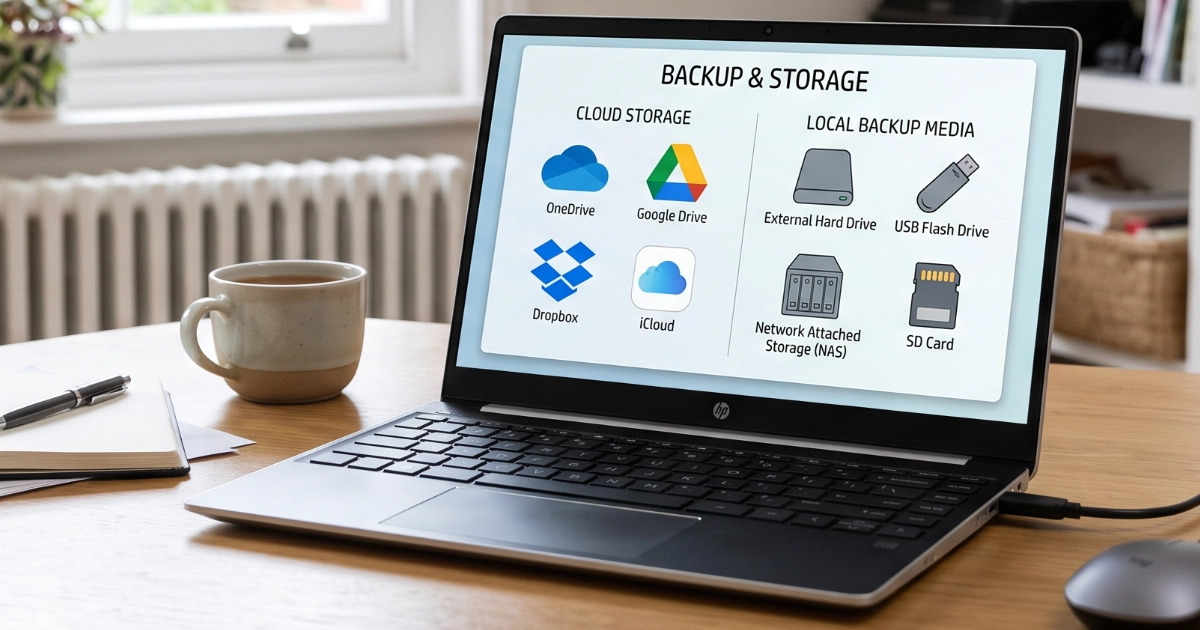
A separate, recoverable copy of important files. It protects you if a device fails or a file is accidentally deleted.
Read my guide to keeping a backup you can recover
File
A saved item, such as a letter, photograph, song or video.
File extension
The ending of a filename, such as .pdf in letter.pdf or .mp4 in holiday.mp4. It gives you a clue to the type of file.
Folder
A place to group related files, a bit like a labelled drawer for your digital documents.
HEIC / HEIF
Many iPhones save photos in the space-saving HEIF format with a filename ending in .heic. If a website won’t accept the photo, try sharing a JPEG copy.
JPG / JPEG
A very common photograph format. It is widely recognised by computers, websites and photo-printing services.
MP3
A widely used sound-file format, useful for music, speech and recordings of old audio tapes.
MP4
A file that usually holds video and sound together. Most devices play MP4 files, though some older TVs struggle with newer recordings.
A document format that helps a letter, invoice or guide keep its layout when opened or printed on another device.
PNG
A picture format often used for screenshots, logos and graphics, including those needing a transparent background.
Recycle Bin / Trash
A holding place for many deleted files. You may be able to restore them before the bin is emptied.
USB stick / flash drive
A small, portable device you plug in to copy or carry files. Also often called a memory stick.
ZIP
A compressed file that can hold several files or folders together, making them easier to send or download.
Back to the glossary indexGetting online and connected
Bluetooth
A short-range wireless connection commonly used for headphones, keyboards, mice and hearing devices.
Broadband
The internet service supplied to your home, usually over fibre, cable or a phone line.
See how to check what broadband speed you need
Cache
A temporary store that helps an app or website load faster. Clearing it can help if you keep seeing an old page.
Digital landline
A home phone service that carries calls digitally, often through your router. Ask your provider when your line will move.
Check what the digital landline change means for your home
Download / upload
Download means receiving something from the internet. Upload means sending something from your device.
Ethernet
A wired network connection, usually using a cable between your computer and router.
Link
Text or an image you can select to open another page, a file or a different part of the same page.
Mbps
Megabits per second. This tells you how much data your broadband connection can carry in one second.
Read my guide to choosing a broadband provider
Mesh Wi-Fi
A set of Wi-Fi units working together to improve coverage across a home, particularly in rooms far from the router.
QR code
A square pattern your phone camera can read. If it offers to open a website, check the address first.
See how to scan a QR code with your phone camera
Router / hub
The box that connects your devices to your home network and internet. BT, Sky and Virgin Media may call it a hub.
Search engine
A service that helps you find websites, such as Google, Bing or DuckDuckGo.
USB-C
An oval plug that fits either way up. You might use it to charge a phone or connect a screen. The cable and the socket determine which jobs it can do.
Web browser
An app that opens websites. Examples include Chrome, Safari, Firefox and Edge.
Website address (URL)
The address of a page on the web. For example, marpletech.co.uk/help-hub/ takes you to my Help Hub.
Wi-Fi
The wireless link from your device to a local network. It can still work if your broadband goes down.
Back to the glossary indexThe cloud, email and accounts
Apple Account (Apple ID)
The sign-in used for services such as iCloud, the App Store and Find My. Apple ID is the older name.
Attachment
A file sent along with an email, such as a photograph, letter or invoice.
Cloud storage
A place to keep files online. Dropbox, OneDrive, iCloud Drive and Google Drive are examples.
Email account
Your mailbox and the sign-in behind it. The same account can usually be used in several email apps.
Email app
The program you use to read and send messages. For example, you can use Apple Mail to read mail from a Gmail account.
Microsoft account
The sign-in you use for services such as OneDrive, Outlook.com and the Microsoft Store. You can have one for free.
Passkey
A way to sign in to a particular website or app. Your device proves it holds the right digital key. You usually unlock it with your face, fingerprint or device PIN.
Read my guide to protecting your accounts with passkeys
Password
A secret you type to sign in. Give each important account its own strong password.
Syncing
Keeping copies up to date across devices. Delete a photo on your phone and it may disappear from your tablet too. A separate backup gives you a copy to recover.
The cloud
A nickname for computers elsewhere, often run by companies such as Apple, Google or Microsoft, that you access over the internet.
Two-factor authentication (2FA)
Using two different kinds of proof to sign in. For example, after entering your password you might be asked for a code from an app on your phone.
Username
The name that identifies your account when you sign in. Many websites use your email address for this.
Back to the glossary indexStaying safe
Antivirus
Software that helps detect and block harmful programs. Windows includes Microsoft Defender Antivirus.
Read about Microsoft Defender and Windows Security
Cookies
Small bits of information saved by websites to remember settings, keep you signed in or track activity.
Firewall
A security feature that helps control which network connections are allowed in or out of a device.
Malware
The general name for harmful software, including computer viruses and ransomware.
Phishing
Fake messages or websites designed to trick you into sharing passwords, money or personal information.
Pop-up
A message or window that appears on your screen. Some ask an ordinary question. A frightening “virus warning” asking you to ring a number may be a scam.
Read what to do if a pop-up says your computer has a virus
Scam
An attempt to deceive you into giving away money, information or access to your accounts or devices.
Security update
A software fix for a known weakness. Installing these helps protect your device.
Spam
Unwanted messages, often sent to lots of people. Some are just adverts, but others can be scams.
Back to the glossary indexThings that sound similar
Wi-Fi vs broadband
Wi-Fi connects your devices to your local network. Broadband is your connection out to the internet.
RAM vs storage
RAM is temporary working space. Storage holds files and programs when you switch the power off.
Browser vs search engine
Chrome and Safari open websites. Google and Bing help you find websites.
Sync vs backup
Syncing carries changes from one device to another. A backup lets you go back to a saved copy, even if a mistake has spread to all your devices.
USB-C vs USB stick
USB-C is a type of plug and socket. A USB stick is a device for storing and moving files.
Bluetooth vs Wi-Fi
Bluetooth usually connects nearby accessories. Wi-Fi usually connects you to your home or office network.
Delete vs uninstall
Deleting removes a file. Uninstalling removes an installed program. Neither necessarily cancels a paid subscription.
Restart vs shut down
Restart reloads Windows from scratch. If Fast Startup is on, Shut down saves part of Windows for next time. Choose Restart when you want a fresh start.
Email account vs email app
Your email account holds the messages. Outlook or Apple Mail is simply one way of reading them.
Microsoft account vs Microsoft 365
A Microsoft account lets you sign in. Microsoft 365 is a collection of apps and services. You can use some for free or pay a subscription for extras.
Three things worth remembering
- You do not need to know the vocabulary to use technology well. Asking what a word means is a perfectly sensible thing to do.
- Backups are more important than the type of drive you buy. Keep a separate, recoverable copy of irreplaceable photographs and documents.
- Be suspicious of messages that frighten or rush you. A sudden pop-up telling you to call a number is not proof that your computer has a virus.
If a word on your screen still puzzles you, I’m always happy to explain it in plain English.
Back to the glossary index