Why Is My PC Running Slow? A Simple Guide to Finding the Real Cause
Not all slow PCs are slow for the same reason. The fix depends on whether the bottleneck is storage, memory, heat, old hardware or software clutter.
That might sound obvious, but it matters more than most people realise. A PC that is slow because it is overheating needs something completely different from one that is slow because the hard drive is ancient. A machine that is genuinely underpowered for modern use is a very different problem from one that just needs a careful clean-up.
Before you spend money on repairs, upgrades or a replacement, it helps to know which problem you are actually dealing with.
Start here if you are not sure
If your PC is slow because of too many startup programs, duplicate antivirus tools or subscription apps you never use, start with Your PC Isn’t Old. It’s Just Full of Software You Never Needed.
If websites, video calls and streaming feel slow but the PC itself seems fine, rule out the connection first with Slow Internet at Home? Check These 7 Things.
First: what does “slow” actually mean for you?
The symptoms matter, because they point towards the cause. Keep your own symptoms in mind as you work through the checks below.
Slow from startup
Painful startup and slow program launches often point towards an old hard drive or heavy startup load.
Fine first, worse later
A machine that slows down after an hour or two may be overheating and protecting itself.
Crawls with tabs open
If switching between programs causes a long pause, RAM may be the bottleneck.
Files are slow to open
Files taking a long time to open or save can point towards storage problems.
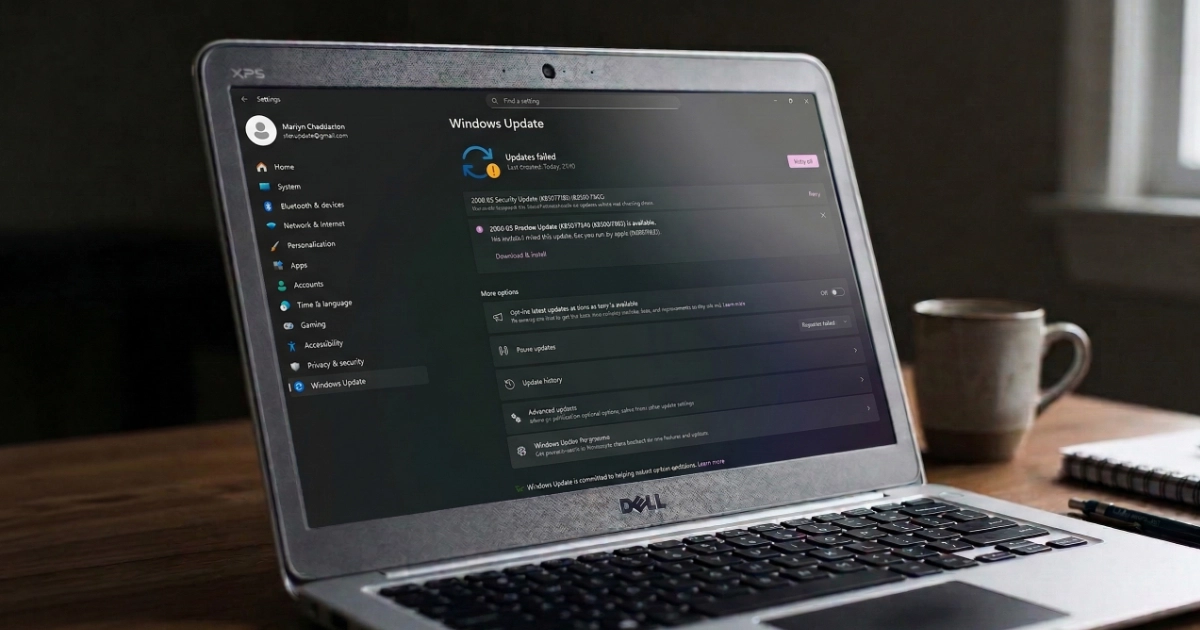
Updates won’t install
Windows updates that keep failing or getting stuck can be a sign that low storage space is part of the issue.
Slow whatever you do
If the PC feels slow all the time, even for basic jobs, it may be an ageing hard drive or underpowered hardware.
1. Your hard drive is the old spinning type
In the older PCs I see, this is often the single biggest reason a machine feels painfully slow.
For years, computers stored everything on a spinning magnetic disk called a hard drive, or HDD. These were cheap, and they worked. But they are mechanical devices: a physical arm reads and writes data by moving back and forth across a spinning platter. That takes time.
Modern computers use a completely different type of storage called a Solid State Drive, or SSD. There are no moving parts, so data can be read far more quickly.
The difference in real-world use is dramatic. A PC with an old spinning hard drive might take several minutes to fully start up. The same machine fitted with an SSD might be ready to use in well under a minute.
How to spot this
If your PC is more than five or six years old and nobody has ever upgraded it, there is a good chance it may still have a spinning drive.
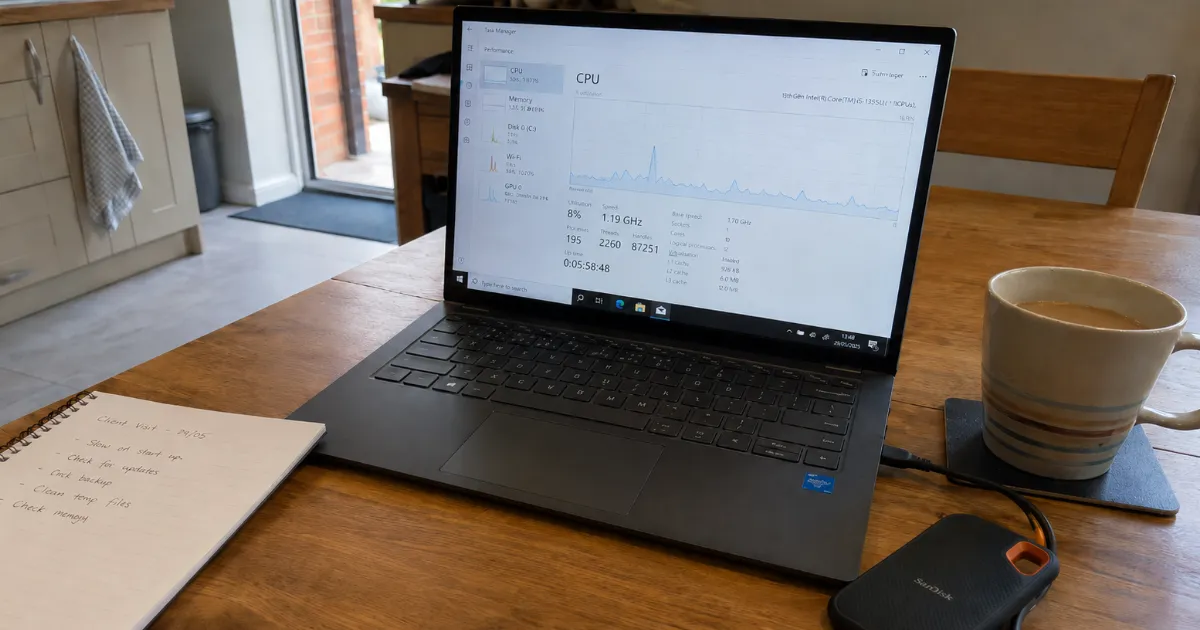
- Press Ctrl + Shift + Esc to open Task Manager.
- Click Performance.
- Select Disk.
- Look for HDD or SSD.
Another clue is very high disk usage. If Task Manager regularly shows the disk sitting at or near 100 percent while you are only doing basic things, an old hard drive may be struggling to keep up.
What can be done
Replacing a spinning hard drive with an SSD is one of the most effective upgrades possible on an older PC. It can give the machine a completely new lease of life without replacing everything else.
The physical swap is usually straightforward, but the important part is safely transferring the data and making sure Windows boots properly afterwards. Done properly, the results are often remarkable.
Important: slow is not the same as failing
If the slowness comes with clicking or grinding noises, files that take an age to open and then refuse to, documents that go missing, or error messages when saving, the drive may be on its way out rather than simply old.
Back up anything important now, before you do anything else, and treat it as urgent. A failing drive can go from slow to unreadable with very little warning.
2. Your storage drive is almost full
This one catches people out regularly, and it is easy to overlook.
When a hard drive or SSD gets close to full, Windows starts to struggle. It needs free space for temporary files, updates, and general housekeeping. When that space runs out, everything slows down.
You may also find that Windows Update stops working properly, or gets stuck. If you have been battling with updates that will not install, a nearly full drive could be part of the reason. That is covered in more detail in How to Deal With Stuck Windows Updates on Windows 11.
This is especially common on laptops with small 128GB or 256GB drives. They can look fine when new, but after a few years of photos, downloads, documents, apps, and Windows updates, they can quickly become cramped.
How to spot this
Open File Explorer and click This PC. You will see your drives listed with a bar showing how full they are. If the bar has turned red, or if you have less than around 10 to 15 percent free space, a full drive may be contributing to the slowdown.
What can be done
Clearing out old downloads, emptying the Recycle Bin, and uninstalling programs you no longer use can all help. Moving photos and videos to an external drive or cloud storage can also make a big difference.
However, if the drive is genuinely too small for how you use the PC, repeatedly clearing space is only a temporary fix. In that situation, upgrading to a larger SSD may be a better long-term answer.
3. Your PC does not have enough RAM for modern Windows
RAM, or Random Access Memory, is the short-term working memory your PC uses while it is running.
When you open a program, it loads into RAM. When you switch between browser tabs, those tabs live in RAM. The more RAM you have, the more your PC can juggle at once.
Windows 11 can technically run on 4GB of RAM, but that does not mean it will feel good to use. For most everyday users, 8GB is now a more realistic minimum. That is enough for normal browsing, email, documents, banking, photos, and light day-to-day tasks.
If you keep lots of browser tabs open, use heavier programs, edit photos or videos, or want the machine to last longer, 16GB is a much better place to be.
How to spot this
Open Task Manager by pressing Ctrl + Shift + Esc, click Performance, and select Memory. Look at the percentage in use.
If memory use is consistently sitting above 80 or 90 percent while you are doing normal tasks, RAM is likely to be a bottleneck. Another clue is that the PC becomes much worse when you have several things open at once, such as a browser, email, Word, and photos.
What can be done
On many desktop PCs and some older laptops, RAM can be upgraded relatively straightforwardly. However, on modern slim laptops it is often soldered directly to the motherboard and cannot be changed.
That is why it is worth checking before spending money. Some machines are easy to upgrade. Others are not upgradeable at all.
4. Your PC is overheating and slowing itself down on purpose
This one surprises people, because the fix is not obvious.
Modern processors are designed to protect themselves. If a PC gets too hot, usually because the cooling system is clogged with dust or the fan has partially failed, the processor will deliberately slow itself down to reduce the heat it generates. This is called thermal throttling.
From the outside, it just looks like a slow PC.
The key symptom is that the machine starts out fine and gets progressively slower the longer it is on. The fan may also be running loudly and constantly, even when the PC is not doing very much.
How to spot this
Pay attention to when the slowdown happens. If the PC is noticeably worse after an hour than it was at the start of the day, heat is worth investigating.
A loud fan, a very hot base, sudden sluggishness during video calls, or performance dropping when the laptop is on a bed or cushion can all point towards heat. You can also use a temperature monitoring tool such as HWMonitor, although interpreting the numbers does take a little knowledge.
What can be done
In many cases, a thorough internal clean makes a significant difference. That means removing accumulated dust from the fan, vents, and heatsink, not just wiping the outside.
On older machines, the thermal paste between the processor and its cooler may also have dried out and need replacing. Neither job is something to attempt without confidence, but both are routine for someone who works on PCs regularly.
A word of caution
If you are thinking of opening your PC to check for dust or inspect components, make sure it is unplugged first and that you are confident in what you are doing. If in doubt, leave it to someone with experience.
5. Your PC has simply reached its limits
Sometimes the honest answer is that a PC has reached its limits.
Hardware does not wear out in the same way a mechanical device does, but the software it has to run keeps growing. Windows 11 is more demanding than Windows 7 was. Modern browsers are more demanding than they were five years ago. Websites, video calls, cloud apps, security tools, and background services all ask more of the machine than they used to.
A PC that was perfectly capable in 2016 may genuinely struggle with modern expectations. Not because anything has broken, but because the gap between what the hardware can do and what is being asked of it has grown too wide.
This is worth distinguishing from the other causes above. If the drive is an SSD, RAM is adequate, temperatures are fine, storage space is healthy, and the machine still crawls, it may simply be reaching the end of its useful life as a day-to-day computer.
There is also a practical deadline to be aware of: Windows 10 standard support ended on 14 October 2025. That does not mean every Windows 10 PC immediately stopped working, but it does mean older machines that cannot run Windows 11 now need a proper plan. Eligible personal PCs enrolled in Extended Security Updates can keep receiving Windows security updates until 12 October 2027, but that is planning time rather than a reason to ignore the issue indefinitely.
If your PC falls into this category, it is worth understanding your options sooner rather than later. Windows 10 ESU: How to Keep Getting Security Updates Until October 2027 and Should You Force Windows 11 onto an Older PC? both cover this in plain English.
How to spot this
If you have ruled out or addressed the issues above and the PC still feels slow, age and specification are worth looking at honestly.
A machine with an older Intel Celeron, Pentium, or low-end Core i3 processor, especially with 4GB of RAM that cannot be upgraded, is likely approaching that point. The same applies to older budget laptops that were slow even when they were new.
What can be done
At this stage, the conversation shifts from repair to replacement.
That does not mean rushing out to buy the first laptop you see. It means working out whether more money spent on the existing machine is sensible, or whether that money would be better put towards a replacement that properly suits how you use it.
A good repair is worthwhile. A bad upgrade on a machine that has already reached its limit is just throwing good money after bad.
Quick reference: symptoms and likely causes
| What you are noticing | Most likely cause |
|---|---|
| Painfully slow startup, slow all the time | Old spinning hard drive (HDD) |
| Disk usage often near 100 percent | Old HDD struggling, or another disk-related issue |
| Clicking or grinding noises, files going missing or unreadable | Drive may be failing; back up now |
| Low disk space warnings | Storage drive nearly full |
| Files take a long time to open or save | Storage drive nearly full or struggling |
| Updates failing or stuck | Not enough free storage space |
| Slows down with multiple tabs or programs open | Not enough RAM |
| Fine at first, gets worse as the day goes on | Overheating or thermal throttling |
| Fan running loudly and constantly | Overheating or dust buildup |
| Slow no matter what, even after everything else checked | Hardware genuinely underpowered |
| Slow but lots of programs run at startup | Software clutter, covered in our other guide |
Not sure what you are dealing with?
If you have worked through this and you are still not certain which category your PC falls into, that is completely understandable. Diagnosing these things properly does take a look at the machine.
If you are not sure this is the right problem to start with, Common Computer Problems (and the Sensible Things to Try First) is a good place to orient yourself before going deeper.
When I check a slow PC, I take a methodical approach. I look at the hardware, check the storage, check memory use, check temperatures, look at what is running, and give you a clear picture of what is actually causing the problem.
The important question is not just “can this be made faster?” It is “is it worth spending money on this machine?”
Sometimes the answer is yes. An SSD upgrade or RAM upgrade can transform the right PC. Sometimes the honest answer is no, and the money would be better put towards a replacement.
Either way, the aim is the same: no guesswork, no vague reassurances, and no selling you a fix that does not make sense.
If it turns out the issue is software-related rather than hardware-related, our guide to bloatware and software clutter covers exactly what to do on that side of things.
Need a Slow PC Check?
I can check the hardware, storage, memory, temperatures and startup software, then explain what is actually causing the slowdown.
You will get a clear recommendation on whether the PC is worth upgrading, needs repair, or is better replaced.
I’m based in Marple and cover Stockport, SK6 and the surrounding area.