That QR Scanner App You Downloaded? Your Camera Already Does That
Twice in the last few weeks I have visited clients in Marple with almost exactly the same story.
They needed to scan a QR code, perhaps on a menu, parking sign or leaflet. They searched the app store for “QR scanner”, downloaded something that looked suitable and scanned their code.
Job done.
Except it wasn’t.
Soon afterwards, their phone started warning them about viruses. Full-screen alerts appeared claiming the device was infected, the battery was damaged or the storage was dangerously full. Each warning very helpfully suggested another app that would solve the problem.
One client had already downloaded two more “cleaner” apps before calling me. Each one made things noisier.
And here is the frustrating part.
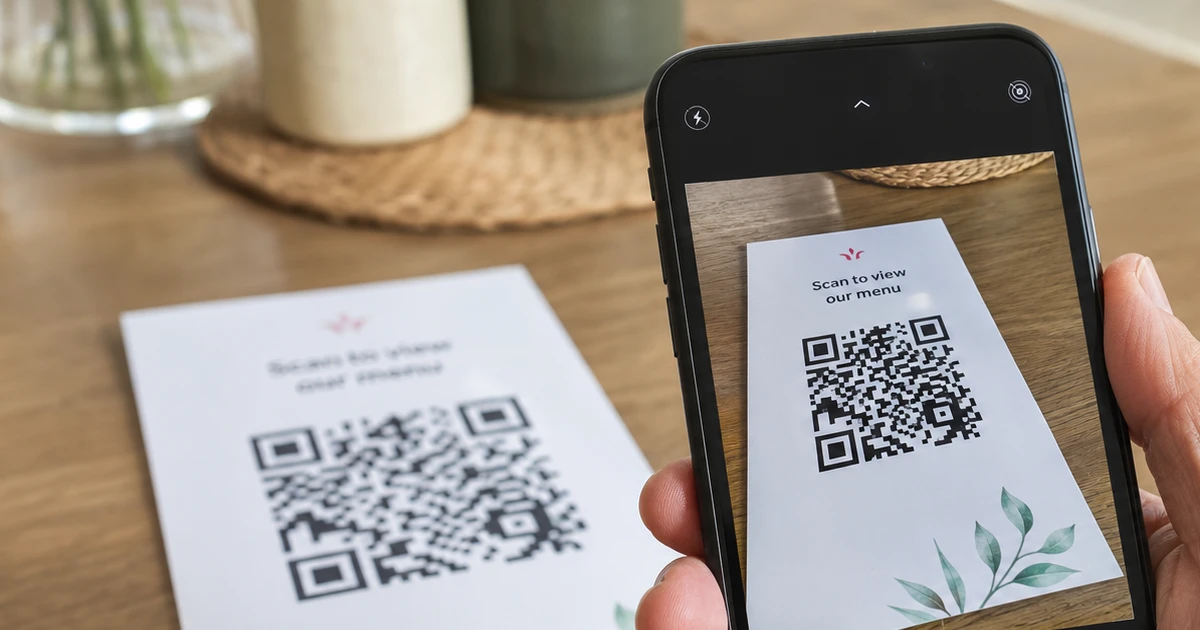
Neither of them needed a QR scanner app in the first place. Their phone’s normal camera already did it.
They had taken on all that risk for a feature they already had.
Neither client did anything foolish. The apps looked professional, came from an official app store and appeared to offer exactly what they were looking for.
This is about how that happens, how to avoid it and how to calmly put things right when it has already happened.
First, the reassuring bit
If your phone suddenly starts announcing that you have “37 viruses” shortly after installing an app, the scary message itself is not evidence that your phone really has 37 viruses.
In cases like these, the problem is often an aggressive or unwanted app, advertising notifications or a website designed to frighten you into installing something else.
The warnings are often part of the business model, not a genuine diagnosis.
They may use alarming red screens, countdown timers and urgent phrases such as:
- Your phone is infected!
- Battery damage detected!
- Storage critically full!
- Clean your phone NOW!
The aim is to make you panic and tap before you stop to think.
That does not mean every security warning on a phone should be ignored. Android and iPhone can both display genuine warnings.
The important distinction is where the warning is coming from.
A frightening advert or webpage telling you to download another cleaner or antivirus app is very different from a warning generated by the phone’s own security system.
And a pop-up appearing does not, by itself, mean your photos, passwords or bank details have been stolen.
The first job is to work out what has actually been installed and what permissions it has been given.
The app you never needed
Modern iPhones and most modern Android phones can scan QR codes without installing anything.
On an iPhone
Open the normal Camera app and point it at the QR code.
A link should appear on screen. Tap it and you are done.
There is also a dedicated Code Scanner available from Control Centre.
On Android
Again, start with the normal Camera app.
Point it at the QR code and, on most phones, a link will appear automatically.
On Samsung phones there is also a Scan QR codes option in the Camera settings, and many Android phones have a QR scanner available from the quick settings panel when you swipe down from the top.
Before installing a separate QR scanner, try the camera first.
In one recent job I dealt with, once I had removed the problematic QR scanner app and cleaned up the phone, I checked the client’s husband’s phone too. He also had separate QR scanner apps installed.
We removed those as well, opened the ordinary camera and tested it.
It scanned the QR code perfectly.
The same lesson applies to lots of apps
QR scanners are only one example.
Before downloading an app that performs one small job, check whether your phone already does it.
Modern phones commonly include:
- a torch
- calculator
- timer and stopwatch
- document scanning
- magnifier
- QR code scanning
- voice recording
- basic photo editing
- password management
Installing another app is sometimes worthwhile because it offers genuinely useful extra features.
But installing a random app simply to duplicate something already built into your phone adds unnecessary risk.
The safest app is the one you never needed to install.
What I call “gateway apps”
I think of some of these programs as gateway apps.
The original app appears to do something harmless and simple. Scan a QR code. Clean some storage. Read a PDF. Turn on a torch.
But once installed, it becomes a doorway to something much more annoying.
That can include:
- aggressive full-screen advertising
- fake virus or battery warnings
- notifications from spam websites
- pressure to install more apps
- recurring subscription offers
- “cleaner” and “booster” apps
- adverts disguised as system messages
The original app may even perform the job you downloaded it for.
That does not make everything else it does acceptable.
And this does not necessarily require anyone to have “hacked” the phone in the Hollywood sense.
Sometimes you have simply installed software that has been given permission to advertise aggressively, send notifications or appear over other apps.
Annoying rather than catastrophic, perhaps, but miserable to live with and potentially more serious if you keep following where the warnings lead.
Why would anyone make an app like this?
Because free apps still have to make money somehow.
Plenty of legitimate free apps use sensible advertising, offer an optional paid upgrade or provide a genuinely useful free service alongside a commercial product.
Others take a much more aggressive route.
They may earn money every time:
- an advert is displayed
- you tap an advert
- you install another recommended app
- you start a subscription
- you purchase a supposed clean-up service
That creates an obvious incentive to keep you clicking.
Fear happens to be rather good at achieving that.
How to spot a questionable utility app before installing it
No single warning sign proves an app is bad, but several together should make you pause.
Your phone already does the job
This is probably the best warning sign of all.
Why does a QR scanning app need to exist on a phone that already scans QR codes?
Sometimes there is a good answer.
Often there isn’t.
It asks for permissions that make no sense
A QR scanner needs access to your camera.
It should not normally need your contacts, microphone or permission to appear over every other app.
Simple apps should generally require simple permissions.
It immediately wants to send notifications
Ask yourself why.
What urgent information could a basic QR scanner possibly need to notify you about tomorrow?
Reviews complain about adverts or subscriptions
Do not rely solely on the overall star rating.
Read some recent low-rated reviews too.
Repeated complaints about pop-ups, difficult subscriptions, endless advertising or trouble uninstalling the app are worth paying attention to.
The app promises to “speed up” or “clean” your phone
Modern Android phones and iPhones already manage memory and storage remarkably well.
Be especially cautious around apps making dramatic claims about making the phone “300% faster”, cooling the processor, boosting RAM or removing hundreds of mysterious problems.
It starts creating urgency
A utility app should not need to frighten you.
“ACT NOW”, “danger detected” and “your phone is at risk” are marketing techniques, not reassuring signs of trustworthy software.
Already happened? Here is your clean-up checklist
If your phone is currently being bombarded with warnings, work through this calmly.
1. Stop tapping the warnings
- Do not install another app because an advert tells you to.
- Do not pay for a clean-up.
- Do not call a telephone number shown in a pop-up.
- Do not enter passwords or payment details into anything opened by one of these warnings.
Close it instead.
2. Remove the app that started the problem
Think back to when the warnings began. Did you install:
- a QR scanner?
- cleaner?
- battery saver?
- antivirus app?
- booster?
- wallpaper app?
- PDF reader?
- another small utility?
On most phones you can press and hold the app icon and choose Uninstall or Remove App.
3. Look for anything else installed around the same time
One unwanted app sometimes leads to several others.
Open the list of installed apps in Settings and look for things you do not recognise or no longer need.
Be particularly suspicious of cleaners, scanners, boosters and security tools you cannot remember deliberately choosing.
Do not randomly uninstall things you are unsure about. Some oddly named apps are legitimate parts of Android.
4. Check notifications
This is important because the original app may no longer be responsible for what you are seeing.
A webpage may have persuaded you to allow notifications.
That means alarming “virus warnings” can continue appearing even after the original app has been removed.
On Android, check the phone’s Notifications settings and see which apps have recently sent notifications.
If Chrome or another browser is producing the warnings, check its notification permissions and remove websites you do not recognise.
5. Check special permissions
This is the step I would take more seriously.
Look for unfamiliar apps with permission to:
- appear over other apps
- use Accessibility
- install unknown apps
- act as a device administrator
A simple QR scanner should not normally need powerful permissions like these.
If you find something suspicious and are not sure what it is, stop rather than guessing.
6. Run the phone’s built-in security check
On Android, open the Google Play Store, tap your profile picture and open Play Protect.
Run a scan.
You do not need to download another antivirus app to perform this check.
7. Restart the phone
Once the unwanted apps and permissions have been removed, restart it.
Then use the phone normally for a little while and see whether the pop-ups return.
Do I need to factory-reset the phone?
Usually, no.
For the type of problem I most commonly see, removing the unwanted apps, checking permissions, cleaning up rogue notifications and running the built-in security checks is enough.
A factory reset is a fairly blunt instrument.
It removes applications and settings, but it also creates a lot of unnecessary work restoring the phone afterwards.
It should not be the first response to an aggressive advert.
Likewise, you generally do not need to buy a new phone because a QR scanner misbehaved.
When should you take it more seriously?
There are some circumstances where I would go beyond a simple clean-up.
You entered a password
If a warning or webpage asked you to sign into Google, Apple, Microsoft, Facebook, your email or another account and you entered your password, change it.
And do not simply change Password1 to Password2. Use a completely new
password.
Once you’ve changed it, make sure two-factor authentication is switched on too. Here’s why 2FA matters and how it protects your accounts.
You entered bank or card details
Contact your bank.
Do not use contact details displayed in the suspicious message.
Use the number on your bank card, the bank’s official app or 159 where appropriate.
You can also work through my free Scam First Aid tool, which helps you establish what to do and in what order.
You installed something after the warning told you to
That deserves another look.
Especially if you were instructed to install remote-access software, security software or an app from outside the normal app store.
You allowed Accessibility or Device Administrator access
These permissions can give an app significantly more control over the phone.
I would want to establish exactly what had been given access before declaring the phone clean.
Money has already left an account
That is no longer just a phone clean-up.
Contact the relevant bank or card provider immediately.
What about McAfee, Norton and other antivirus apps?
This needs a bit of nuance.
Recognised security products are not the same thing as the random “37 viruses detected” advert you have just encountered.
But that does not automatically mean you need to buy one.
Both Apple and Google already build substantial security protections into their phone operating systems.
So if an advert suddenly announces that your phone is riddled with viruses and conveniently offers you a security subscription, do not make a purchase because you have been frightened into it.
Make the decision afterwards, when you know what has actually happened.
Being pushed towards paid security software? I have written a focused follow-up here: Are You Paying for McAfee or Norton When You Don’t Need To?
What happened to the phones I looked at?
In the recent case that prompted me to write this article, the phone had become almost unusable because of advertising and fake virus messages.
The owner quite reasonably thought it had been hacked.
We traced the problem back to a QR scanner app.
I removed the suspicious and unnecessary apps, checked the phone’s settings and permissions, reviewed its storage and made sure everything was behaving normally again.
Then we looked at her husband’s phone.
He had QR scanner apps too.
Those came off as well.
I opened the ordinary camera, pointed it at a QR code and showed them both that it worked perfectly.
No special scanner required.
That is a much nicer ending than “37 viruses”.
The habit worth keeping
Before installing any small utility app, pause for a moment and ask:
Does my phone already do this?
With QR codes, torches, document scanning and plenty of other everyday jobs, the answer is often yes.
And if your phone starts shouting at you about viruses, remember something equally important:
The shouting is not the diagnosis.
Do not panic, do not follow instructions inside alarming adverts and do not keep installing things in an attempt to fix the last thing you installed.
Stop, work out what changed and remove the cause rather than adding another layer on top.
And if you are worried that you have done something wrong, you haven’t.
These apps and adverts are deliberately designed to make ordinary people act quickly.
At Marple Tech Help, there is No Shame in Asking. Questions like this are exactly why.