Pop-Ups Have Taken Over My Screen: How to Close Them Safely and Stop Them Coming Back
Most of the pop-up problems I have been called out to recently have come down to something the person installed themselves, without any sense that they were taking a risk. On computers it is usually a browser extension. On phones it tends to be a small utility app, and I have written about that particular version of the problem separately.
Just as often, though, nothing was installed at all. Someone clicked Allow on a small box asking to show notifications, possibly to prove they were not a robot or to watch a video, and a stranger’s website has been putting messages on their screen ever since.
By the time people call me, they usually assume they have been hacked. Usually they haven’t. But the right response is different depending on which of these you are dealing with, so this guide separates them out.
If your screen is showing something alarming right now, jump straight to your
device:
Windows · Mac · iPhone · Android
If it keeps coming back after that:
Notifications · Extensions ·
Installed apps and programs
If you already rang a number or let someone connect:
Do this now
If your screen is showing a fake virus warning right now
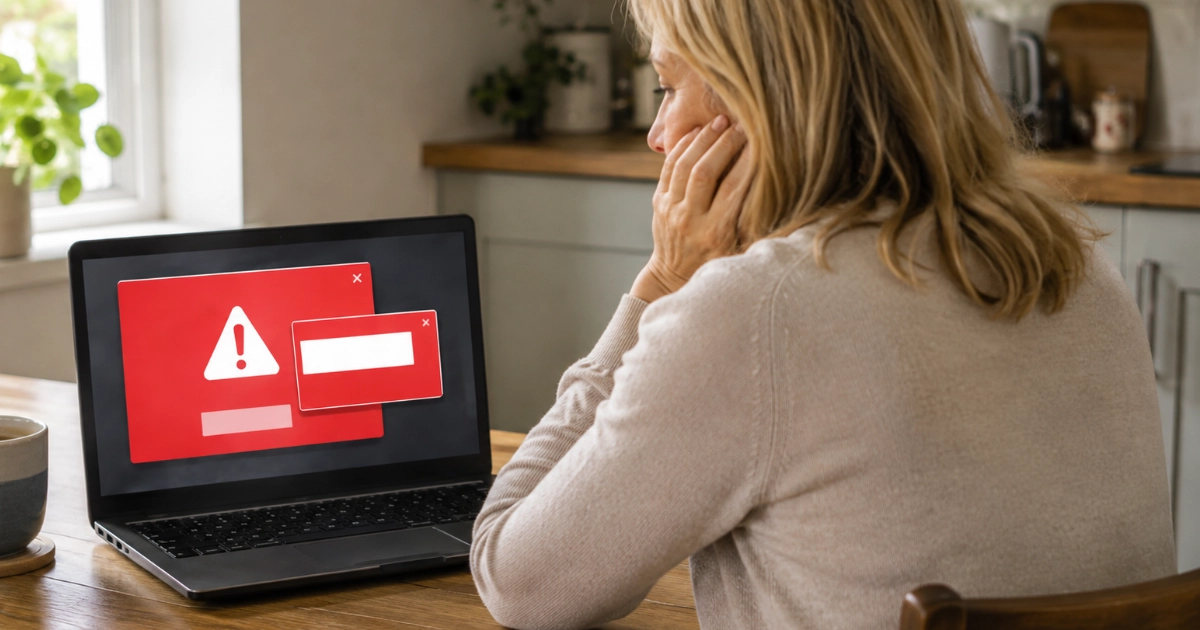
That full-screen red alert, with the siren or the robotic voice, telling you not to shut down and giving a support number to ring, is almost certainly a webpage.
It has not scanned your computer. The list of “37 threats detected” is part of the webpage and was written before you ever arrived. A website can see some general things about your device, such as which browser you are using and roughly where in the country you are, and that is often enough to make the warning look personalised. It has not looked at your files.
Two things follow.
Closing the page usually ends the immediate warning. Simply seeing it does not mean your computer is infected. If it keeps happening, though, something may be steering you back there, which is what we will check later in this guide.
More importantly, the page is not trying to damage your computer. It is trying to get you to make a phone call. That is where the real harm happens, and it is the one step you must not take.
Microsoft, Apple and Google do not diagnose a virus infection by throwing a webpage onto your screen and telling you to ring a support number. Nobody legitimate does.
Closing it safely
One rule for this whole section. Do not click anything inside the pop-up itself. That includes the X in its corner, the “Close”, the “Cancel” and the “No thanks”. Those are pictures of buttons and can be wired to do anything.
Use the controls that belong to your device instead.
On a Windows PC
- Press Esc, then F11. That gets you out of full-screen mode so you can see the real browser window again.
- Press Alt + F4 to close the window.
If it refuses to close, or the machine feels stuck:
- Press Ctrl + Shift + Esc to open Task Manager.
- Find your browser in the list, such as Chrome, Edge or Firefox. Click it once, then click End task.
When you reopen the browser, it may offer to restore your previous pages. Say no. Restoring them brings the alert straight back.
If nothing responds at all, hold the power button until the machine switches off, wait a few seconds and start it again. Losing an unsaved document is annoying. It is still far better than making the call.
On a Mac
- Press Esc to leave full screen.
- Press Cmd + Q to quit the browser.
- If it will not quit, press Cmd + Option + Esc, choose the browser, and click Force Quit.
When you reopen Safari, hold Shift as it starts. That stops it reloading the windows you had open.
On an iPhone or iPad
- Swipe up from the bottom of the screen and pause, or double-press the Home button, to see your open apps.
- Swipe the browser away.
- Reopen Safari, tap the tabs button at the bottom right, and close the offending tab.
If the same page keeps reopening even after you have closed the tab, you can clear Safari’s stored website data. Go to Settings, then Apps, then Safari, and tap Clear History and Website Data. Be aware this signs you out of websites you are logged into, so treat it as a fallback rather than a first move.
On an Android phone
- Tap the square or swipe up to see open apps, then swipe the browser away.
- Reopen Chrome, tap the tab number at the top, and close the tab.
Again, only if it keeps returning, open Chrome’s menu and use Delete browsing data. You can choose what to remove; clearing cookies and site data may sign you out of websites.
That is the emergency dealt with. If it does not come back, you are done.
If it keeps coming back
Now we find the cause. There are three places to look, and it is worth doing them in this order.
1. Website notifications
If alerts arrive when you are not even browsing, this is almost certainly it. It is also the fix most people never find, which is why they end up believing their computer is permanently infected.
Modern browsers let websites send you notifications, the same way an app does. That is a useful feature when it is your calendar or your email. It is a menace when the permission was obtained by a page saying “Click Allow to prove you’re not a robot” or “Allow to watch the video”, which is exactly how most people end up with it.
You are looking for the list of websites that have been given that permission, and removing every one you do not recognise.
- Chrome, on a computer: menu, then Settings, then Privacy and security, then Site settings, then Notifications.
- Microsoft Edge: open Settings, search for Notifications or Site permissions, then block or remove any websites you do not recognise. (Microsoft moves this menu around between versions, so searching for it is more reliable than following a fixed path.)
- Firefox: Settings, then Privacy & Security, then scroll to Permissions and click Settings beside Notifications.
- Safari on a Mac: Safari menu, then Settings, then Websites, then Notifications.
- Chrome on Android: menu, then Settings, then Notifications, then Sites.
Be ruthless. There is no harm in removing one by mistake. It will simply ask again next time you visit and you can say yes then.
The iPhone works a little differently. Ordinary websites open in Safari do not bombard you with background notifications the way desktop browsers can. A website you have added to your Home Screen can send them if you have specifically allowed it, and those appear in the normal Settings, then Notifications list.
More commonly on an iPhone, repeated junk alerts turn out to be one of two other things. An app you installed that is sending advertising notifications, which you can switch off in Settings, then Notifications. Or a spam calendar subscription, if your calendar has filled with events about viruses, prizes or dating sites. For that one, open the Calendar app, tap Calendars at the bottom, tap the i beside the one you do not recognise, and choose Delete Calendar or Unsubscribe.
2. Browser extensions
This is where most of the computer cases I get called to actually end up.
In Chrome or Edge, open the menu, choose Extensions, then Manage extensions. In Firefox, choose Add-ons and themes. In Safari on a Mac, open Settings and then Extensions.
You will probably see more than you expected. Remove anything you did not deliberately choose, and anything you did choose but no longer use. The usual culprits are coupon and voucher finders, download or video helpers, PDF and file converters, shopping price comparers, search toolbars and anything describing itself as an enhancer.
Three things worth knowing while you are in there.
An extension can behave impeccably for years and then change hands. Small extensions get bought, and the new owner sometimes turns them into an advertising channel through an ordinary automatic update. “I have had that one for ages” is not proof it is innocent.
Check what each one is allowed to do. An extension with permission to read and change all your data on all websites can insert adverts into any page you visit, which is precisely what that looks like from your side of the screen.
If an extension cannot be removed, or the browser says it is “managed by your organisation” on a personal computer, something has installed a browser policy. That can be left behind by security software as well as by something unwanted. Do not start deleting registry entries to force it out. That one needs looking at properly.
Also check your homepage, search engine and new tab page while you are in browser settings. If they have changed to something you do not recognise, set them back. If they change themselves again after a restart, something is still installed and putting them back.
3. Installed programs and apps
On Windows, open Settings, then Apps, then Installed apps, and sort by install date. Look at what arrived around the time the trouble started, particularly anything that came bundled with a free download you did choose.
On a Mac, open the Applications folder and sort by Date Added, then check System Settings, then General, then Login Items for anything unfamiliar starting on its own.
On a phone, look through your app list for scanners, cleaners, boosters, battery savers, torches, wallpaper apps and security apps you cannot remember deliberately choosing. Press and hold the icon to uninstall. Most of these exist to duplicate something the phone already does, which is why they have to make their money from advertising instead. If your trouble started on a phone rather than a computer, this guide covers that clean-up in full.
One caution. Remove what you recognise as unwanted. If something has an odd name and you genuinely do not know what it is, leave it and ask rather than guessing. Plenty of strangely named items are legitimate parts of Windows, macOS or Android.
Then scan, and restart
If you found an unwanted extension or program, or anything was downloaded unexpectedly, run a Full scan in Windows Security, under Virus & threat protection, then Scan options. On Android, open the Play Store, tap your profile picture, open Play Protect and scan.
If odd behaviour continues after that, or someone has had remote access to the computer, a Microsoft Defender Offline scan from the same menu is a sensible further check. It restarts the machine and scans before Windows fully loads.
You do not need to buy anything to do any of this. If a pop-up has been pushing you towards a security subscription, that is a reason to be more sceptical of it, not less. I have written separately about whether you still need to pay for McAfee or Norton.
Then restart, and use the device normally for a day to see whether anything returns.
If you already called the number
Here the advice changes completely, so I want to be straightforward with you.
The people who answer that number are not a support desk. The script is consistent. They ask to connect to your computer to “run a check”, they show you something entirely ordinary and describe it as evidence of hacking, and then they either sell you a protection package you do not need or they get into your online banking while you watch.
If that has happened, work through this.
If you let them connect to your computer. Disconnect it from the internet, by unplugging the network cable or turning off the Wi-Fi. Remove any remote access software they had you install, such as AnyDesk, TeamViewer, UltraViewer, LogMeIn or Supremo. Then change the passwords for your important accounts, starting with email, using a different device. Do not just add a number to the end of the old one.
Removing the remote-access program matters, but do not assume that proves the computer is clean. If someone else had control of it, particularly if you signed into email or banking while they were connected, you do not really know what they did during that session. The machine deserves a proper security check.
If you gave card or bank details, or they were in your account. Contact your bank immediately. Do not use any number they gave you. Use the number on the back of your card, your banking app, or dial 159, which connects customers of most major UK banks straight through to their bank’s fraud team.
If you paid by bank transfer or gift cards. Tell your bank straight away regardless. Speed genuinely matters here.
If they had access to your email. Check for forwarding rules or new recovery addresses added while they were connected. This step gets missed a lot, and it is how people lose an account weeks later.
Then turn on two-factor authentication on your email if it is not on already, because that is the account everything else hangs from. Here is why 2FA matters and how to set it up.
My free Scam First Aid tool will walk you through the right steps in the right order, including who to report it to. It runs on your device and I never see your answers. If you are helping someone else and need a web address they can remember, beenscammed.co.uk takes you straight to it.
Telling a real warning from a fake one
A few reliable tests.
Where did it appear? A genuine Windows or Mac message does not arrive inside a browser window with a web address at the top. If you can see a URL bar, it is a website.
Is it demanding speed? Countdown timers, sirens, flashing borders and instructions not to shut down are theatre. Real problems get reported calmly.
Does it want you to phone someone? No legitimate company diagnoses a virus by putting a support number on your screen.
Does it know too much or too little? “Your Windows computer is infected” appearing on an iPad tells you everything. So does a warning that names no specific file and no specific problem.
Did it name a company you do not use? Alerts about a security product you have never bought are adverts.
When you are unsure, the safest response is always the same. Do not interact with the message. Close the browser properly using the steps above. Then look the company up yourself and contact them independently.
Reducing how often this happens
You cannot prevent it entirely, and you should not have to feel on guard every time you open a browser. But a few habits help.
- Say Block when a website asks to send notifications, unless it is somewhere you genuinely want alerts from. Nothing legitimate requires notifications to prove you are human or to play a video.
- Treat browser extensions as software rather than features. Install few, and have a clear out every six months. Anything you have stopped using is risk with no benefit.
- Before installing a small utility app on a phone, ask whether the phone already does the job. It usually does, and that habit alone removes a lot of risk.
- Download software from the maker’s own website rather than from a search advert. Sponsored results at the top of search pages are bought, and lookalike sites are common.
- When installing free software, choose Custom or Advanced rather than Express, and untick the extras.
- Keep your browser and system updates switched on. Updates fix security weaknesses and help browsers block known malicious or deceptive behaviour.
The thing I would most like you to take away
If a screen is shouting at you, that is not evidence of a problem. It is evidence that someone wants you to act quickly.
The shouting is not the diagnosis.
Seeing a frightening webpage is not, in itself, evidence that your device has been infected. The far greater risk comes from doing what the page asks: calling the number, installing something, allowing access, or entering passwords or payment details.
So you almost always have time. Close it down, take a breath, and check with someone if you are not sure.
And if you have already clicked, called or paid, please do not sit with it out of embarrassment. I have helped plenty of thoughtful, capable people through exactly this. At Marple Tech Help there is No Shame in Asking, and this is precisely the sort of thing that phrase exists for.