Your Computer Can Be Replaced. Your Files Might Not Be.
Why backups matter, what cloud storage actually protects, and how to check that your important files are safe.
A laptop suddenly stops working. No warning, no strange noises, no gradual slowdown. One minute everything is fine, the next it won't start.
Usually, that's a repair problem. Perhaps something has failed, or Windows needs reinstalling. But sometimes it's something rather more serious.
I recently had a laptop in for repair where the SSD, the drive that stores Windows and all the owner's files, had failed. I removed the drive and tested it in several different computers, using different adapters and operating systems. Occasionally it would identify itself correctly, but as soon as anything tried to read the data, it stopped responding.
The laptop itself was perfectly repairable. A replacement SSD and a fresh installation of Windows would get it working again. Getting the owner's files back was an entirely different matter.
When a drive fails like that, ordinary data recovery software can't help. Specialist recovery might still be possible, but it can cost hundreds of pounds, sometimes considerably more, with no guarantee of success. Repeatedly trying to access a physically failing drive can also make matters worse.
Fortunately, the owner had much of their important work stored online, so the loss wasn't necessarily as serious as it could have been. But the experience highlighted something I come across surprisingly often: people don't always realise which of their files are backed up, and which exist in only one place.
The short version
- Hard drives and SSDs can fail without warning, even when the computer was working perfectly the day before.
- Paying for OneDrive, iCloud or Google Drive doesn't automatically mean everything on your computer is protected.
- Cloud synchronisation is useful, but a separate backup provides additional protection against accidental deletion, corruption and other problems.
- If your computer uses BitLocker or FileVault encryption, check how you'd recover access if something went wrong.
- The most important thing is to check that your backups actually work, rather than simply assuming they do.
Hard drives and SSDs don't last forever
Modern SSDs are generally reliable. They have no moving parts, they're fast, and they're much better suited to laptops being carried around than old mechanical hard drives. Most will give years of trouble-free service, which is probably why we don't tend to think about them until something goes wrong.
But they can still fail, and not always gradually. Sometimes a computer starts becoming unusually slow, freezing or displaying errors. Other times, as with the laptop I was working on, the failure is sudden. You can have a perfectly healthy computer on Monday and an unreadable SSD on Tuesday.
Drive failure isn't the only thing that puts files at risk, either. A laptop can be stolen, dropped or damaged by a spilled drink. Files can be accidentally deleted, overwritten or damaged by malicious software. Sometimes a computer needs resetting or replacing, and nobody realises there were important documents tucked away in an unexpected folder.
The question isn't really whether your computer will fail one day. It's whether you'd be able to get your important files back if it did.
Isn't everything backed up to the cloud these days?
Not necessarily. And I think this is probably the biggest misunderstanding about backups.
Services such as OneDrive, iCloud and Google Drive are useful. I recommend them regularly because they make it much easier to keep files available across different devices. If your laptop fails but your documents have been successfully synchronised to OneDrive, for example, you can sign in on another computer and access them. That's excellent protection against a failed or stolen computer.
But paying for cloud storage doesn't automatically mean everything on your computer is protected.
Imagine you have 2TB of iCloud storage. That's an enormous amount of space, and you might reasonably assume that because you're paying for it, everything important on your laptop is safely stored there. But that depends entirely on how you've configured it and where you've saved your files.
A document saved into a synchronised iCloud Drive folder may be protected against your laptop failing. A document sitting in a completely separate folder on your computer might not be. The same applies to OneDrive and Google Drive.
On Windows, OneDrive can protect familiar folders including Desktop, Documents, Pictures, Music and Videos, depending on your setup. But you need to check which are actually included in its backup settings. Even then, what about the files in Downloads, a folder on another drive, or a project saved somewhere unusual?
Mac users have some less obvious exceptions too. Apple specifically notes that Photos, iMovie and Aperture libraries stored in Desktop or Documents aren't uploaded through iCloud Drive's Desktop and Documents synchronisation. They're marked as Ineligible in Finder. Your photographs may be synchronised separately through iCloud Photos, but that has its own settings and doesn't necessarily cover every library you have.
The important point is that cloud storage only protects the files that actually reach it.
Synchronisation isn't quite the same as backup
There's another distinction worth understanding. Cloud synchronisation is designed to keep files consistent across devices, so when you change a document on your laptop, the updated version appears on your other computer. That's convenient, and it provides a useful second copy of your files.
The complication is that changes you didn't intend can be synchronised too. Accidentally delete a file and the deletion may appear on your other devices. If ransomware damages files in a synchronised folder, those damaged versions might also be uploaded.
Fortunately, the major cloud services provide various recovery features, including deleted-file recovery and, in some cases, previous versions of documents. These can be lifesavers, but they have limitations and retention periods. They're not quite the same as maintaining an independent backup that preserves earlier copies.
I wouldn't discourage anyone from using OneDrive, iCloud or Google Drive. Quite the opposite. For many households, cloud synchronisation is the easiest and most useful first step towards protecting important files.
I just wouldn't make it my only line of defence for anything irreplaceable.
What files should you actually back up?
The obvious ones are documents, photographs and videos. Family photographs, important paperwork, financial records, schoolwork and years of home videos are things most of us would hate to lose, particularly when there's no way to recreate them.
But there are plenty of less obvious files. Someone working from home might have spreadsheets or accounting information stored locally. A student might have coursework saved outside their usual Documents folder. Someone using specialist software might have project files, templates, settings or databases that aren't automatically included in cloud synchronisation.
Even software developers who use GitHub can have work stored only on their own computer, including changes they haven't uploaded yet. And don't forget email: if you're using an older email program that downloads messages and stores them locally, you may have years of correspondence in an archive that doesn't exist anywhere else.
Then there's the Downloads folder. It often becomes a dumping ground for PDFs, important attachments, photographs and all sorts of things we meant to organise later. I'm certainly not suggesting that you need to preserve every installer or temporary file, but it is worth knowing what's there.
A useful way to think about it is this: if your computer disappeared tomorrow, which files would you actually miss?
Those are the ones you need to protect. You don't need an elaborate backup system for every temporary file or piece of software that could easily be downloaded again. Concentrate first on the documents, projects and memories that would be difficult or impossible to replace.
A sensible backup plan doesn't need to be complicated
There's a principle often called the 3-2-1 backup rule. It means keeping three copies of important files, including the original, using two different types of storage, with at least one copy somewhere else.
That might sound like something designed for a large business, but it's perfectly achievable at home.
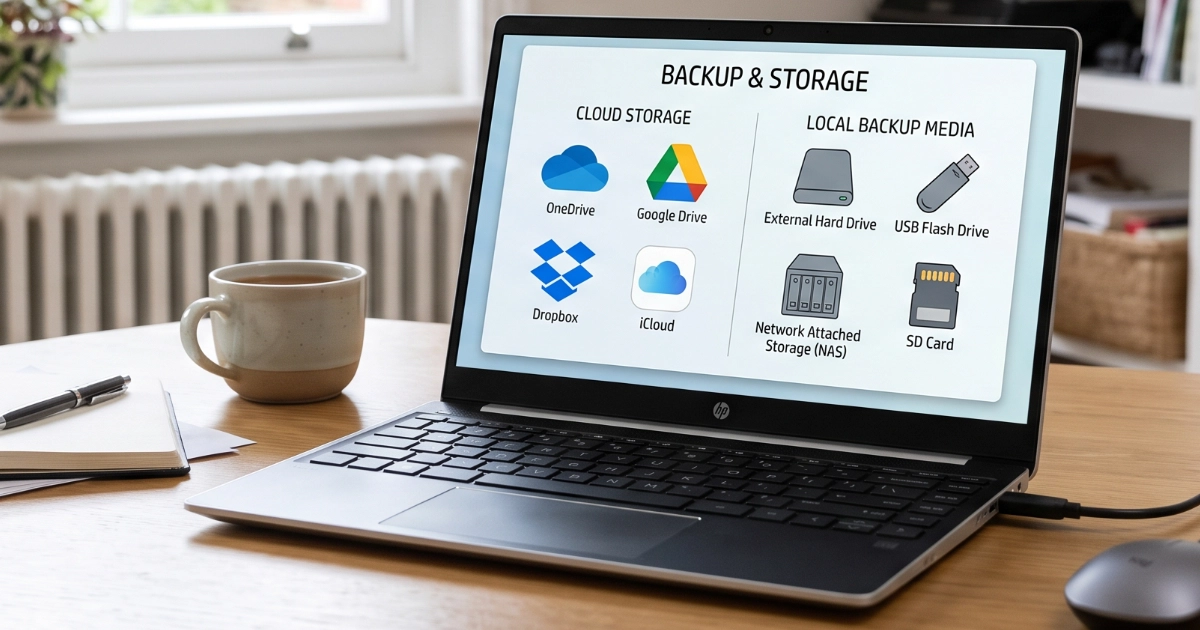
For example, you could keep important documents on your computer, synchronise them to OneDrive, and have a separate backup on an external hard drive. The cloud copy protects you if your laptop fails or is stolen, while the external backup provides another copy that doesn't have to reflect every change or deletion made on the computer.
That's a reasonably robust arrangement without spending a fortune or installing complicated software.
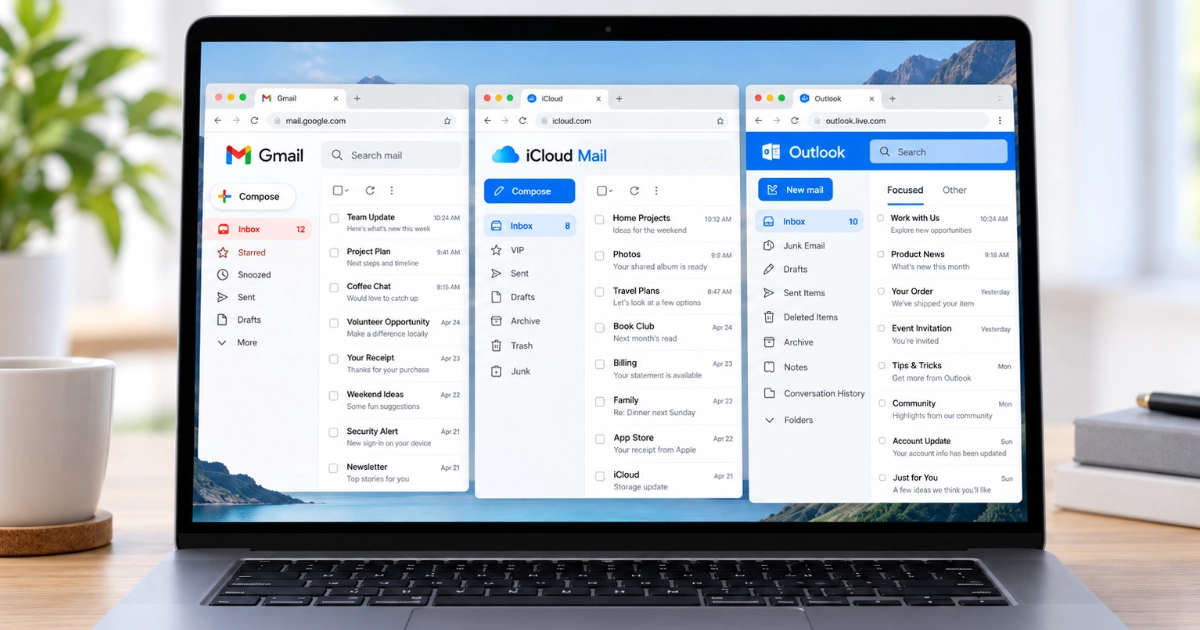
Cloud storage: OneDrive, iCloud and Google Drive
All three can be good choices, particularly if you're already using or paying for one. The important things are to check which folders are included, make sure synchronisation is working, and ensure you haven't run out of storage space.
If your cloud storage fills up, new files may stop uploading. I've covered that separately in My Email Says My Storage Is Full. Do I Need to Pay?, because the storage associated with your email account is often shared with photographs, documents and backups.
I'd also strongly recommend enabling two-step verification on your cloud account. Keeping your files online is convenient, but you need to protect access to that account too.
External hard drives and SSDs
An external USB drive is another straightforward option, and you don't necessarily need to buy expensive backup software.
On Windows, the built-in File History feature can automatically back up files from supported folders and libraries, allowing you to recover earlier versions. You can find it through Control Panel under System and Security, although it's worth checking which folders are included rather than assuming everything is covered.
On a Mac, Apple's Time Machine is an excellent built-in backup system. It can automatically back up documents, photographs, applications and other information to an external drive. Apple recommends using a backup drive with at least twice the storage capacity of your Mac, so a Mac with 512GB of storage would ideally have a backup drive of at least 1TB.
You can also simply copy important folders to an external drive, although that relies on remembering to do it regularly. Automatic backups are generally preferable because they're much less likely to be forgotten.
One thing I'd recommend is disconnecting your external backup drive when it isn't being used and keeping it somewhere safe. Reconnect it regularly so scheduled backups can run, and safely eject it after a completed backup. A drive that's constantly connected to your computer may also be exposed to malware, accidental deletion or other problems affecting that machine.
And remember, an external drive can fail too. Moving all your photographs from your laptop onto an external drive and deleting the originals isn't making a backup. It's just moving the only copy somewhere else.
Cloud-only files need particular care: a name in File Explorer or Finder does not necessarily mean the file itself is downloaded. Before making an external backup, make the files available offline and wait for the download to finish. Check that your backup contains an actual file you can open, rather than just a shortcut.
What about USB sticks and old discs?
USB memory sticks are useful for transferring files and keeping additional copies, but I wouldn't rely on a cheap USB stick as the only place to store important documents or family photographs. They're easy to lose, and they can fail.
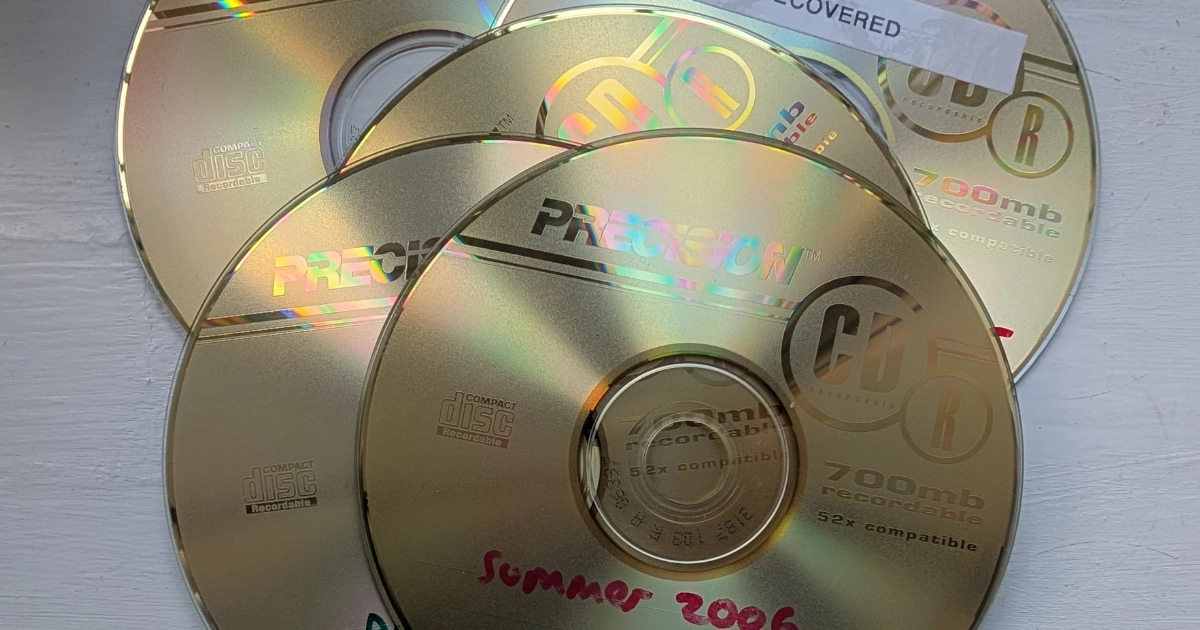
The same goes for old CDs and DVDs. I've written about that separately in Old Photo CDs and DVDs Aren't a Permanent Backup, after spending hours trying to recover photographs from discs that had been stored for twenty years.
There isn't one storage device that lasts forever. The protection comes from not depending on one copy.
Do you know where your recovery key is?
This is something worth checking even if you already have good backups, and it's particularly relevant when a computer needs repairing.
Many modern Windows computers encrypt the information stored on their drives. Depending on the Windows edition and the computer's configuration, this may be called BitLocker or Device Encryption.
Encryption is a good security feature. If someone steals your laptop and removes its SSD, it can prevent them from simply connecting the drive to another computer and reading your personal files.
But it also introduces something important to remember. If Windows can't automatically unlock an encrypted drive, you may be asked for a 48-digit BitLocker recovery key. Without that key, recovering access to the encrypted information can be impossible, even if the drive itself is working perfectly.
If a failed drive is successfully recovered by a specialist laboratory, the recovered information may also still be encrypted. The recovery key can't repair a physically failed drive, but it may be essential for accessing any data that can be retrieved.
Where can you find your BitLocker key?
If you use a personal Microsoft account to sign in to Windows, your recovery key may already be stored in that account. You can check at:
Sign in using the Microsoft account associated with your computer and look for its recovery key.
There's one complication I've seen with family computers. Sometimes somebody else originally set up the laptop, perhaps a son or daughter helping a parent. Microsoft confirms that if another person configured the computer or enabled BitLocker, the recovery key might be stored in their Microsoft account instead.
If your computer belongs to an employer or school, the key may be held by their IT department. It might also have been saved to a printout, a USB drive or another secure location when encryption was enabled.
The important thing is to establish where it is while your computer is still working normally. Microsoft is quite clear that its support team cannot retrieve, provide or recreate a lost BitLocker recovery key.
You can check whether Device Encryption is enabled in Windows Settings, or search for Manage BitLocker where that option is available. If you have a recovery key, make sure you can access it from another device and keep any additional copy somewhere secure, away from the computer it protects.
What about Macs?
Macs have a similar encryption feature called FileVault. Depending on how it's configured, recovery may involve your Apple Account or a separate FileVault recovery key.
If you use FileVault, make sure you know which recovery method you've chosen. Apple's FileVault guidance explains how it works.
I wouldn't recommend disabling encryption simply to avoid dealing with recovery keys. It's valuable protection for your personal information. But knowing how to recover access can make an enormous difference when something goes wrong.
The five-minute backup reality check
This is the bit I'd really encourage everyone to do.
You don't necessarily need to buy anything, install anything or change your current setup. Spend five minutes finding out whether the protection you think you have is actually working. A complete backup or restore test may take longer, but even a quick check can reveal something important.
1. Find out where your important files live
Open File Explorer on Windows or Finder on a Mac and look at where you normally save documents, photographs and other important files.
Are they inside OneDrive, iCloud Drive or Google Drive? Or are they stored in ordinary folders elsewhere on the computer?
Don't assume that because a cloud storage app is installed, every folder is included. Pay particular attention to Downloads, projects stored in unusual locations and anything saved on a second drive.
2. Check that cloud synchronisation is working
On Windows with OneDrive: Find the cloud icon near the clock, open Settings and look under Sync and backup → Manage backup. Check which folders are included and whether there are any synchronisation errors.
On a Mac with iCloud: Open System Settings → your name → iCloud → Drive. Check that synchronisation is enabled and whether Desktop & Documents Folders is switched on.
With Google Drive for desktop: Open the application, go into Preferences and check Folders from your computer to see which locations are being synchronised.
Then take the extra step that really matters. Open a web browser and visit OneDrive, Google Drive or iCloud Drive, depending on the service you use.
Can you see a document you saved recently? Can you open it?
That's much more reassuring than simply seeing a little cloud icon in the corner of your screen.
3. Check your separate backup
If you use an external drive, when was it last connected? Does it contain recent files, or is everything dated several years ago?
If you use automatic backup software, check when the last successful backup completed. An external drive sitting in a drawer is only useful if it actually contains the files you might need.
4. Try recovering a file
Choose an unimportant file from your backup and restore it to a separate location, making sure you don't overwrite the original.
Then open it.
This is a particularly useful test because it confirms that you can retrieve something, rather than simply trusting that a backup process has completed successfully.
5. Check your encryption recovery key
If you're using Windows, find out whether BitLocker or Device Encryption is enabled and check where the recovery key is stored.
Mac users should check their FileVault recovery arrangements.
You don't necessarily need to print the key, but you do need to know that you can access the relevant recovery method if your computer stops working.
If you've completed these five checks, you'll have a much clearer picture of how safe your files actually are. And if you've discovered something isn't being backed up, that's a useful discovery to make while everything is still working.
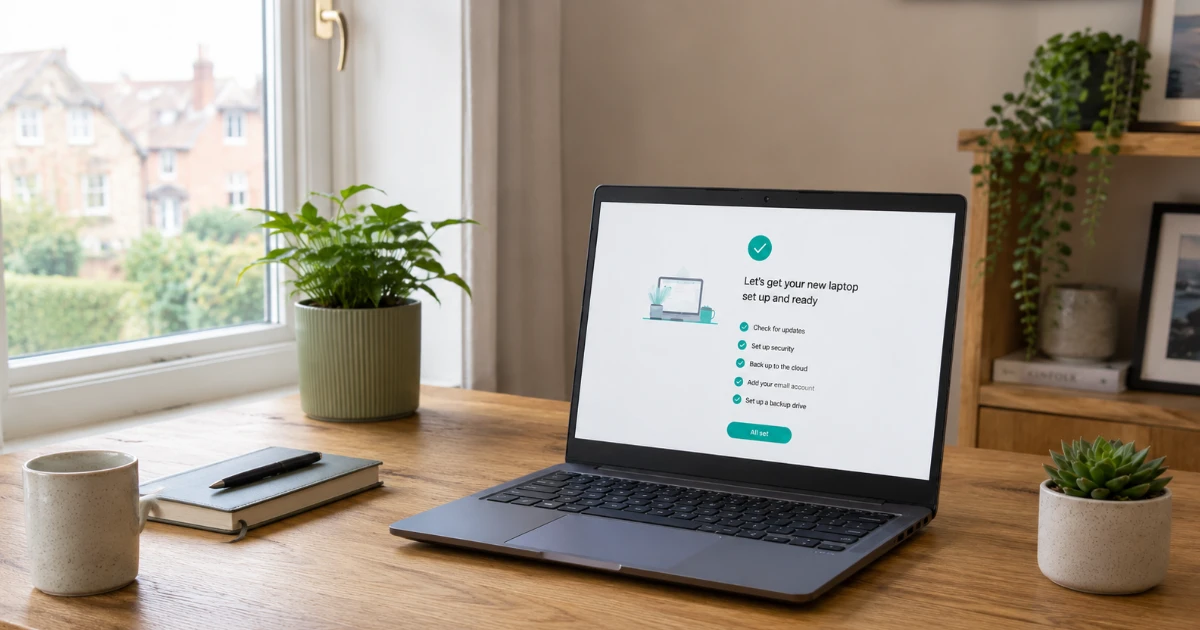
Your backup checklist
Print this and work through it whenever you set up a new computer, change cloud storage services or haven't checked your backups for a while.
Find your important files
Check cloud storage
Check your separate backup
Check encryption and recovery
Keep it working
Remember the 3-2-1 principle: three copies, two types of storage, one kept somewhere else.
You don't need to achieve perfection overnight. Start by protecting the files you couldn't replace.
Checked on: __________________ Next check: __________________
Marple Tech Help · marpletech.co.uk/help-hub/why-backups-matter/
The best time to check your backup is before you need it
The laptop I was working on will be fine once its failed SSD has been replaced. It's a perfectly usable machine, and replacing a drive is a routine job. But the files that were on the original drive are another matter.
That's the frustrating thing about these situations. A relatively inexpensive component can fail and potentially take years of irreplaceable work or memories with it. A replacement computer can be bought, Windows can be reinstalled and most software can be downloaded again. Your family photographs, personal documents and unfinished work might not be so easy to replace.
So here's my suggestion: before you close this page, find one important file on your computer and check that you can access a copy of it somewhere else.
It might take two minutes, and it could save an awful lot of trouble later.
Not sure whether your files are backed up?
I can help you work out where your important files are stored, whether your backups are doing what you expect, and what would be a sensible way to improve them.
My Tech MOT (£69) includes checking backup arrangements alongside storage, updates and security settings. More extensive backup setup can be discussed and priced separately.
You do not necessarily need another subscription or expensive equipment. You just need to know that the files which matter are not sitting in only one place.
I’m based in Marple and cover Stockport, SK6 and the surrounding area.
Sources and further reading
- Microsoft: Back up your folders with OneDrive
- Microsoft: Backup and restore with File History
- Microsoft: Find your BitLocker recovery key
- Apple: Back up your Mac with Time Machine
- Apple: Add your Desktop and Documents files to iCloud Drive
- Apple: FileVault recovery options
- Google: Use Google Drive for desktop
- National Cyber Security Centre: Backing up your data