Passkeys: The New Login Method That’s Replacing Passwords
More websites are asking you to create a passkey instead of using a password. Here is what that means, when it is safe to say yes, and what to avoid before you lock yourself out.
Why this matters now
The UK’s National Cyber Security Centre, part of GCHQ, said in April 2026 that passkeys should become the first choice for logging in where they are available.
That does not mean you need to switch everything today. It means passkeys are now mature enough to understand and use properly.
Quick Summary
- Passkeys replace passwords with something more secure that you do not have to remember.
- You have probably already seen the prompt on Google, Amazon, Microsoft, Apple, PayPal or another major account.
- It is usually safe to say yes, but only once you understand where the passkey will be saved and how you would recover the account if something went wrong.
- The main risk is not the passkey itself. It is setting one up without knowing your backup options.
Practical advice: Start with your main email account, Apple/Google/Microsoft account, Amazon and PayPal. Do not switch every account at once. Check your recovery phone number and recovery email first.
What is a passkey?
A passkey is a new way to prove who you are when you log into a website or app.
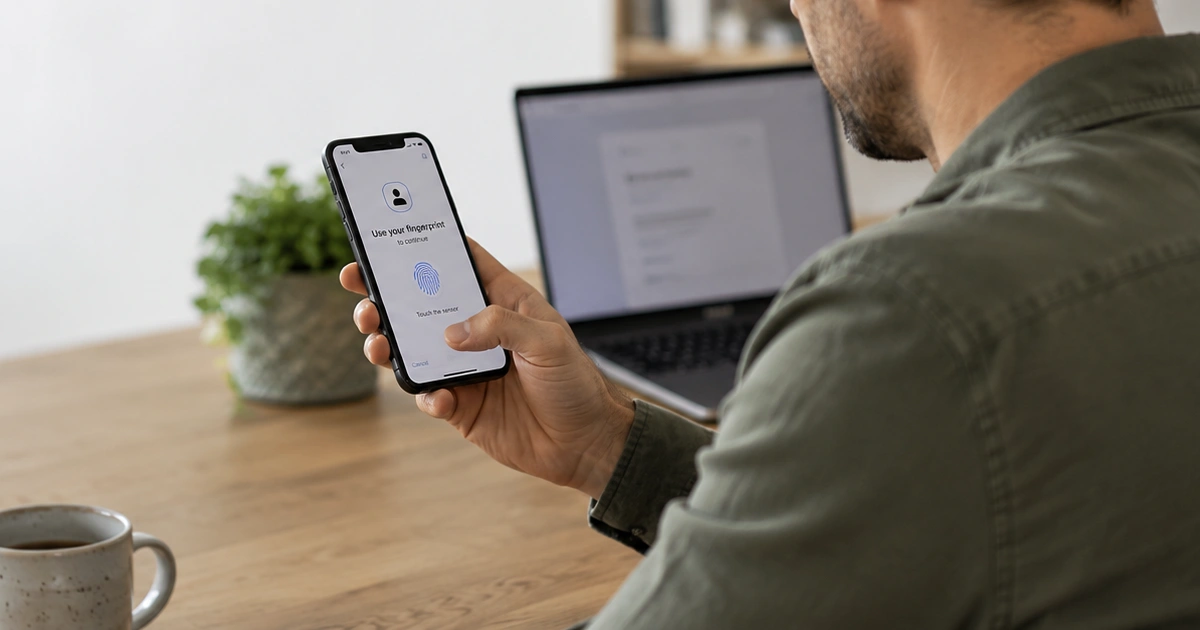
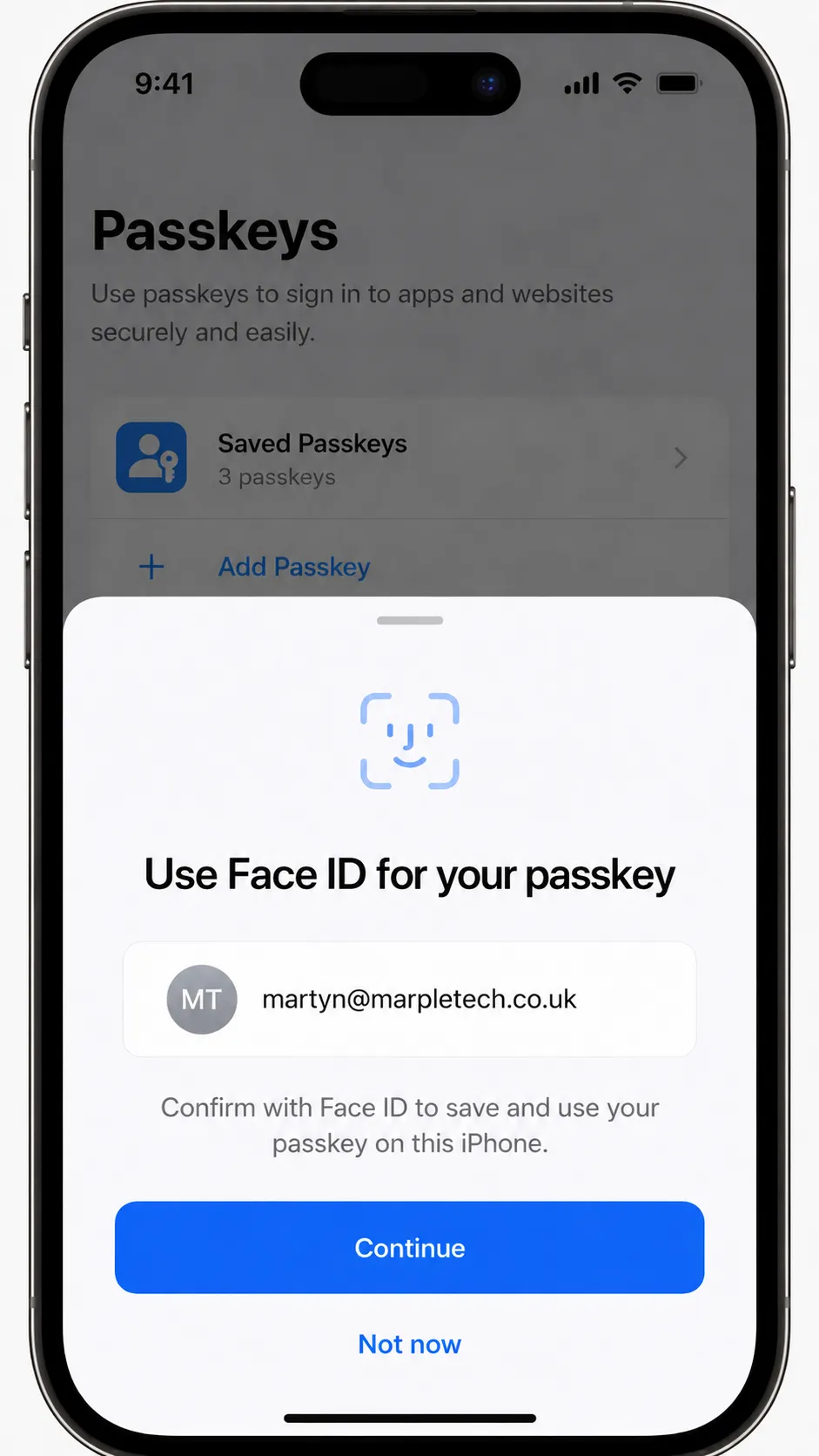
Instead of typing a password, your device handles the login for you. Usually, it asks you to use the same thing you already use to unlock your phone, tablet or computer: Face ID, fingerprint, Windows Hello or your device PIN.
That is it.
- No password to remember.
- No password to type.
- No password to forget.
From your point of view, logging in looks like this:
- You go to a website and press Sign in.
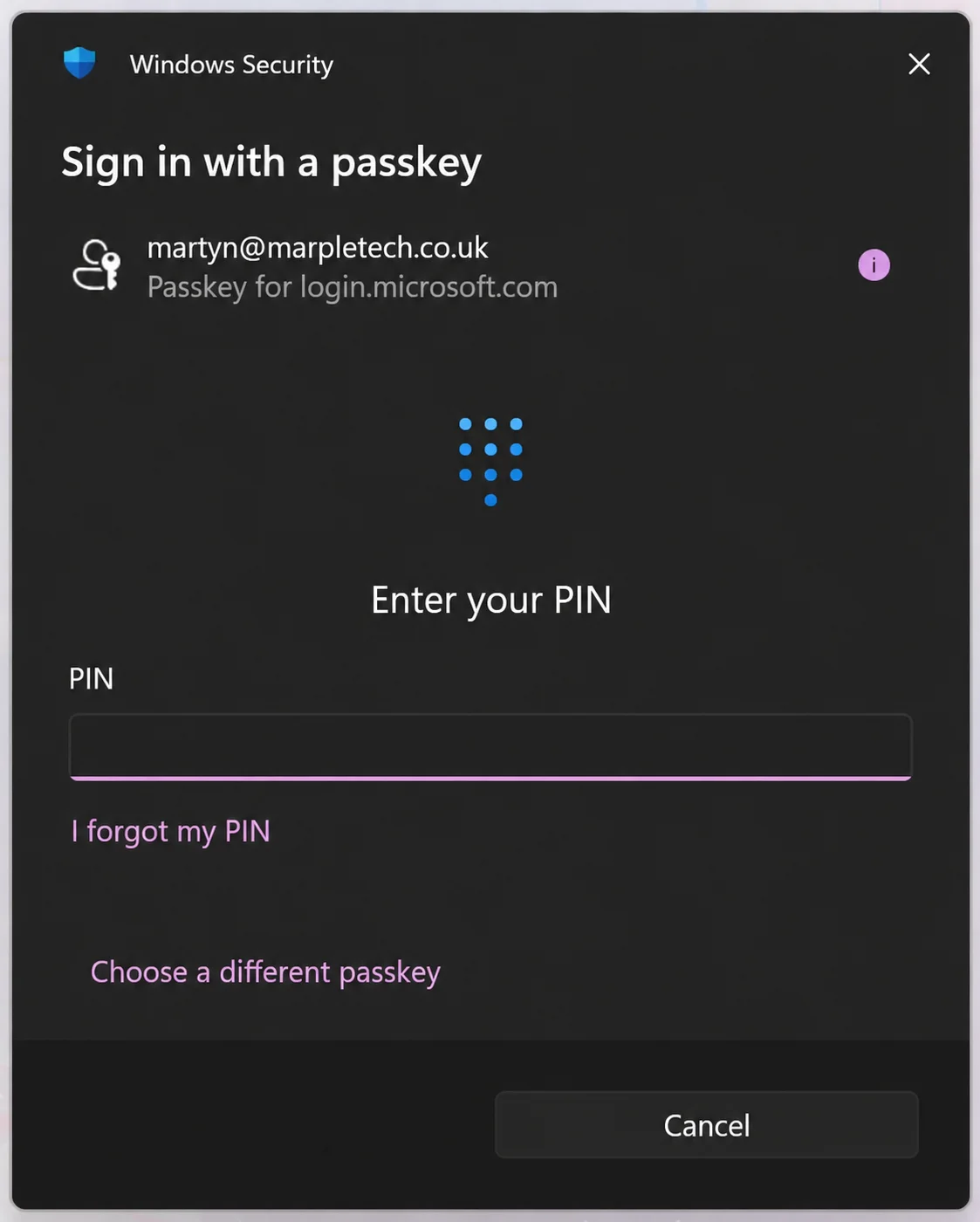
- A prompt appears asking you to use Face ID, your fingerprint, Windows Hello or your device PIN.
- You confirm.
- You are in.
No typing. No “forgot password” loop. No waiting for a text message code.
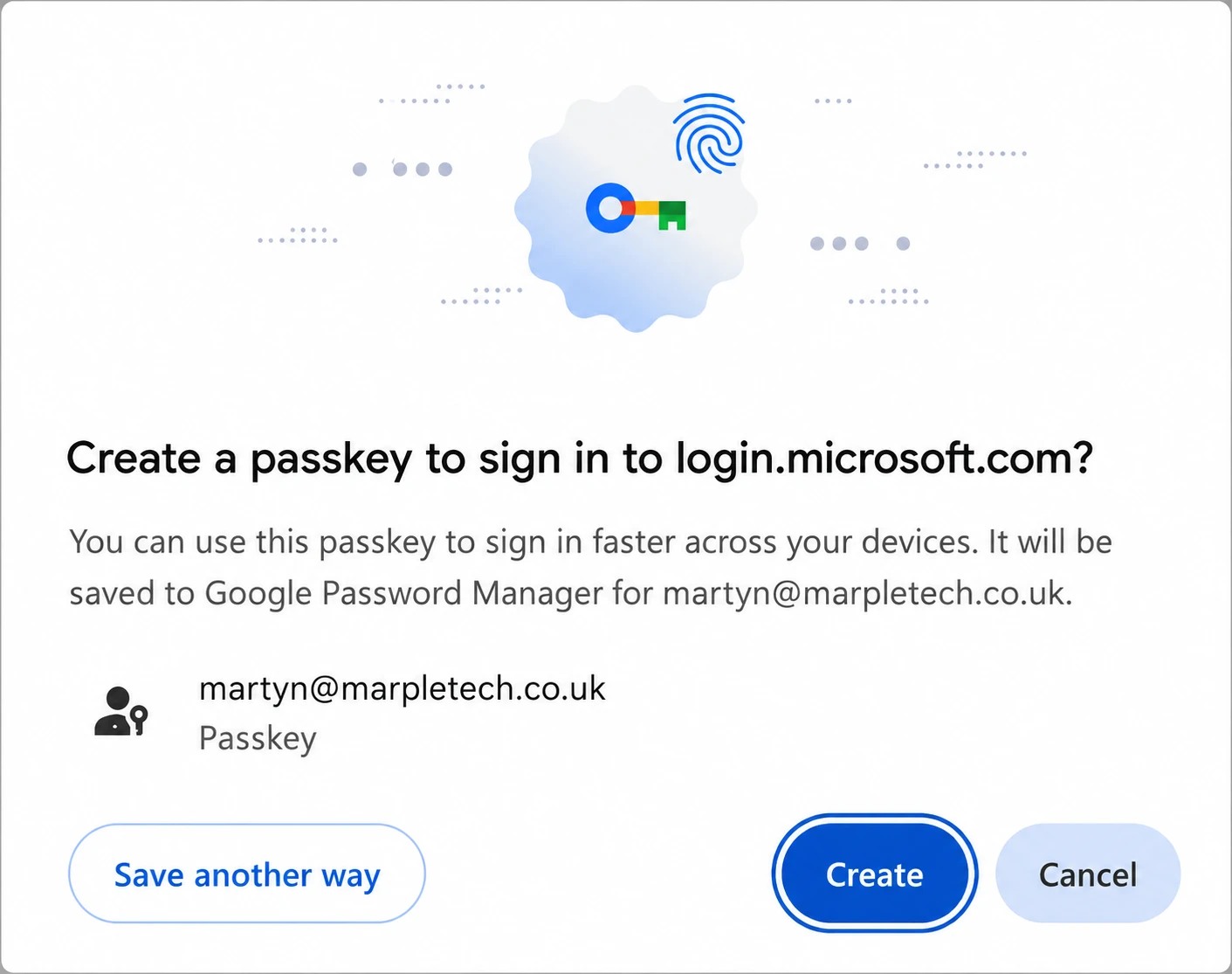
The wording varies between sites. Some say Create a passkey. Others say Sign in with your fingerprint, Use Face ID, Use Windows Hello, or something similar. They all mean roughly the same thing.
Why passkeys are safer than passwords
You do not need to understand all the technical details to use passkeys safely, but a simple explanation helps.
When you create a passkey, your device creates a secure pair of digital keys. One part stays private on your device, in your Apple, Google or Microsoft account, or in your password manager. The other part, called the public key, is saved by the website.
When you sign in, the website asks your device to prove it has the private key. Your device does that only after you unlock it with Face ID, fingerprint, Windows Hello or your device PIN.
The important points are:
- There is no password for you to type.
- There is no password for a scammer to trick out of you.
- There is no password database that can be leaked from the website.
- Your device checks it is talking to the real website before using the passkey.
That is why passkeys are much harder to steal than passwords. They are not perfect, and you still need good recovery options, but they remove many of the most common ways people lose access to accounts.
Where you might already have seen them
You have probably seen a passkey prompt already and dismissed it because it was not explained properly.
That is completely understandable. Most websites are very good at adding new security features and very bad at explaining them in plain language.
Common places passkey prompts appear:
- Google accounts
- Apple accounts
- Microsoft accounts
- Amazon
- PayPal
- Password manager apps
- Some banks and financial services, although support varies
- Websites using Chrome, Safari, Edge or Firefox
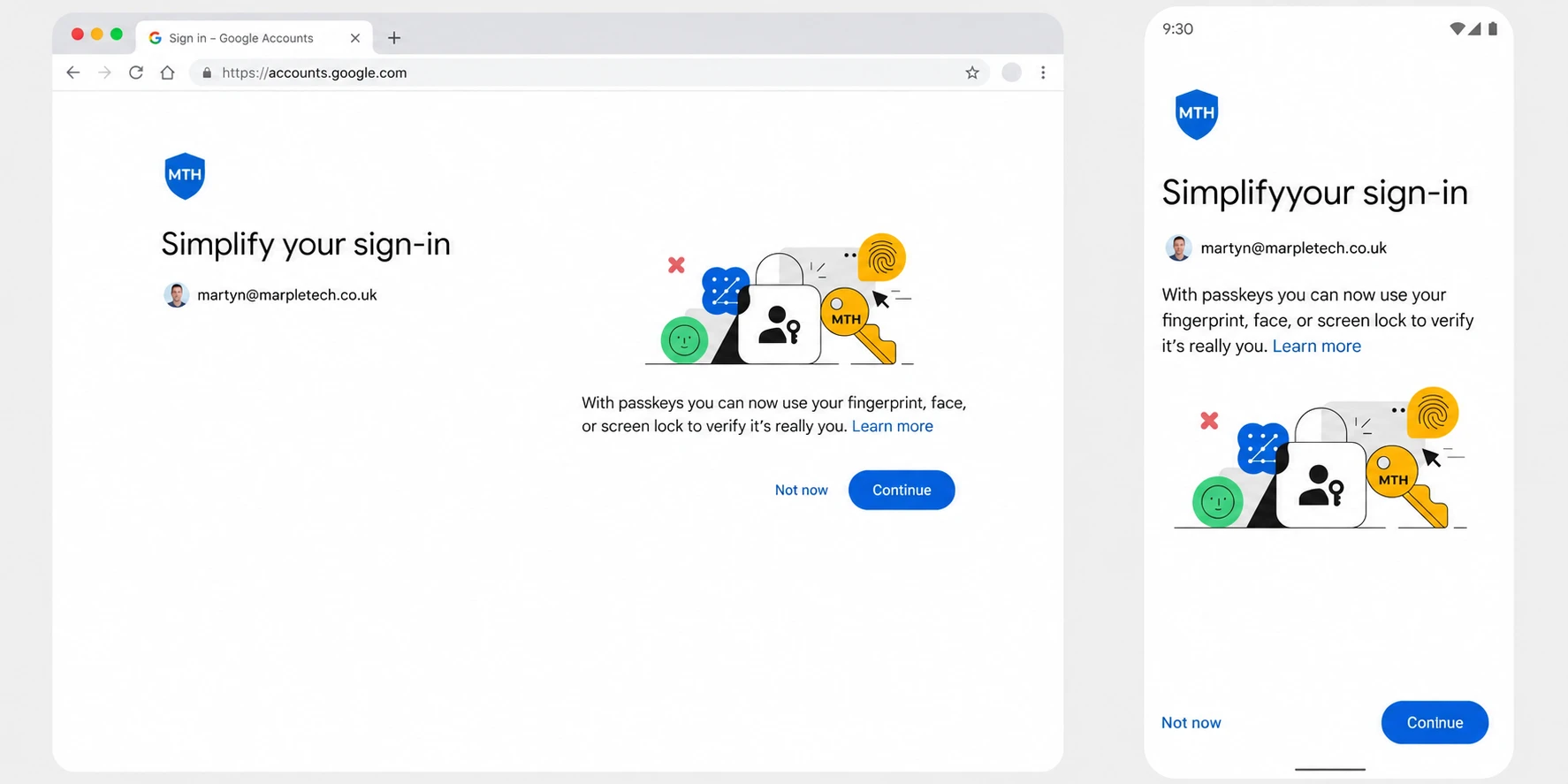
If you tapped Not now, Skip or Use password instead because you were not sure what it was asking, that was a perfectly sensible thing to do. Now you are better placed to decide.
When it is safe to say yes
In most cases, creating a passkey is the right move. It is usually worth saying yes when all of the following apply.
You are on your own device
Create passkeys on a phone, tablet or computer that belongs to you. Do not create one on a public computer, a borrowed laptop or a shared device unless you are very clear about what you are doing.
Your device has a screen lock
Your device should already be protected with Face ID, fingerprint, Windows Hello, a PIN or a password.
If it has no lock at all, sort that first. A passkey relies on your device being secure. If anyone can pick it up and unlock it, passkeys are not the first thing to fix.
You are on the real website
If you went directly to google.com, amazon.co.uk, microsoft.com, paypal.com or another genuine website and the prompt appeared during login, that is normally fine.
If the prompt came from a suspicious email, advert, text message or unexpected pop-up, stop. Close the page and go to the website by typing the address yourself or using a saved bookmark.
You are not in a rush
Do not set up passkeys while distracted or halfway through sorting something else.
Take two minutes to understand what is being created and where it will be saved.
Crucial: set up a backup before you start
This is the most important section.
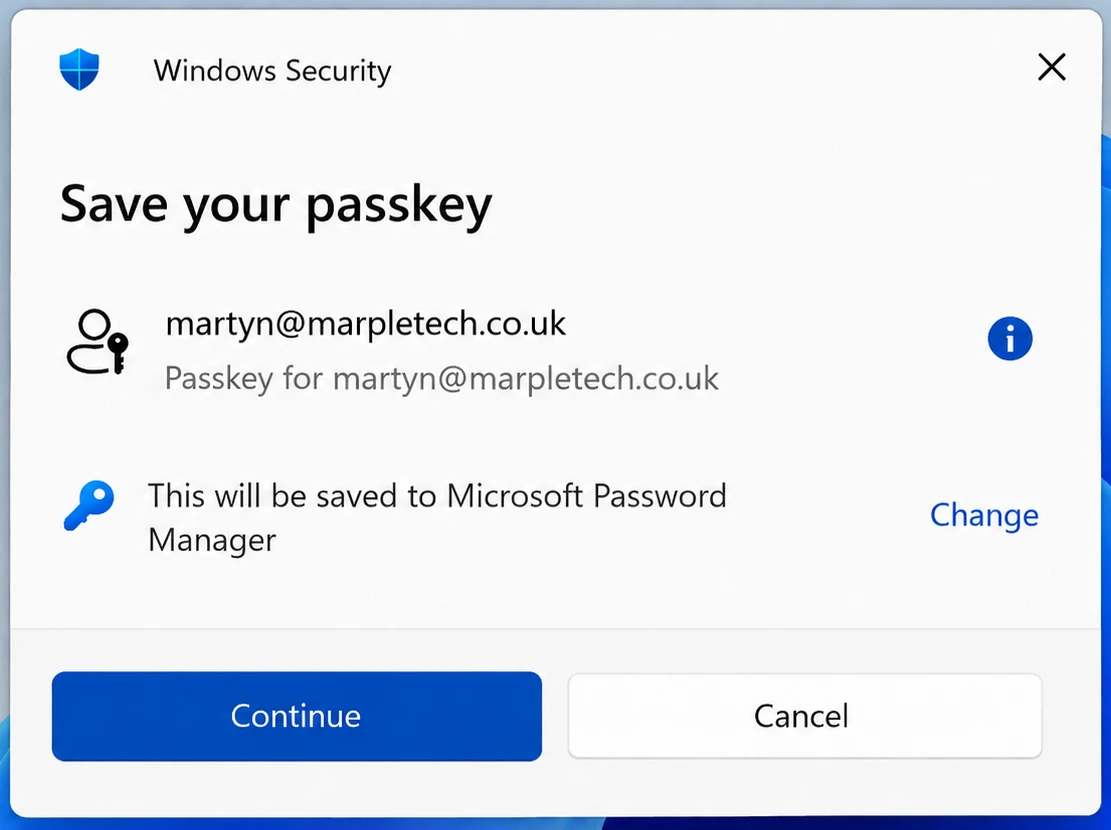
Passkeys are created on your device and protected by your device security. In many cases they are also synced securely through iCloud Keychain, Google Password Manager, Windows or a dedicated password manager such as 1Password, Bitwarden or Dashlane.
That syncing is useful. It means your passkeys may come back when you sign into the same Apple, Google, Microsoft or password manager account on a new device.
But it also means those accounts become even more important than they already were.
Before creating passkeys on important accounts, check these three things.
1. Your recovery details are up to date
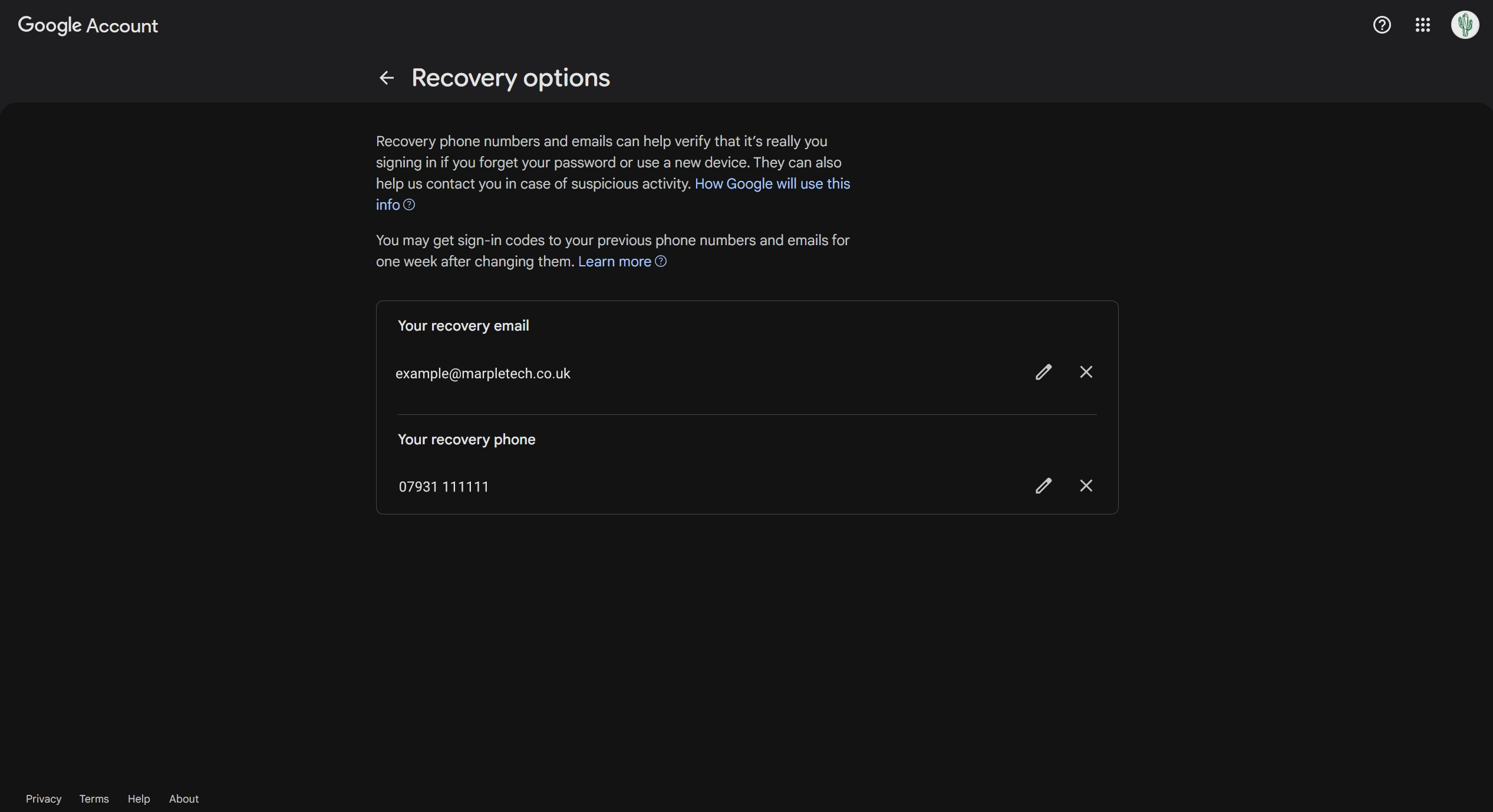
For major accounts such as Google, Apple, Microsoft, Amazon and PayPal, check that your recovery email address and phone number are correct.
- Old mobile number?
- Old work email?
- Email account you no longer use?
Fix that before relying on passkeys. Account recovery almost always depends on those details.
2. You know your Apple, Google or Microsoft account password
This sounds obvious, but it is one of the most common weak spots.
- If your passkeys are syncing through iCloud Keychain, your Apple Account is your safety net.
- If they are syncing through Google Password Manager, your Google account is your safety net.
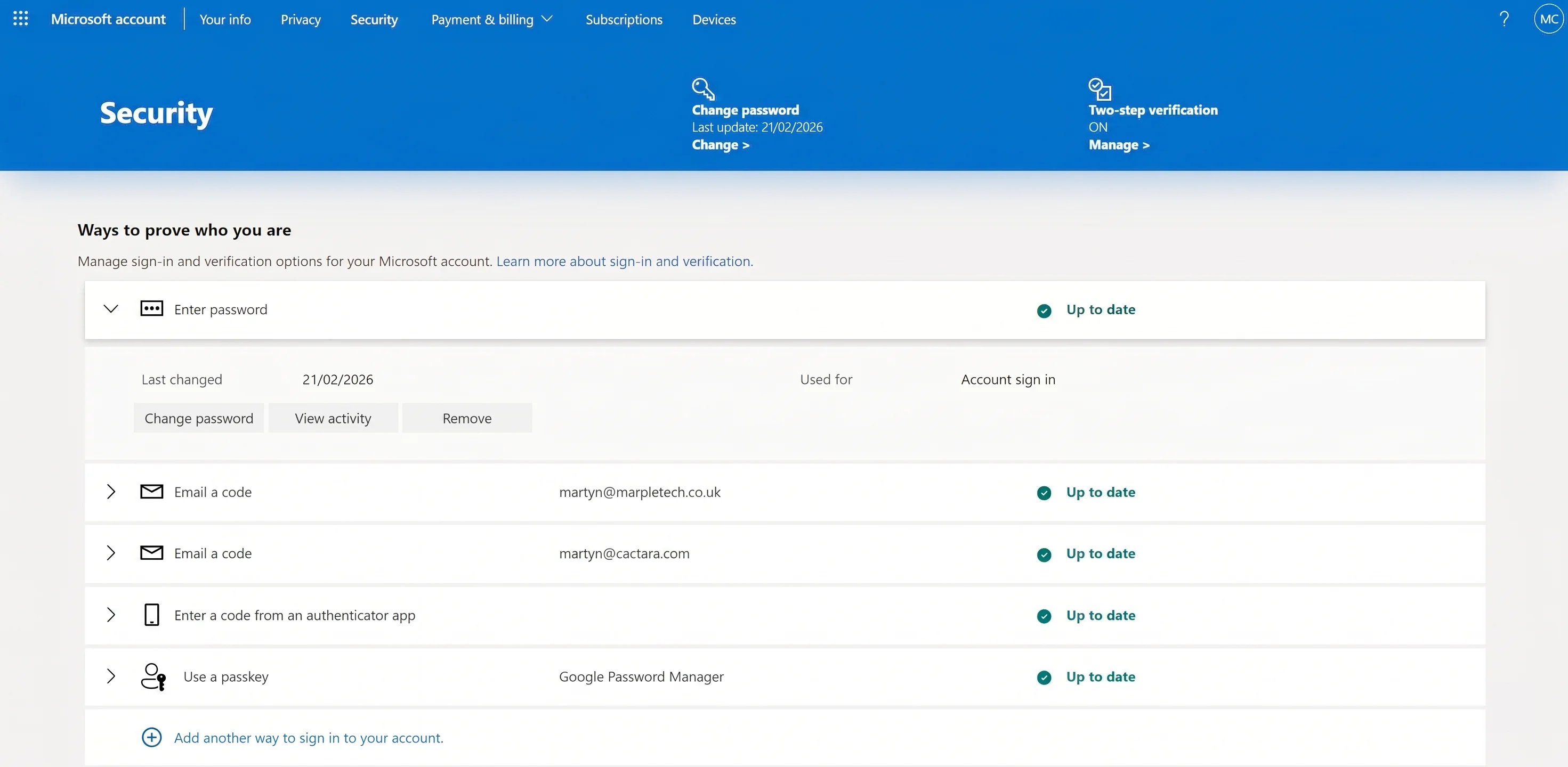
- If you are on Windows or Microsoft services, your Microsoft account is your safety net.
Make sure you can sign into whichever account is storing your passkeys. That is how you get them back if your device is lost, replaced or damaged.
3. You know where the passkey is being saved
This is where people get most confused.
- On an iPhone, iPad or Mac, passkeys are usually saved in iCloud Keychain.
- On Android, they are usually saved in Google Password Manager.
- On Windows, they may be linked to Windows Hello or your Microsoft account.
- If you use a dedicated password manager such as 1Password, Bitwarden or Dashlane, your passkeys may be stored there instead.
You cannot usefully write down a passkey the way you can a password. But it is worth keeping a simple note of which accounts you have switched to passkeys and where those passkeys are stored.
For example:
- Google account - passkey saved via iPhone / iCloud Keychain
- Amazon - passkey saved via Google Password Manager
- PayPal - still using password and 2FA
That kind of note can be very helpful if you change phone, replace a laptop, or need to help a family member recover access.
What if I use multiple devices?
A common worry:
“If I set up a passkey on my iPhone, will I still be able to log in on my laptop?”
Usually, yes. Here is how it works depending on your setup.
If you use Apple devices
If you use an iPhone, iPad and Mac with the same Apple Account, your passkeys sync through iCloud Keychain. A passkey created on your iPhone can also be used on your iPad or Mac.
If you use Google
If you use Android with Chrome signed into the same Google account, passkeys sync through Google Password Manager and are available across those devices.
If you mix devices
This is very common, for example an iPhone and a Windows laptop.
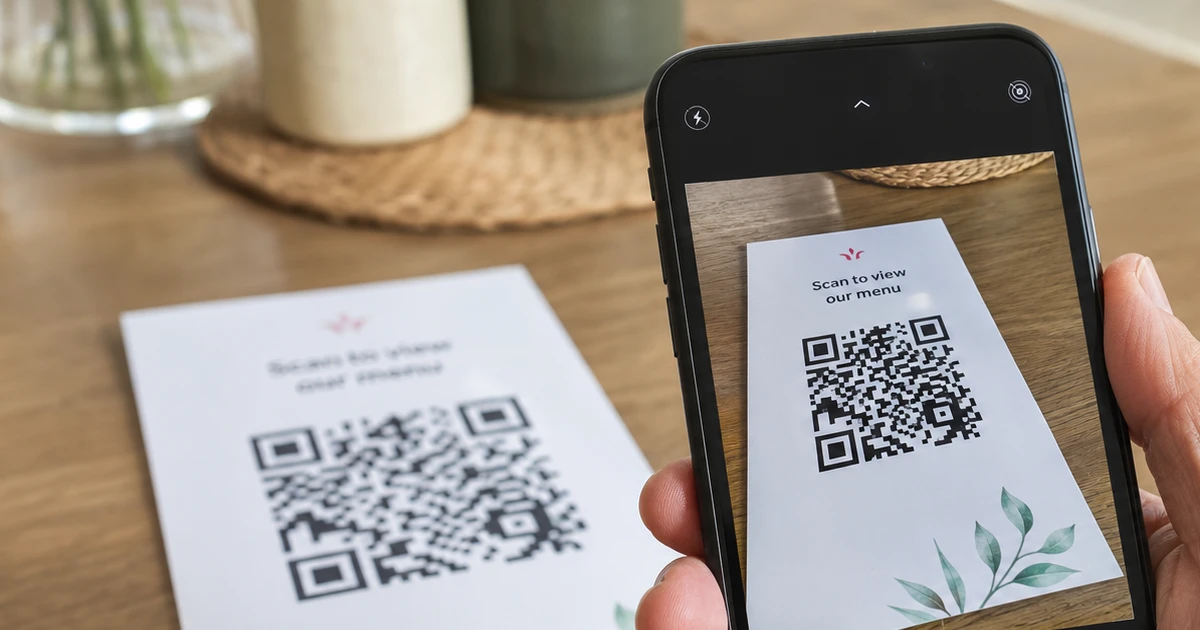
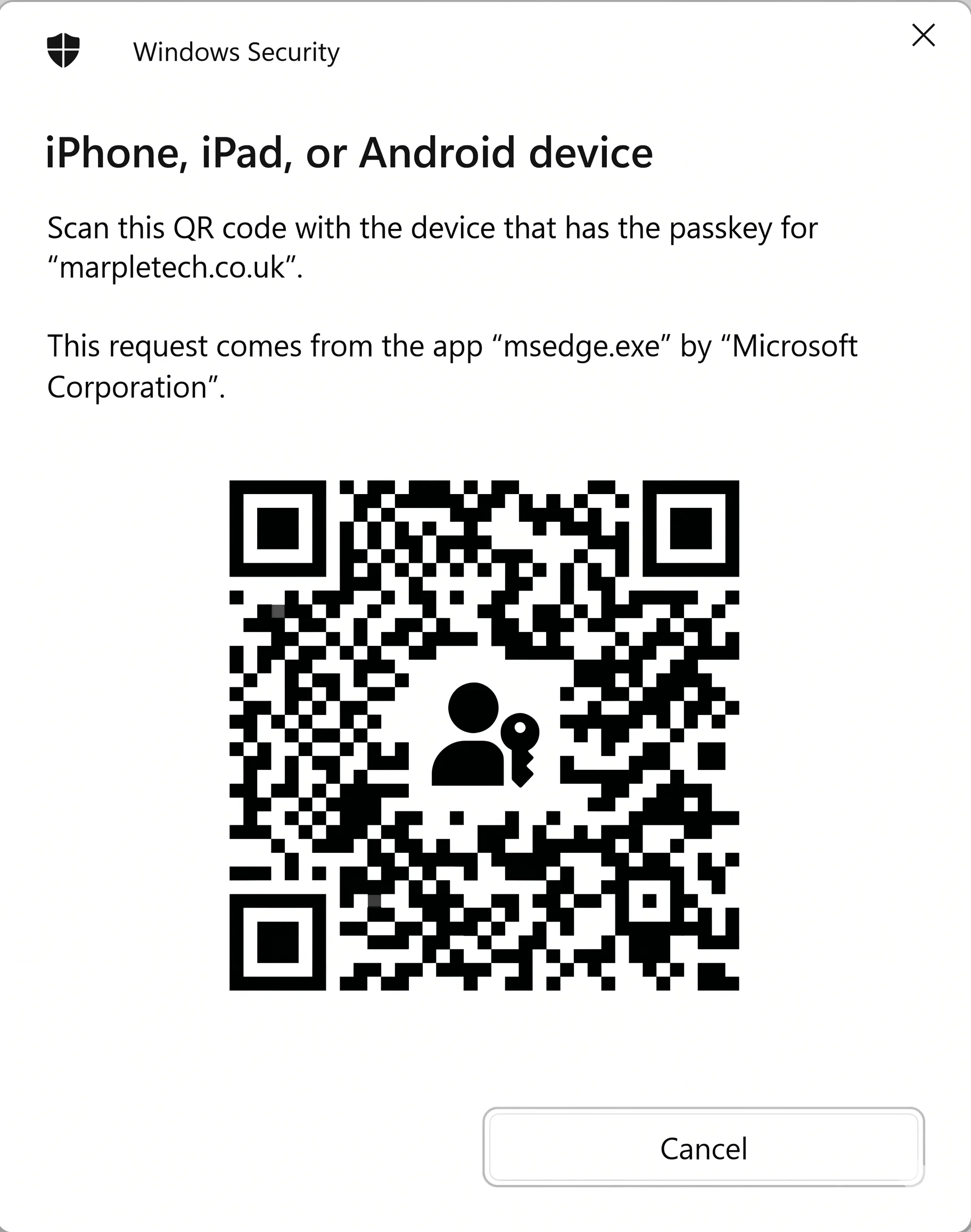
Most major websites handle this well. When you try to sign in on the laptop, the site may show a QR code. You scan it with your phone, approve with Face ID or fingerprint, and you are signed in on the computer.
Do I have to switch? Can I keep my password?
No. Passkey prompts are almost always optional. You can choose Not now, Skip or Use password instead and carry on as before.
That said, if a major service is offering you a passkey, accepting it is usually a good idea once you understand what is happening.
Most sites currently let you keep both:
- a passkey for quicker, safer login
- a password as a backup
That may change over time, but for now passkeys are usually being added as an extra option rather than instantly replacing everything else.
Should I use passkeys for every account?
Not necessarily. Start with the accounts that matter most:
- Your main email account
- Apple, Google or Microsoft account
- Amazon
- PayPal
- Your password manager
- Banking or financial services, where clearly supported
There is no need to rush and create passkeys on every small website you use once a year.
The priority is protecting the accounts that would cause the biggest problem if someone got in, or if you got locked out. Your email account matters most because it is usually the recovery route for everything else.
A simple decision guide
You see a passkey prompt. Ask yourself four questions.
1. Am I on my own device?
If not, choose Not now.
2. Is my device protected with Face ID, fingerprint, Windows Hello, PIN or password?
If not, fix that first.
3. Do I know the password and recovery details for my Apple, Google, Microsoft or password manager account?
If not, sort that before creating passkeys on important accounts.
4. Am I definitely on the real website?
If you are not sure, close the page and navigate there directly yourself.
If the answer to all four is yes, creating the passkey is a sensible move.
The sensible approach for most people
Passkeys are a genuine improvement over passwords, especially for people who reuse passwords, forget them, or struggle with text message codes.
But there is no need to switch everything at once.
A reasonable sequence:
- Secure your main email account first.
- Check your recovery phone number and recovery email are current.
- Make sure your Apple, Google or Microsoft account is in good shape.
- Create passkeys on major accounts.
- Keep a simple note of where each passkey is being stored.
Done properly, passkeys make life easier and more secure. Done in a rush without a backup plan, they can cause unnecessary stress.
Need a hand setting this up?
Passkeys are straightforward once you have been through the process, but the first time can feel uncertain, especially on accounts you really cannot afford to lose access to.
Marple Tech Help can walk you through the setup on your own device, check your recovery details are in good shape, and make sure you have a sensible fallback if something changes later.
I’m based in Marple and cover Stockport, SK6 and the surrounding area.
Final thought
Passkeys are not just another confusing login prompt. They are one of the biggest improvements to online account security in years.
For most people, the answer is not “avoid them”. The better answer is: say yes, but only once you know where the passkey is being saved and how you would recover the account if your device changed.
That is the difference between safer login and accidental lockout.