Stop Paying for Antivirus: Why Microsoft Defender Is Enough for Most People
Paying £80 or more a year for McAfee or Norton? You probably don't need to. Here's why Microsoft's free antivirus is enough for most people, how to stop paying, and how to remove the alternatives safely.
The short version
- Most home Windows 11 users already have the antivirus they need: Microsoft Defender is built in and free.
- Check the extras first. Move passwords or backups you rely on before cancelling a security bundle.
- Uninstalling does not cancel your subscription. Stop automatic renewal separately and check your refund options.
- Restart and check Windows Security afterwards. Confirm Defender is active before assuming you are protected.
The unofficial tax on owning a computer
If you're using an up-to-date Windows 11 computer, you almost certainly don't need to pay £60, £80 or £100 a year for antivirus software.
Why? Because Windows already includes Microsoft Defender Antivirus, an excellent antivirus product that provides real-time protection against viruses, ransomware and other malware.
It's built in. It's free. And for most home users, it's all the antivirus protection you need.
Yet I regularly encounter people paying annual subscriptions for software that, in my view, they simply don't need.
At least three-quarters of my clients are paying for antivirus
In my work at Marple Tech Help, I'd estimate that at least 75% of the clients I help are actively paying annual subscriptions for McAfee or Norton.
That's not a scientific survey of households in Marple. It's an estimate based on the people I encounter through my business. But I find it astonishing how many are paying year after year for antivirus protection they probably don't need.
For many, paying for antivirus has become almost an unofficial tax on owning a Windows PC. Another £60, £80 or even £100 disappearing from their bank account every year.
When I explain that Windows already includes excellent antivirus protection for free, the reactions are mixed.
Some have never heard of Microsoft Defender. Others know it exists but assume that paying for something else must offer better protection. And some simply believe that paying for antivirus is part of being a responsible computer owner.
I understand why. Nobody wants their computer infected, their bank details stolen or their personal information compromised.
What I object to is an industry that has spent years encouraging people to believe that protecting a computer requires an ongoing subscription, even when the protection already included with Windows is more than sufficient for their needs.
I'm particularly critical of McAfee and Norton. Not because their antivirus software doesn't work, but because I believe too many ordinary people are paying substantial amounts for something they don't need.
Is Microsoft Defender actually any good?
Yes. And you don't have to take my word for it. AV-TEST, an independent security testing organisation, regularly evaluates antivirus products against real-world threats.
In its August 2026 Windows 11 tests, Microsoft Defender Antivirus achieved:
- Protection: 6 out of 6
- Performance: 5.5 out of 6
- Usability: 6 out of 6
McAfee, Norton, Avast and AVG also achieved full marks for protection. McAfee and Norton both scored 6 out of 6 in all three categories, giving them a slightly better overall result than Defender in that particular test.
That's worth acknowledging.
I'm not suggesting paid antivirus products are ineffective, or that Defender always wins every independent test. It doesn't.
But for most home users, the protection Defender provides is already excellent, and paying for another antivirus subscription is unlikely to deliver a meaningful additional benefit.
See the independent AV-TEST results
Windows Security also includes a firewall, protection against suspicious downloads and websites, and additional security features.
You don't need to download Microsoft Defender Antivirus separately, buy Microsoft 365 or sign up for an annual subscription to use it.
For more on how people end up paying year after year, see Are You Paying for McAfee or Norton When You Don’t Need To?
Why I have a problem with McAfee and Norton
My frustration isn't simply about the price. It's about the way antivirus subscriptions have been marketed.
The free trial that becomes an annual bill
Buy a new Windows laptop and there's a reasonable chance it'll arrive with a trial of McAfee or Norton already installed.
For a few weeks, everything appears fine. Then the messages begin. Your protection is expiring. Your subscription needs renewing. Your computer may be at risk.
For someone who isn't particularly confident with technology, that can be worrying. So they pay.
And because many subscriptions renew automatically, that payment can continue year after year.
But here's something those warnings don't necessarily make clear:
When you remove McAfee or Norton, Microsoft Defender Antivirus normally takes over automatically.
Your computer doesn't suddenly become unprotected simply because you've stopped paying for a third-party antivirus product.
The Competition and Markets Authority intervened
This isn't just my personal frustration.
On 27 November 2018, the UK's Competition and Markets Authority (CMA) opened an investigation into the antivirus software industry.
The investigation looked at whether companies' automatic renewal practices and subscription terms were fair to customers.
On 25 May 2021, McAfee gave formal undertakings to the CMA, followed by Norton on 14 June 2021.
These commitments included clearer renewal information, improvements to cancellation arrangements and extended refund rights.
Importantly, the companies gave their undertakings voluntarily, without admitting wrongdoing or liability. The CMA did not obtain a court ruling establishing that their subscription practices breached consumer protection law.
Nevertheless, I think it's telling that regulatory intervention was needed to address concerns about how these subscriptions were being renewed and cancelled.
Read the CMA's McAfee announcement
Read the CMA's Norton announcement
Security software should protect people, not leave them frightened of cancelling a subscription.
What about Avast and AVG?
Avast and AVG are capable antivirus products, and both have free versions that perform well in independent testing.
But I don't generally recommend installing either on an ordinary Windows 11 home computer.
Why add another antivirus application, with its own notifications, background processes and potential upgrade offers, when Windows already includes excellent protection?
Even when the alternative is free, I don't see a compelling reason for most people to install it.
My recommendation is straightforward: use Microsoft Defender unless you have a specific reason to use something else.
Are there reasons to pay for antivirus?
Yes, occasionally.
Some paid packages include additional services such as:
- VPN protection
- Identity monitoring
- Password management
- Parental controls
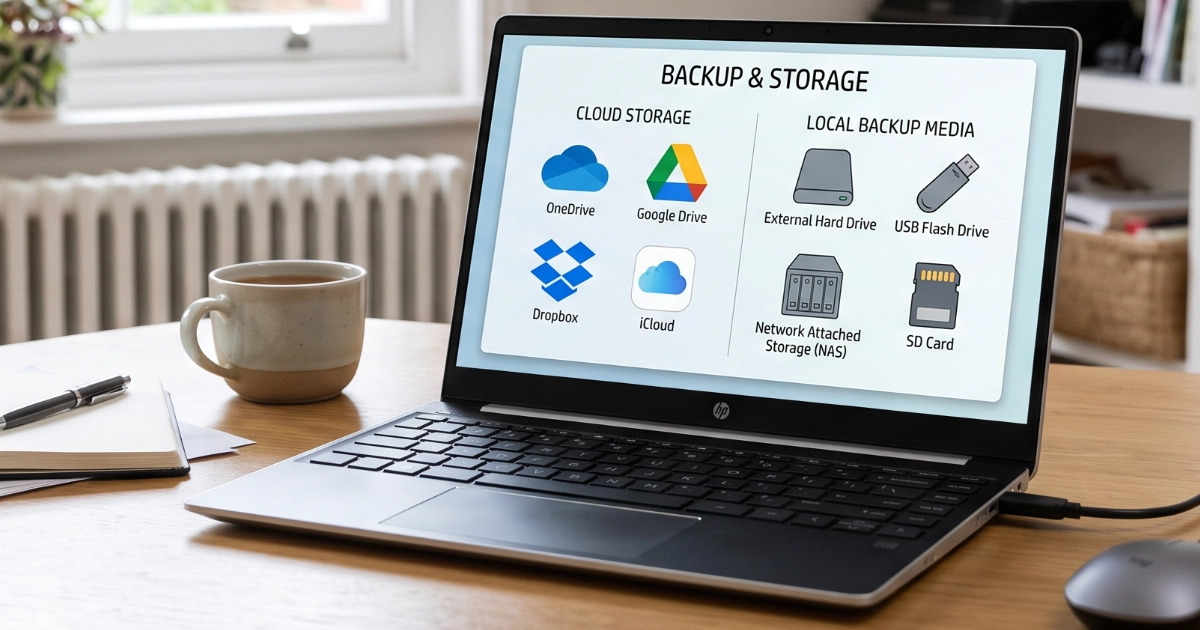
- Cloud backup
- Security features for multiple devices
These extras might be valuable to particular households. A paid security suite can also make sense for somebody who wants everything managed through a single service.
But that's a different decision from whether you need to buy antivirus protection.
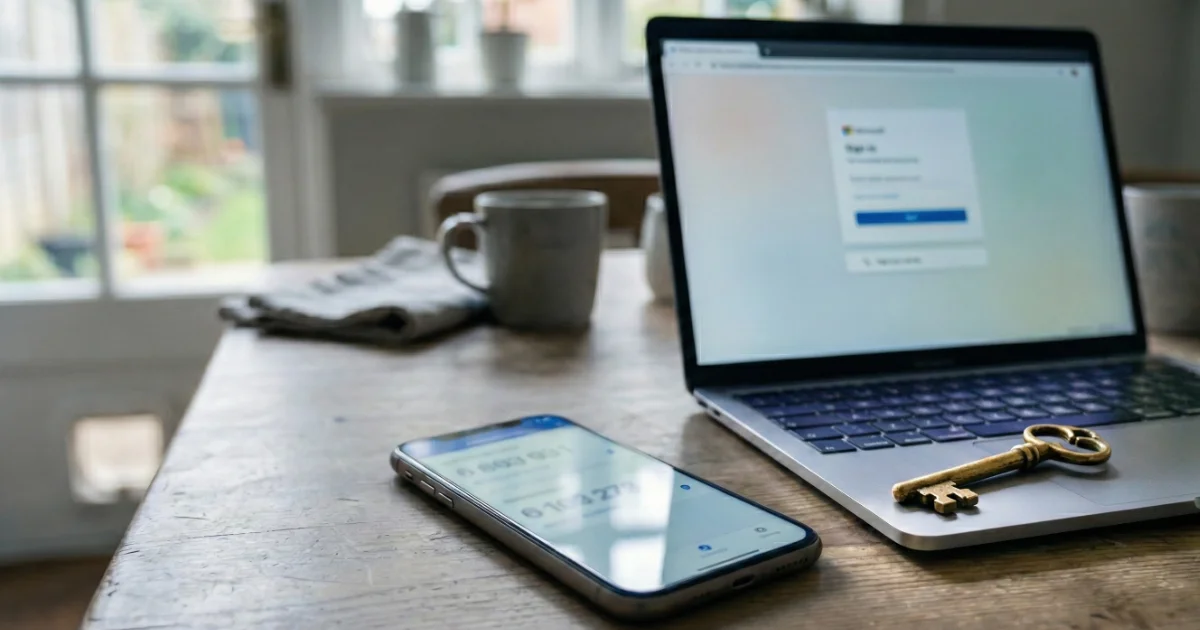
For an ordinary home computer used for shopping, banking, email, photographs and browsing, I'd prioritise an updated operating system, strong passwords, two-factor authentication and reliable backups.
Those are the foundations of good security.
How to stop paying for antivirus and remove it safely
If you've decided to switch to Microsoft Defender, I'd recommend following these steps in order:
- Check which services you're using.
- Cancel automatic renewal.
- Request a refund if you're eligible.
- Uninstall the unwanted antivirus.
- Confirm Microsoft Defender is protecting your PC.
There's an important distinction here: uninstalling an application doesn't cancel its subscription.
You could remove McAfee today and still be charged next year if you haven't cancelled automatic renewal.
Step 1: Check what you're currently using
Before cancelling anything, check whether your security subscription provides services you actively rely on.
These might include a password manager, VPN, online backup or parental controls.
If so, decide whether you need an alternative.
For example, don't remove a password manager containing all your passwords until you've safely transferred them somewhere else.
You should also check who is charging you. Your subscription might be billed directly by McAfee or Norton, or through a retailer, broadband provider or another company.
Your renewal emails and bank statements are often the easiest places to start.
Step 2: Cancel your antivirus subscription
Jump to your software: McAfee · Norton · Avast · AVG
This is the step that stops future renewal charges.
Don't wait until the subscription's advertised expiry date. Some providers collect payment weeks beforehand.
How to cancel McAfee
- Sign in to McAfee My Account.
- Open Account → Auto-Renewal Settings, then follow the instructions to turn off automatic renewal. Depending on the account interface, renewal controls may also appear under Manage Subscriptions.
- Keep the confirmation.
McAfee states that automatic renewal payments can be taken 30 days before the subscription expires. Turn off automatic renewal before that billing date to avoid another charge.
McAfee's official UK account and billing guidance
How to cancel Norton
- Visit Norton My Account.
- Open My Account, then My Subscriptions.
- Find the subscription and select Cancel Renewal or Manage Subscriptions.
- Follow the instructions to stop automatic renewal.
- Check for confirmation.
Norton advises allowing up to 24 hours for the change to appear in your account. A confirmation email may take up to 48 hours.
Official Norton UK cancellation and refund policy
How to cancel Avast
- Sign in to your Avast account.
- Open Manage subscriptions or My subscriptions.
- Find the subscription.
- Choose Unsubscribe or the relevant renewal-management option.
- Complete the cancellation process.
Official Avast cancellation instructions
How to cancel AVG
- Sign in to your AVG account.
- Open Manage subscriptions.
- Select Unsubscribe under the relevant subscription.
- Follow the prompts until cancellation is confirmed.
Official AVG cancellation instructions
A note about Avast and AVG: Annual subscription renewal payments can be collected up to 35 days before the next subscription period begins. Check the actual billing date rather than assuming it matches the expiry date.
Account screens sometimes change, so follow the manufacturer's current guidance if an option has been renamed.
If your subscription was purchased through another company, you may need to cancel through that provider instead.
Step 3: Already been charged? Check your refund rights
If you've recently discovered an antivirus renewal you didn't want, don't automatically write the money off.
Following the CMA's intervention, McAfee and Norton established extended rights for UK customers whose annual subscriptions renew automatically.
For qualifying annual renewals, both provide:
- Within 60 days of the renewal charge: the ability to request a full refund.
- After 60 days: the ability to request a proportionate refund for the remaining unused subscription period, subject to the applicable terms.
For Norton, the proportionate refund is calculated using full months remaining, starting with the month after your request. Check McAfee’s current refund policy for its calculation and exclusions.
These arrangements generally apply to eligible direct subscriptions. Purchases through third parties and certain other products may be treated differently.
The important point is that you may still be able to recover some money even if more than 60 days have passed.
And there's a distinction between turning off future renewal and requesting a refund for an existing charge. The latter requires a separate request.
McAfee UK refund and billing information
Norton UK cancellation and refund policy
Keep your receipts, renewal emails and cancellation confirmations.
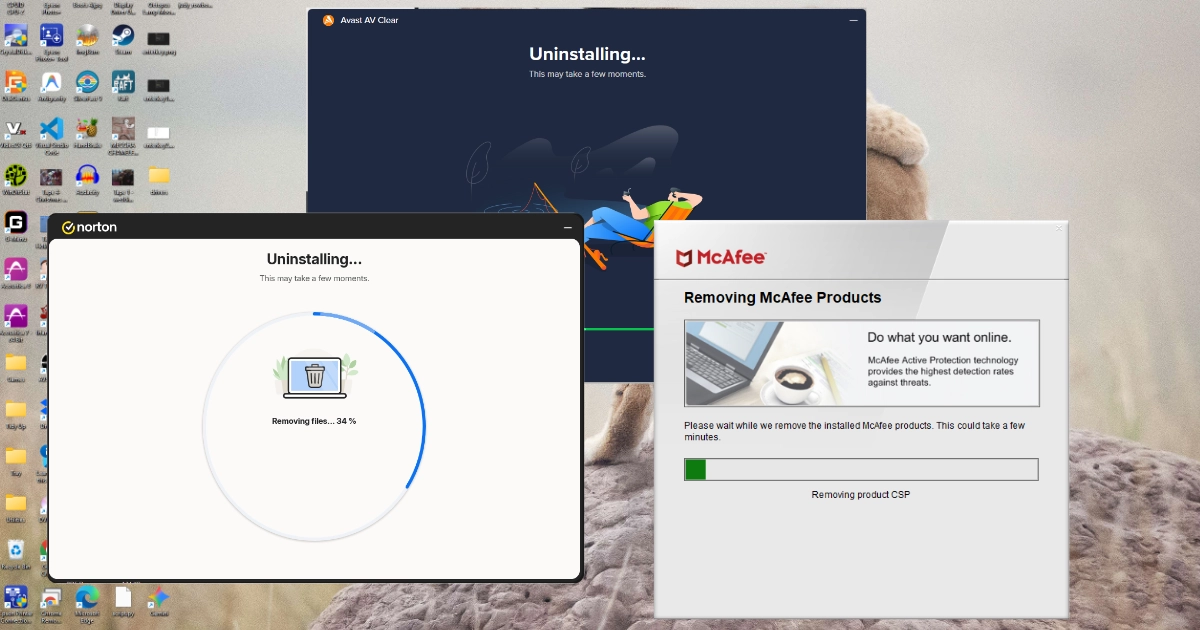
Step 4: Remove McAfee, Norton, Avast or AVG from Windows
Jump to your software: McAfee · Norton · Avast · AVG
Once you've dealt with the subscription and arranged alternatives for any extra services you use, it's time to remove the unwanted software.
First, try the normal Windows uninstall process
On Windows 11:
- Right-click the Start button and select Installed apps.
- Find McAfee, Norton, Avast or AVG.
- Select the three dots alongside the application.
- Choose Uninstall.
- Follow the on-screen instructions.
- Restart your computer.
You might be offered a discount or encouraged to reconsider. If you've made your decision, continue with the uninstall.
For most people, this should be enough.
If the software refuses to uninstall or leaves significant components behind, use the manufacturer's official removal utility.
Removing McAfee completely
McAfee recommends using the normal Windows uninstall process first. If that fails, it provides the McAfee Consumer Product Removal tool, usually called MCPR.
McAfee's official Windows uninstall instructions
Download the official McAfee MCPR removal tool
The second link downloads the removal utility directly from McAfee's website.
To use MCPR:
- Save your work and close any open applications.
- Download MCPR and open the file.
- Approve the Windows administrator prompt.
- Follow the removal instructions.
- Complete any security verification requested.
- Allow the tool to finish.
- Restart your computer.
McAfee recommends downloading a fresh copy each time you use the tool.
Also check for McAfee WebAdvisor. This is a separate browser protection application that may remain installed after removing McAfee's main antivirus product.
If you don't want it, uninstall it separately through Windows Installed apps. Look for WebAdvisor by McAfee, select Uninstall, and follow the prompts.
McAfee also advises that if you find leftover McAfee folders after uninstalling, you shouldn't manually delete, move or modify them. If remnants are causing problems, follow McAfee's support guidance instead.
Removing Norton completely
Norton provides the Norton 360 Remover utility.
Official Norton 360 Remover download and instructions
- Download the utility using Norton's support page.
- Open the downloaded file.
- Select Remove, rather than Reinstall.
- Confirm by selecting Uninstall.
- Allow the process to finish.
- Restart your computer.
Be careful to choose Remove. Norton's utility can reinstall the software as well as remove it.
Separate Norton applications and browser extensions may need uninstalling individually.
Before using Avast or AVG removal tools: check BitLocker
The dedicated Avast and AVG utilities use Windows Safe Mode to remove stubborn installations.
If your computer has BitLocker or Device Encryption enabled, make sure you have access to your recovery key before allowing a utility to restart Windows in Safe Mode.
A change in startup behaviour can sometimes trigger a BitLocker recovery prompt.
Microsoft's guidance on finding your BitLocker recovery key
If you can't find the key, don't attempt the Safe Mode removal until you've resolved that.
Removing Avast completely
Avast provides the Avast Uninstall Tool, often known as Avast Clear.
Official Avast Uninstall Tool and download instructions
- Download the tool from Avast's support page.
- Right-click the downloaded file and select Run as administrator.
- Allow the tool to restart Windows in Safe Mode when requested.
- On the Remove only tile, select Remove, not Reinstall.
- Confirm by selecting Uninstall.
- Wait for the removal to complete.
- Restart Windows normally.
This utility is particularly useful when the normal uninstall process has failed.
Removing AVG completely
AVG provides its own uninstall utility.
Official AVG Uninstall Tool and download instructions
- Download the utility from AVG's support page.
- Run it as administrator.
- Allow Windows to restart in Safe Mode when prompted.
- On the Remove only tile, select Remove.
- Confirm by selecting Uninstall.
- Restart Windows normally when finished.
Only download antivirus removal utilities from the manufacturers' official websites. Avoid unofficial download portals or third-party removal tools.
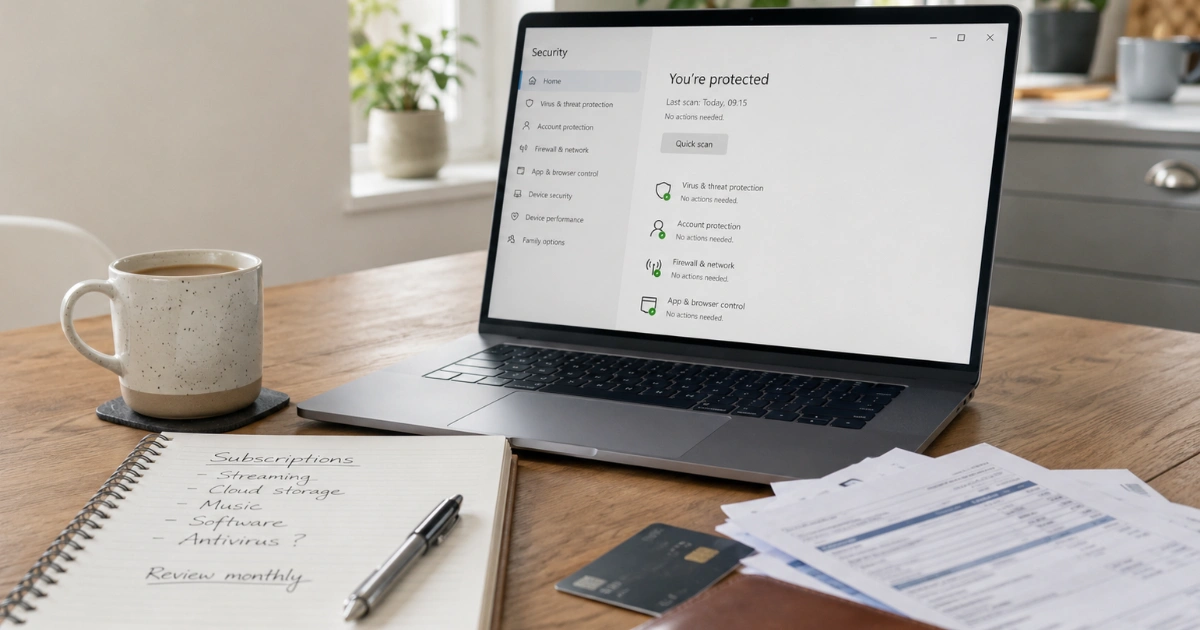
Step 5: Check that Microsoft Defender is protecting your computer
This is the final, essential step.
When a third-party antivirus product is installed, Microsoft Defender Antivirus normally disables its own real-time protection to avoid conflicts.
When that product is removed, Defender should reactivate automatically. But don't just assume it has.
On Windows 11:
- Open the Start menu.
- Search for Windows Security and open it.
- Select Virus & threat protection.
- Under Who's protecting me?, select Manage providers.
- Confirm that Microsoft Defender Antivirus is your active antivirus provider.
Back in Virus & threat protection, open Manage settings to check that real-time protection is on. Then return and select Quick scan. You can also find the provider list through Windows Security > Settings > Manage providers.
If Windows reports that no antivirus provider is active, investigate the problem before assuming you're protected.
Microsoft's official guidance on checking antivirus protection
What if you're still using Windows 10?
Windows 10 reached the end of normal free support on 14 October 2025.
Eligible home computers enrolled in Microsoft's Extended Security Updates programme can continue receiving critical and important security updates until 12 October 2027.
If you're still using Windows 10, make sure your computer is enrolled and receiving updates.
An antivirus product, whether free or paid, cannot compensate for every vulnerability in an operating system that is no longer receiving security updates.
Microsoft's Windows 10 Extended Security Updates information
Will removing Norton or McAfee make your computer faster?
Possibly, but I wouldn't promise it.
Third-party security suites can install background services, browser extensions and other components that consume system resources.
Removing unwanted software may reduce clutter and improve performance, particularly on an older or less powerful computer.
However, as the AV-TEST results above show, modern commercial antivirus products can perform very efficiently.
Switching to Defender doesn't guarantee a faster computer.
The stronger argument is that you're simplifying your setup and removing software you don't need.
Is Microsoft Defender really free?
Yes. Microsoft Defender Antivirus is included with Windows 11 at no additional cost.
You don't need Microsoft 365, a separate licence or an antivirus subscription to use it.
Microsoft also offers a separate Microsoft Defender application with additional features through certain Microsoft 365 subscriptions.
That's not the same thing as the antivirus already included in Windows Security.
For ordinary home computer protection, the built-in antivirus is generally sufficient.
What I'd rather you spend that £80 on
If you're paying £80 a year for antivirus protection you don't need, there are better uses for that money.
You could buy an external drive to back up your documents and photographs, replace an ageing hard drive with an SSD, or improve the security of your online accounts.
Or you could simply keep it. Over five years, £80 a year is £400.
Personally, I'd much rather see someone invest in a proper backup system than another unnecessary antivirus renewal.
I've written about that in Your Computer Can Be Replaced. Your Files Could Be Gone for Good, including the straightforward steps I recommend for protecting important files.
And remember, antivirus software isn't a guarantee against scams.
It cannot stop somebody being persuaded to hand over their banking details, share a one-time security code or transfer money to a criminal.
That's why understanding scams, recognising suspicious messages and knowing what to do when something goes wrong are so important.
If you're worried that you've been caught out, my free Scam First Aid tool provides practical, step-by-step guidance.
Good security involves sensible habits, updated software, secure accounts and reliable backups.
It's not something you can simply buy once a year and forget about.
My final advice: keep your money
I don't recommend McAfee or Norton for most home Windows users.
Nor do I see a compelling reason for the average household to install Avast or AVG instead of relying on Microsoft Defender.
That's not because these companies produce ineffective antivirus software. They don't.
It's because Microsoft already provides excellent protection, and I don't believe most people need to pay again for the same basic job.
I've seen too many clients spending money on annual antivirus subscriptions because they believe they have no sensible alternative.
They do.
If your Windows 11 computer is up to date, Microsoft Defender is working correctly and you're following sensible security practices, there's a very good chance you don't need to pay for antivirus at all.
Cancel the subscription, check your refund rights, remove the unwanted software and confirm Defender is protecting your PC.
I'd much rather see that money staying in the pockets of the people I help than disappearing into another unnecessary annual renewal.
And that's advice I'll continue giving to my clients.
I'm Martyn, and I provide independent, plain-English computer support through Marple Tech Help, covering Marple, Stockport and surrounding areas. I'm not affiliated with Microsoft, McAfee, Norton, Avast or AVG. These are my independent recommendations based on first-hand experience helping local customers.
Need help getting rid of unwanted antivirus?
I can help you cancel the renewal, check refund options, remove the software safely and make sure Microsoft Defender is protecting your computer.
I’m based in Marple and cover Stockport, SK6 and the surrounding area.