Windows 10 ESU: How to Keep Getting Security Updates Until October 2027
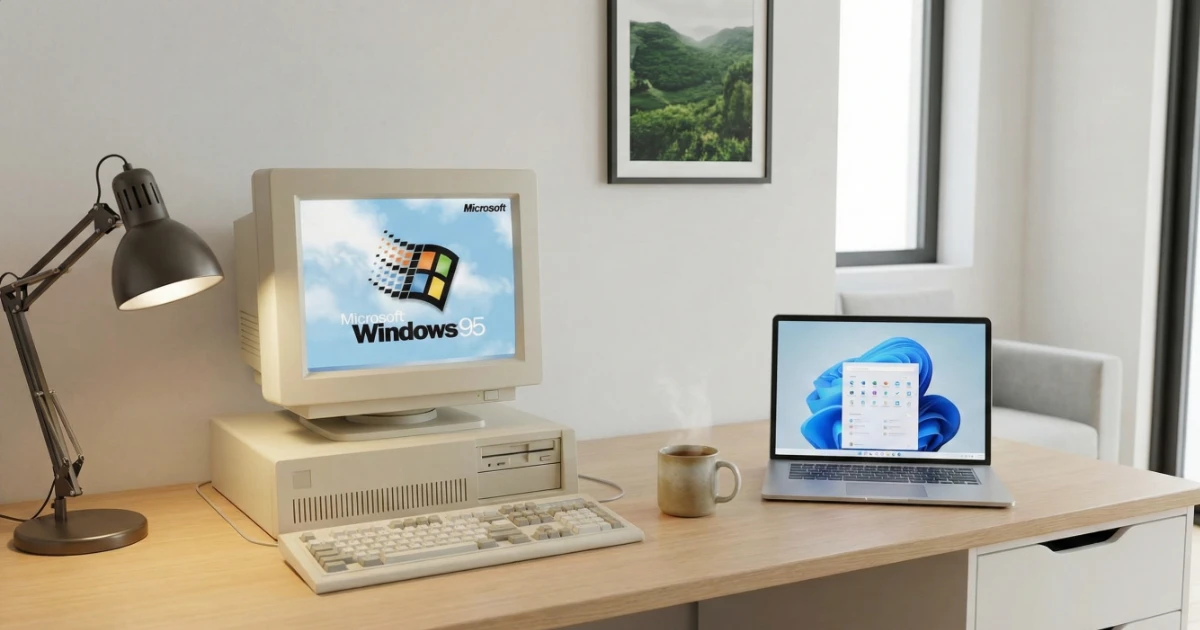
Windows 10 reached the end of normal support on 14 October 2025. That means Microsoft no longer provides free Windows 10 security updates in the normal way.
But if you have a good Windows 10 computer that you are not ready to replace or move to Windows 11, there is another option.
Microsoft's Extended Security Updates programme, usually shortened to ESU, allows eligible personal Windows 10 computers to continue receiving critical and important security updates until 12 October 2027.
For a computer that still does everything you need, that can provide some very useful breathing space.
The short version
- What you get: critical and important Windows security updates through Windows Update, until 12 October 2027.
- Who qualifies: personal PCs on Windows 10 version 22H2, fully updated, enrolled with an administrator Microsoft account.
- What it costs: nothing if you back up your PC settings, or 1,000 Microsoft Rewards points, or a one-off payment. All three give identical updates.
- What it isn't: a permanent home. ESU is planning time, not a destination.
- What does Windows 10 ESU actually do?
- What doesn't ESU provide?
- Does my PC qualify for consumer ESU?
- How to check which version of Windows 10 you have
- A note for business computers
- How to enrol in Windows 10 ESU
- One ESU licence can cover up to 10 PCs
- What if "Enroll now" isn't there?
- Can I still upgrade to Windows 11 later?
- What happens to Microsoft 365 on Windows 10?
- What if I bought Office rather than subscribing?
- What about OneDrive?
- What happens in October 2027?
What does Windows 10 ESU actually do?
ESU is not a new version of Windows 10.
It does not provide new features, redesigns or general improvements.
Instead, Microsoft continues providing critical and important security updates for enrolled Windows 10 PCs. Those updates are delivered through Windows Update.
This matters because security vulnerabilities continue to be discovered after an operating system reaches the end of normal support.
Without ESU, a normal Windows 10 installation no longer receives Microsoft's fixes for those newly discovered Windows security problems.
With ESU, eligible security fixes continue until 12 October 2027.
What doesn't ESU provide?
ESU is useful, but it is important not to oversell it.
It does not:
- Add new Windows features
- Turn Windows 10 back into Microsoft's current operating system
- Provide Microsoft's normal Windows 10 technical support
- Guarantee that every third-party application will continue supporting Windows 10
- Make old hardware faster or more reliable
- Continue indefinitely after October 2027
Think of ESU as a security bridge while you decide what comes next.
It buys time.
It doesn't remove the need to eventually move away from Windows 10.
Does my Windows 10 PC qualify for consumer ESU?
For Microsoft's consumer ESU programme, the computer needs to be running Windows 10 version 22H2 in one of these editions:
- Windows 10 Home
- Windows 10 Professional
- Windows 10 Pro Education
- Windows 10 Workstations
The latest Windows updates also need to be installed.
The Microsoft account used for enrolment must have administrator rights and cannot be a child account.
If you normally use Windows with a local account, Microsoft may prompt you to sign into a Microsoft account during the enrolment process because the ESU licence is associated with that Microsoft account.
How do I check which version of Windows 10 I have?
An easy way is:
- Press Windows key + R
- Type winver
- Press Enter
A small window will show your Windows version.
For consumer ESU, you should see:
Version 22H2
If you are running an older version, get Windows Update fully up to date before trying to enrol.
A note for business computers
Microsoft's consumer ESU programme is for personal-use PCs and cannot be used in commercial scenarios.
Consumer enrolment is not offered to:
- PCs running in kiosk mode
- Computers joined to an Active Directory domain
- Computers that are Microsoft Entra joined
- Devices managed using Mobile Device Management
- Devices that already hold an ESU licence through another route
There is one useful distinction: a PC that is merely Microsoft Entra registered can still use consumer ESU. Adding a work or school account to a personal computer therefore does not automatically exclude it.
Microsoft also says that if a consumer-enrolled PC later starts participating in one of its commercial ESU scenarios, consumer enrolment is suspended while it remains a commercial device.
For business computers, Microsoft provides a separate commercial ESU programme.
How to enrol in Windows 10 ESU
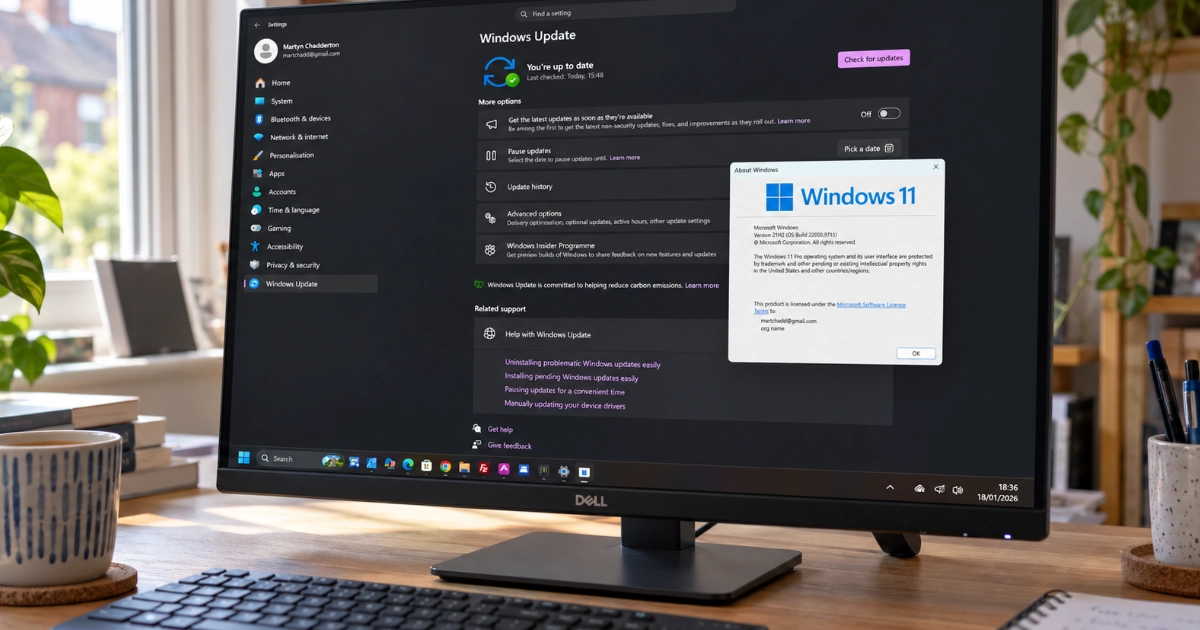
For an eligible personal Windows 10 PC, the process is built into Windows Update.
1. Get Windows fully updated
Open Settings → Update & Security → Windows Update.
Choose Check for updates, install everything available and restart the computer if Windows asks you to.
Then return to Windows Update.
2. Look for "Enroll now"
On an eligible PC you should see a link to enrol in Extended Security Updates. Microsoft labels the button Enroll now.
That is the American spelling used by Windows itself, so don't worry that you're looking for Enrol with one L.
Select Enroll now to start the process.
3. Sign into your Microsoft account if required
If you normally sign into Windows using a local account, Microsoft will prompt you to sign into a Microsoft account during ESU enrolment.
The ESU licence is associated with the Microsoft account used to enrol the PC.
4. Choose how you want to enrol
Microsoft currently provides three consumer options.
Back up your PC settings
You can enrol at no additional cost by choosing Microsoft's option to back up or sync your Windows PC settings.
Use Microsoft Rewards
You can redeem 1,000 Microsoft Rewards points.
Make a one-off payment
Microsoft also provides a one-off paid option, with the local price shown during enrolment.
All three routes are identical
Every option provides the same Extended Security Updates, ending on 12 October 2027. You don't get better or longer security updates by choosing the paid option.
Already enrolled? You don't need to enrol again
If you enrolled in consumer ESU before Microsoft extended the programme, there is nothing extra to buy or activate.
Microsoft says existing consumer ESU coverage automatically continues through 12 October 2027.
One ESU licence can cover up to 10 PCs
This is one of the less well-known benefits of the consumer scheme.
Microsoft allows your existing consumer ESU licence to be used on up to 10 eligible Windows 10 devices.
So a household with several Windows 10 computers does not necessarily need a separate purchase or Microsoft Rewards redemption for every machine.
On another eligible PC:
- Open Settings → Update & Security → Windows Update
- Choose Enroll now
- Sign into the same Microsoft account used for your existing ESU enrolment if necessary
- Choose Add device
Each computer still needs to meet the normal consumer ESU eligibility requirements.
Do different users on the same computer need their own ESU?
No.
ESU enrolment applies to the device.
Once the computer is enrolled, other people using their own Windows accounts on that same PC do not each need separate ESU enrolments.
How can I check whether ESU is active?
Return to Settings → Update & Security → Windows Update.
Windows Update shows the device's ESU enrolment status.
Once enrolled, there is no separate ESU updater to remember. Security updates continue arriving through Windows Update.
What if "Enroll now" isn't there?
Don't immediately assume your computer cannot use ESU.
Work through these checks first.
Check Windows 10 is version 22H2
Press Windows key + R, type winver and press Enter.
Install all outstanding Windows updates
Open Windows Update, install everything available and restart. Then check again.
Check the Windows edition
Consumer ESU supports Windows 10 Home, Professional, Pro Education and Workstations on version 22H2.
Check the Microsoft account
The account used for enrolment needs administrator rights and cannot be a child account.
Check whether the PC is managed
A domain-joined, Entra-joined or MDM-managed computer will not be offered consumer ESU. Remember that Entra registered is different and is allowed.
Please don't use an "ESU activator"
If everything looks correct but the option still doesn't appear or the enrolment window fails, I would investigate the Windows installation rather than resorting to unofficial "ESU activators" or scripts found online.
Security updates are precisely the area where running an unknown activation tool downloaded from the internet is a particularly poor trade.
Can I still upgrade to Windows 11 later?
Yes.
Enrolling in ESU does not lock your PC to Windows 10.
Microsoft confirms that an enrolled PC can still move to Windows 11 later if it meets the Windows 11 hardware requirements.
So choosing ESU now does not mean you have made an irreversible decision. It can simply keep the computer secure while you decide what happens next.
If you are unsure whether staying on Windows 10 or moving to Windows 11 makes more sense for your particular computer, read Should You Force Windows 11 onto an Older PC? ESU Changes the Answer.
What happens to Microsoft 365 on Windows 10?
This has a different support timetable from Windows itself.
Microsoft says that Microsoft 365 Apps on Windows 10 will continue receiving security updates until 10 October 2028.
For typical home Microsoft 365 Personal and Family users on Microsoft's Current Channel, the important feature milestone has already arrived.
Microsoft 365 Version 2608 was released to Current Channel in August 2026. Microsoft says Windows 10 devices will remain on Version 2608 and receive security updates rather than continuing onto later feature versions.
In practical terms:
Microsoft 365 can remain security-updated on Windows 10 until October 2028, but Windows 10 itself only receives consumer ESU security updates until October 2027.
The later Microsoft 365 date does not extend the life of Windows.
What if I bought Office rather than subscribing to Microsoft 365?
Traditional one-off-purchase versions of Microsoft Office have their own support dates.
The October 2028 Microsoft 365 extension does not apply to them.
| Version | End of Microsoft support |
|---|---|
| Office 2016 | 14 October 2025 (already passed) |
| Office 2019 | 14 October 2025 (already passed) |
| Office 2021 | 14 October 2026 |
| Office LTSC 2021 (volume licensed) | 13 October 2026 |
Office 2016 and Office 2019 may continue to run, but Microsoft no longer provides their normal security updates.
So don't assume that because Microsoft 365 is receiving extended security updates on Windows 10, an older boxed copy of Office is covered by the same arrangement.
It isn't.
What about OneDrive?
Microsoft is also continuing to update the OneDrive desktop app on Windows 10 version 22H2 until 10 October 2028.
Older Windows 10 versions no longer receive OneDrive app updates.
That gives you another reason to check that a Windows 10 PC you intend to keep is actually running 22H2.
Again, the distinction matters:
OneDrive support continuing until 2028 does not extend Windows 10 ESU beyond 12 October 2027.
What happens in October 2027?
This is the part not to forget.
ESU should be treated as planning time.
By 12 October 2027, you should expect to have decided what happens next.
That might mean moving the existing computer to Windows 11 if it properly supports it.
It might mean replacing it.
Or it may mean retiring a computer that has already had a long and useful life.
What I wouldn't recommend is reaching October 2027 and only then starting to think about the problem.
ESU is a bridge, not a destination.
It gives you time to make a sensible decision without rushing into a new computer or forcing Windows 11 onto hardware that Microsoft doesn't support.
Official Microsoft references
Need help with Windows 10 ESU?
Marple Tech Help can check whether a Windows 10 computer qualifies for ESU, get Windows properly updated, investigate a missing or failing enrolment option and check whether the computer actually supports Windows 11.
If Windows 11 turns out to be the sensible route, my Windows 11 Upgrade is a fixed £69, including compatibility checks and post-upgrade checks.
The important thing is not getting every computer onto Windows 11 as quickly as possible. It is keeping the computer secure while making the right decision for the hardware you already own.
Need a Hand with ESU?
I can check whether your Windows 10 computer qualifies for Extended Security Updates, sort out a missing or failing enrolment, and tell you honestly whether the machine is worth keeping.
For homes in Marple, Stockport and nearby areas, the aim is a practical recommendation for your specific computer.
I’m based in Marple and cover Stockport, SK6 and the surrounding area.