Your Windows 11 PC says it's up to date. But is it really?
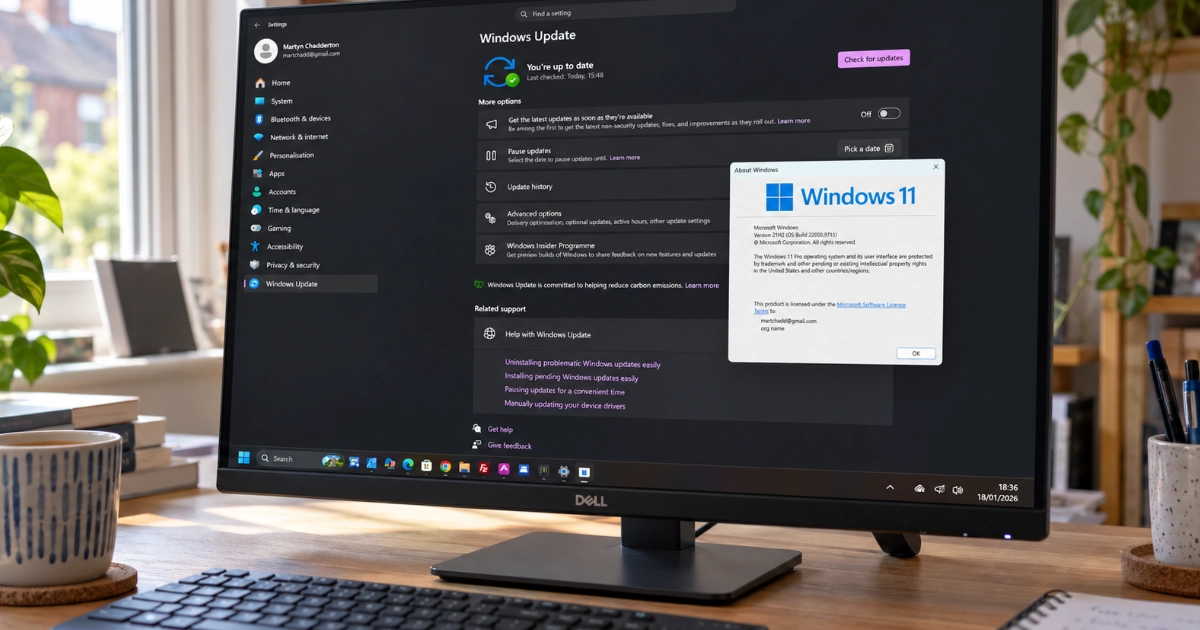
Your computer might be missing important Windows security updates, even with automatic updates switched on. Here's how to check in less than a minute.
Most of us assume that once we've switched on automatic updates, Windows will take care of itself. And usually, that's exactly what happens.
Windows downloads updates in the background, installs them when necessary and occasionally asks us to restart. We might even see a reassuring message telling us that everything is up to date.
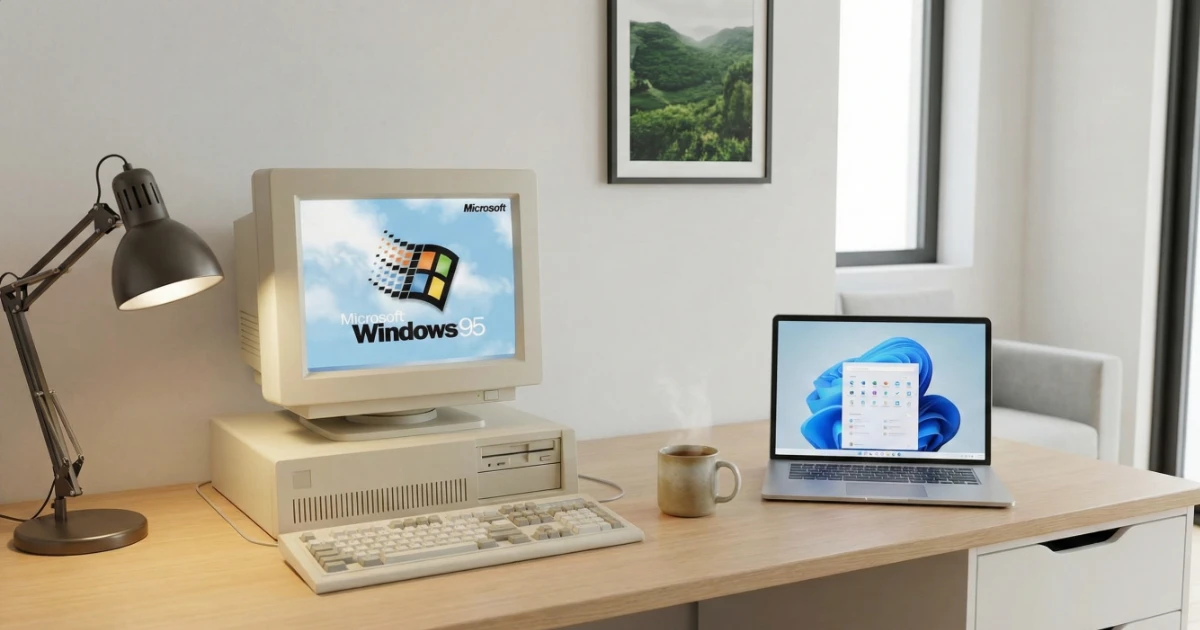
But there's a catch. A Windows 11 computer can appear to be fully updated while running a version of Windows that Microsoft no longer supports.
I've recently come across two computers locally where this was happening. Both were running Windows 11, both had automatic updates enabled, and both were still receiving antivirus updates. Yet neither had moved onto a newer version of Windows, and one was still running the original Windows 11 release from 2021.
Both computers had something else in common: Windows 11 had been installed on hardware that didn't officially meet Microsoft's requirements.
The computers were working normally, and their owners had no obvious reason to suspect anything was wrong. But their Windows versions had been out of support for some time, meaning they were no longer receiving the regular security fixes Microsoft provides for supported versions.
That's why I think this is worth checking, even if your PC seems perfectly healthy.
Windows updates aren't all the same
There are several different types of updates, and understanding the difference explains how this situation can arise.
Security and quality updates are the regular Windows updates that fix vulnerabilities, repair bugs and improve reliability. Microsoft normally releases these every month.
Feature updates move your computer onto a newer version of Windows 11, such as 25H2 or 26H2. As well as occasionally adding features, these releases determine how long your computer continues receiving regular security updates.
Antivirus security intelligence updates help Microsoft Defender recognise new viruses and other malicious software. These can continue arriving separately from updates to Windows itself.
And that's where things get confusing. A computer might have the latest antivirus definitions but still be missing important Windows security fixes. Keeping your antivirus updated is useful, but it doesn't repair vulnerabilities in an outdated operating system.
Some versions of Windows 11 are no longer supported
Microsoft doesn't provide security updates for every version of Windows 11 indefinitely. Each release has its own support period, normally two years for Home and Pro.
Here are the important dates:
| Windows 11 version | Security updates end (Home and Pro) | Still supported? |
|---|---|---|
| 21H2 | 10 October 2023 | No |
| 22H2 | 8 October 2024 | No |
| 23H2 | 11 November 2025 | No |
| 24H2 | 13 October 2026 | No |
| 25H2 | 12 October 2027 | Yes |
| 26H1 | 14 March 2028 | Yes |
| 26H2 | October 2028 | Yes |
Support status checked on 18 October 2026. These dates apply to Home and Pro; Enterprise and Education editions generally have longer support periods. Check the edition as well as the version in the winver window.
Why is 26H1 listed? Microsoft supplies it preinstalled on selected new devices. It isn't a feature update offered to existing PCs, so you shouldn't expect to see it in Windows Update on an older computer. See Microsoft's 26H1 guidance.
The significant recent change is that Windows 11 24H2 reached the end of support for Home and Pro on 13 October 2026.
If your home computer is still running 24H2 or earlier, it's now on a version that no longer receives Microsoft's normal monthly Windows security updates.
That doesn't mean your computer will suddenly stop working, and it certainly doesn't mean you've been hacked. It does mean that newly discovered Windows vulnerabilities may remain unfixed.
You can check the dates yourself on Microsoft's official Windows 11 support page.
Check which version of Windows you're running
You don't need any special software or technical knowledge to check.
- Press the Windows key + R on your keyboard.
- Type winver into the small box that appears.
- Press Enter.
- Look for the version number in the window that opens.
You'll see something like Version 22H2, 24H2, 25H2 or 26H2.
That's all there is to it.
If you're running 25H2, 26H1 or 26H2, your version is still within its normal support period. You should still make sure ordinary security updates are installing successfully.
If you're running 24H2 or earlier, it's worth investigating why your computer hasn't moved onto a newer release.
Don't panic, and don't rush into downloading random upgrade tools. The right solution depends on why the update hasn't happened.
Why hasn't Windows upgraded automatically?
Here's something worth knowing. Microsoft normally moves eligible home computers onto newer versions of Windows as their existing version approaches the end of support. You shouldn't have to keep track of release dates and manually install major upgrades every year.
So if a home PC is still running Windows 11 21H2 or 22H2, years after those versions stopped receiving security updates, there's a good reason to investigate why it hasn't moved forward.
There are several possible explanations.
Sometimes a feature update has failed, perhaps because of insufficient storage, a troublesome driver or a problem with Windows Update itself.
Microsoft also sometimes delays updates on computers with known compatibility issues. These are called safeguard holds, and they're intended to prevent an update from causing problems on affected hardware.
But when a computer has been stuck on the same version for several years, there's another possibility worth considering, particularly if it's an older machine.
Windows 11 installed on unsupported hardware
When Windows 11 first appeared, Microsoft introduced new hardware requirements. Millions of perfectly usable older computers didn't qualify, often because of their processor or the absence of particular security features.
Nevertheless, there are ways of installing Windows 11 on computers that don't officially meet those requirements. As Windows 10 approached its end of support, upgrading older computers this way became an attractive alternative to replacing them.
And I can understand why. Many of those computers still work perfectly well for everyday tasks, and replacing otherwise usable equipment isn't always necessary or desirable.
The complication is what happens afterwards.
A workaround that allowed Windows 11 to be installed doesn't necessarily mean future feature updates will arrive automatically.
Later upgrades can involve further compatibility checks, and computers that don't meet Microsoft's requirements may never be offered a newer version through Windows Update.
This won't happen to every unsupported PC, and it isn't the only reason updates can become stuck. But it's one explanation worth investigating when a computer hasn't received a major Windows update for several years.
Microsoft's official guidance goes further than simply recommending against these installations. It warns that computers running Windows 11 on unsupported hardware aren't guaranteed to receive updates, including security updates.
In practice, many unsupported computers have continued receiving at least some Windows updates. But receiving updates today doesn't guarantee that future ones will arrive, particularly when moving between major Windows versions.
Signs your PC may be affected
Your computer is more likely to be in this situation if several of these apply:
- It's an older computer that originally came with Windows 10 and was subsequently upgraded to Windows 11.
- Microsoft's PC Health Check app says it doesn't meet the requirements for Windows 11.
- The winver command shows version 24H2 or earlier.
- Windows Update reports that you're up to date but never offers a newer version.
None of these proves that an unsupported installation is responsible. For example, a computer that originally came with Windows 10 might still be fully compatible with Windows 11.
But if your Windows version is out of support and the computer isn't being offered anything newer, that's something worth looking into.
Does this mean I need a new computer?
Not necessarily.
Before spending money on replacement hardware, it's worth establishing exactly what's preventing the update and whether it can be resolved.
For a computer that officially supports Windows 11, the answer may be as simple as fixing a failed update or allowing an overdue feature upgrade to install.
For older computers that don't officially qualify, there are a few realistic options.
Upgrade to a newer version of Windows 11. Depending on the hardware and the release, it may be possible to install a more recent release while keeping personal files and applications. However, the computer remains officially unsupported afterwards, compatibility problems are possible, and future updates aren't guaranteed. Some particularly old processors cannot run newer releases at all.
Consider Windows 10 with Extended Security Updates. Microsoft's Windows 10 Extended Security Updates (ESU) programme provides additional security updates for enrolled home computers until 12 October 2027, and eligible users can still enrol.
Microsoft recommends returning unsupported Windows 11 computers to Windows 10, although for a machine that's been running Windows 11 for several years, doing so would normally require a fresh installation, reinstalling applications and restoring files. With only around a year of ESU protection remaining, it may not justify the work and expense, but it could make sense in particular circumstances.
Replace the computer. If it's already slow, unreliable or very old, putting more time and money into it may not be sensible. A newer computer that officially supports Windows 11 could be a better long-term investment.
There isn't one answer that's right for everybody.
If an older computer is still fast enough, reliable and suitable for what you use it for, extending its working life can be perfectly reasonable. Equally, I wouldn't recommend repeatedly spending money on an ageing PC simply to avoid replacing it.
What matters is understanding the options before making a decision.
What should you do if you're on an old version?
First, open Settings → Windows Update and see whether Windows is offering a newer version.
If it is, make sure your important files are backed up before proceeding. If your computer officially supports Windows 11, installing the offered update will usually be the sensible next step.
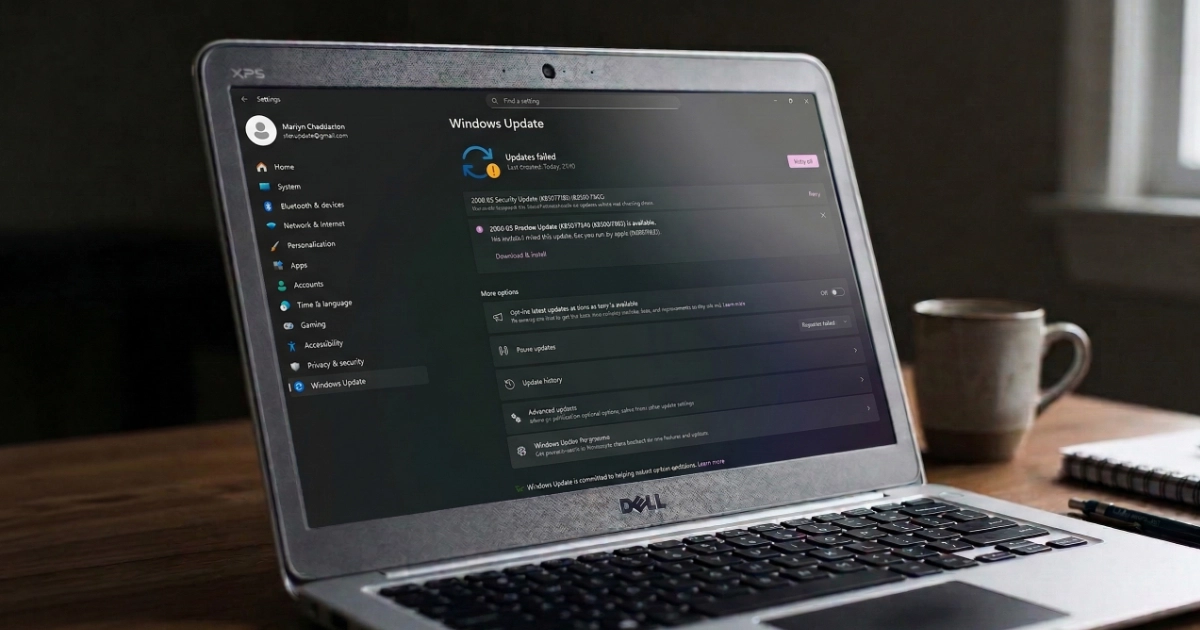
If no newer version is offered, or an update repeatedly fails, the next step is to establish why. Don't bypass a known compatibility safeguard just to reach the newest release. A supported version with its security updates installed may be the right place to stay while an issue is resolved. Simply pressing Check for updates again and again won't necessarily solve a compatibility problem.
I've written a separate guide to dealing with stuck Windows updates, which covers some of the more common update failures.
For computers already running a supported version, my Windows 11 26H2 guide explains the latest feature update and whether you need to install it immediately.
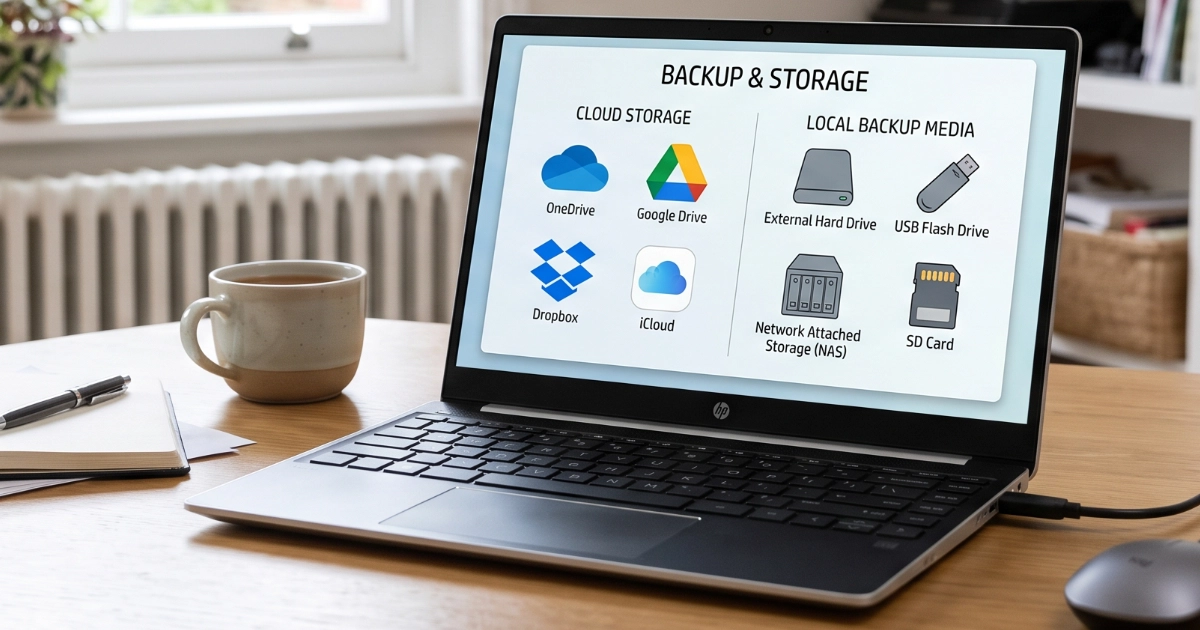
Whatever route you take, make sure you have a reliable backup before attempting a major Windows upgrade.
An in-place upgrade is designed to preserve your files and applications, but that isn't a substitute for a separate copy of the things that matter. My guide to why backups matter explains how to check that your important files are actually protected.
A quick check that's worth sharing
I suspect quite a few people are using computers that have quietly fallen behind on Windows updates without realising it.
And that's understandable. When a computer works normally, its antivirus appears healthy and automatic updates are enabled, why would you think to investigate?
The good news is that finding out takes less than a minute.
Press Windows + R, type winver and check the version number.
It's a particularly worthwhile check on older computers that were upgraded from Windows 10. And if you know somebody who's had their computer upgraded this way, it's worth passing on.
You don't need to understand every Windows update or remember Microsoft's support dates. You just need to know whether your computer is still receiving the protection it should.
Need a hand checking?
If your Windows version is out of date, I can investigate why, check whether your computer is suitable for an upgrade and explain the options in plain English.
Where an upgrade makes sense, I can help carry it out carefully, with proper attention to your files and applications. If the hardware is unsupported, I'll explain what that means for future updates before we go ahead.
If upgrading isn't worthwhile, I'll say so.
I’m based in Marple and cover Stockport, SK6 and the surrounding area.