Should You Force Windows 11 onto an Older PC? ESU Changes the Answer
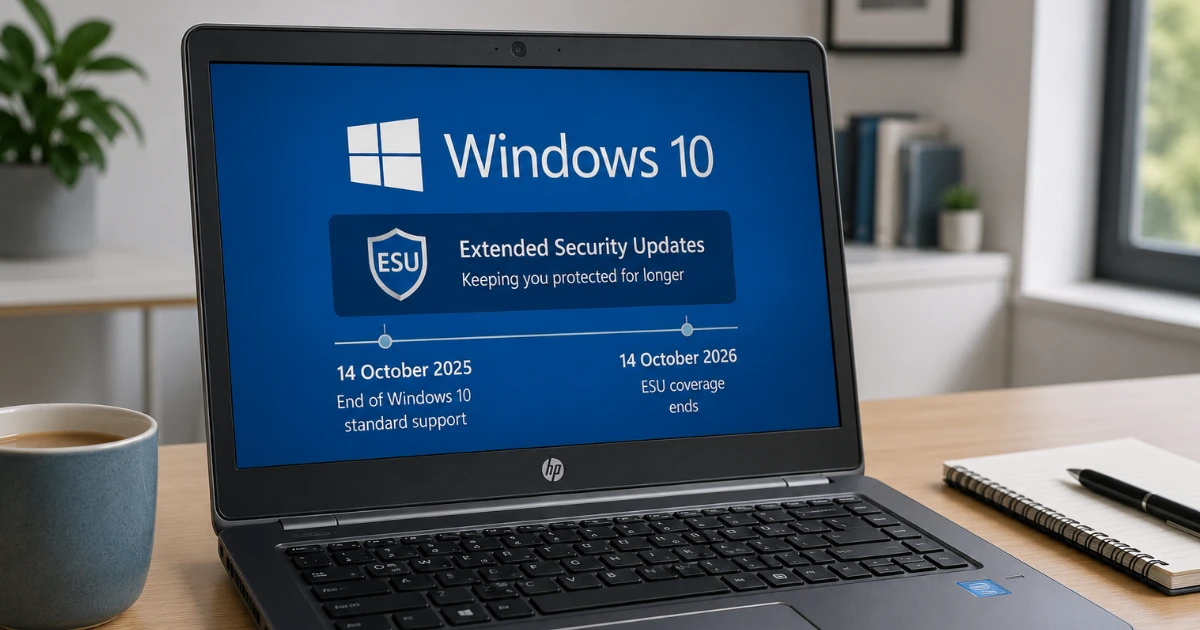
Windows 10 has reached the end of its normal support life, but that does not mean every Windows 10 computer needs to be forced onto Windows 11 or replaced immediately.
Microsoft's Extended Security Updates programme, usually called ESU, now allows eligible personal Windows 10 PCs to continue receiving critical and important security updates until 12 October 2027.
That changes the calculation considerably.
There are ways of installing Windows 11 on computers that Microsoft says are unsupported. Sometimes they work perfectly well.
But now there is another question worth asking first:
If the computer works well and can remain security-updated on Windows 10 until October 2027, is there actually a good reason to force Windows 11 onto it?
Sometimes there is.
Quite often, there isn't.
Why doesn't my PC qualify for Windows 11?
Windows 11 has stricter hardware requirements than Windows 10.
Among other things, Microsoft requires:
- A processor on its supported CPU list
- TPM 2.0
- UEFI firmware with Secure Boot capability
- At least 4GB of RAM
- At least 64GB of storage
Microsoft's PC Health Check tool can assess whether a computer meets those requirements.
But a failed compatibility check does not always mean the computer genuinely cannot qualify.
One example is TPM 2.0. Some computers have a compatible TPM built in, but it is disabled in the firmware settings. Microsoft specifically documents this as one reason an otherwise capable PC may fail the Windows 11 check.
Secure Boot and other firmware settings can cause similar confusion.
So I wouldn't condemn a computer purely because Windows displays:
This PC doesn't currently meet Windows 11 system requirements.
It is worth finding out why.
Can Windows 11 be installed on an unsupported PC?
Often, yes.
There are various ways of bypassing some of Microsoft's compatibility checks, and Windows 11 can run surprisingly well on older hardware.
That is the technical answer.
The support answer is different.
What Microsoft actually says
Installing Windows 11 on a computer that doesn't meet its minimum requirements is not recommended. Those computers are unsupported, may encounter compatibility problems and are not guaranteed to receive updates, including security updates.
That doesn't mean every unsupported Windows 11 computer will suddenly stop updating.
Plenty of unsupported installations have worked perfectly well.
But it does mean you are deliberately relying on a configuration Microsoft does not support or guarantee.
For a spare computer, an enthusiast's machine or a PC belonging to someone comfortable dealing with problems, that may be an acceptable compromise.
For somebody who simply wants their computer to reliably handle email, banking, photographs, documents and printing, I think the bar should be higher.
ESU changes the decision
Normal Windows 10 support ended on 14 October 2025.
Without ESU, a standard Windows 10 installation no longer receives Microsoft's normal security fixes.
But eligible personal PCs enrolled in ESU can continue receiving critical and important Windows security updates until 12 October 2027. ESU does not add new Windows features or restore normal Microsoft technical support, but it does continue addressing important security vulnerabilities.
That means the choice is no longer simply:
Force Windows 11 or leave Windows 10 without security updates.
For many people there is now a third option:
The third option
Keep a good Windows 10 computer on Windows 10, enrol it in ESU, and make a proper decision before October 2027.
That can be considerably more sensible than changing a working computer purely to make the Windows version number one higher.
ESU is a bridge, not a destination
There is an important caveat.
12 October 2027 is still a deadline.
ESU has not made Windows 10 a long-term operating system again. It has given people more time to move away from it safely.
The sensible use of that time is to decide what happens next.
That might mean:
- Moving properly to Windows 11
- Replacing the computer
- Repurposing it for something less critical
- Retiring it
What I wouldn't recommend is enrolling in ESU, forgetting about the issue completely and arriving at October 2027 with exactly the same problem and an even older computer.
ESU buys planning time. The sensible use of that time is to plan.
There is no penalty for choosing ESU first. Microsoft confirms that enrolling in ESU does not prevent an eligible computer from being upgraded to Windows 11 later.
So using ESU now isn't choosing Windows 10 forever.
For eligibility, enrolment instructions and the different ways of getting ESU, see Windows 10 ESU: How to Keep Getting Security Updates Until October 2027.
So what should you actually do?
I would divide Windows 10 computers into five broad groups.
1. Your PC officially supports Windows 11
Upgrade it.
There usually isn't much benefit in deliberately keeping a suitable computer on Windows 10 for another year.
I would still check the computer before upgrading. Backups, drive health, available storage, important software, printers and other peripherals are all worth considering before changing an operating system.
But fundamentally, this is the straightforward group.
Windows 11 is Microsoft's current operating system and the computer is designed to run it.
2. Your PC looks unsupported, but may actually qualify
Investigate before doing anything drastic.
A disabled TPM or another firmware setting can make a suitable computer appear incompatible.
If the problem can be corrected and the PC then officially passes Microsoft's requirements, that is very different from bypassing them.
A properly supported Windows 11 installation would normally be my preferred outcome.
3. Your PC genuinely doesn't support Windows 11, but still works very well
This is where ESU has become much more attractive.
Perhaps it is a well-built laptop or desktop that still feels quick, has an SSD, enough memory and no reliability problems.
If it is a personal-use computer and qualifies for consumer ESU, keeping Windows 10 security-updated until October 2027 can be entirely reasonable.
You can then decide what replaces it when it suits you, rather than because Windows has presented you with an arbitrary deadline.
A good computer doesn't suddenly become bad hardware because its processor fell just outside Microsoft's Windows 11 compatibility list.
4. Your PC is old, slow or becoming unreliable
Don't confuse an operating system problem with a computer problem.
ESU can provide Windows 10 security updates.
It cannot repair:
- A failing hard drive
- A worn-out battery
- Broken hinges
- Too little memory for modern applications
- Overheating
- An unreliable keyboard or screen
- Generally poor performance
Likewise, installing Windows 11 does not rejuvenate worn-out hardware.
Sometimes spending money forcing another operating system onto an elderly PC is simply delaying the inevitable.
In that situation, I would put the money towards its replacement.
5. The PC is used for business
This needs separate consideration.
Microsoft's consumer ESU scheme cannot be used in commercial scenarios. Microsoft has separate ESU arrangements for organisations and commercial devices.
That matters for small businesses and sole traders too.
There are also broader considerations on a business computer: software support, data protection, security requirements and the cost of downtime can matter more than squeezing another year out of ageing hardware.
So I wouldn't simply apply consumer advice to a PC used for work.
Is forcing Windows 11 ever sensible?
Yes.
I don't think the answer should be an absolute "never".
There are computers that narrowly miss Microsoft's supported processor list but are otherwise powerful, reliable and perfectly capable of running Windows 11.
For an informed owner who understands that Microsoft does not officially support the configuration, an unsupported installation can sometimes be a reasonable engineering compromise.
There may also come a point where software you need stops supporting Windows 10 while the underlying computer remains perfectly capable.
But I would now treat an unsupported Windows 11 installation as an exception that needs a good reason, rather than the default answer whenever a Windows 10 PC fails Microsoft's compatibility check.
Before ESU was extended, the argument for forcing the upgrade was stronger.
With supported Windows 10 security updates available until October 2027, there is less reason to accept unsupported Windows 11 simply because somebody can get it installed.
What about Microsoft 365 and Office?
Microsoft 365 does not suddenly stop working because Windows 10 normal support has ended. Microsoft has separate arrangements for continuing Microsoft 365 security updates on Windows 10.
Traditional one-off-purchase versions of Office have their own support dates again.
I've covered those details, along with OneDrive, in Windows 10 ESU: How to Keep Getting Security Updates Until October 2027, so the dates don't get mixed up with Windows itself.
The important date for Windows 10 ESU is:
12 October 2027.
The right answer depends on the computer
The important question isn't:
Can Windows 11 be installed on this PC?
It is:
What is the most sensible, secure and reliable future for this particular PC?
Sometimes the answer is Windows 11.
Sometimes it is Windows 10 with ESU while you plan its replacement.
Sometimes an unsupported Windows 11 installation genuinely is a reasonable compromise.
And sometimes the computer has simply reached the point where putting more money into it makes little sense.
That's why I prefer to assess the individual computer rather than apply the same answer to everything.
Official Microsoft references
Need help deciding?
Marple Tech Help can check why your computer isn't being offered Windows 11, whether it actually meets Microsoft's requirements, whether a firmware setting such as TPM is getting in the way, and whether the computer itself is worth keeping.
For computers where Windows 11 is the sensible route, my Windows 11 Upgrade is a fixed £69, including compatibility checks and post-upgrade checks.
The goal isn't to get Windows 11 onto every computer possible. It's to keep a good computer useful, secure and reliable for as long as doing so still makes sense.
Want an Honest Assessment?
I can check whether your computer genuinely qualifies for Windows 11, whether ESU is the better route for now, and whether any upgrade would be worth the money.
For homes in Marple, Stockport and nearby areas, the aim is a practical recommendation for your specific computer.
I’m based in Marple and cover Stockport, SK6 and the surrounding area.