Bought a New Laptop? What to Do First
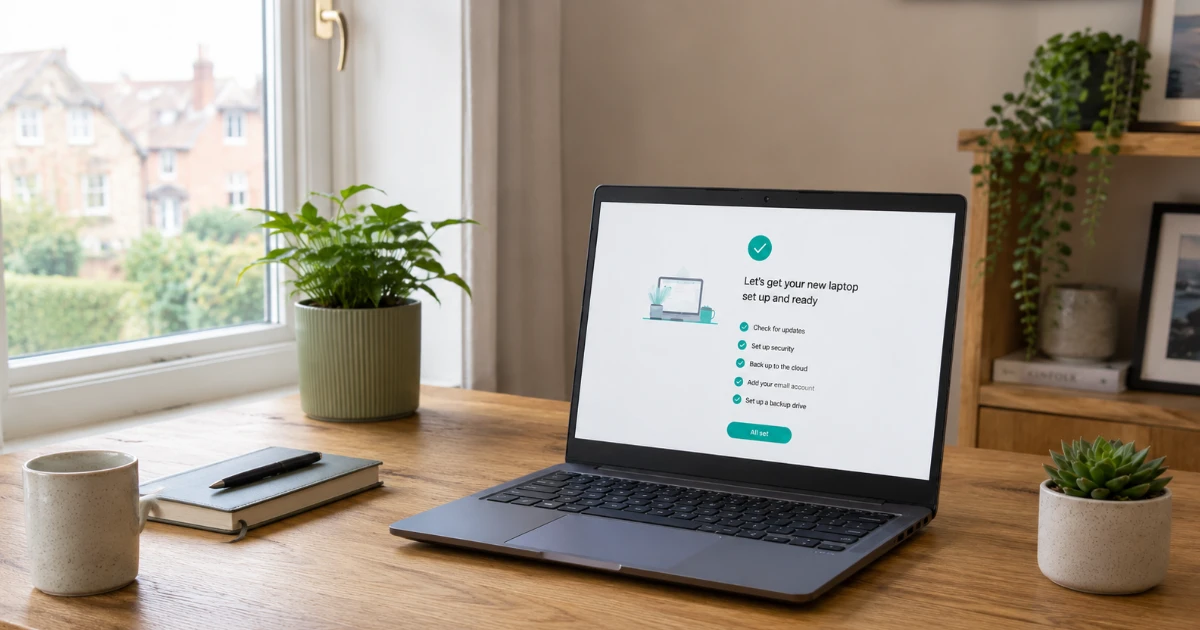
A little care in the first hour with a new laptop can prevent lost files, unwanted subscriptions and account problems later.
Getting a new laptop is exciting, but it is worth completing a few jobs before you start using it properly. Most are simple. A few matter more than people realise.
This guide explains what to do, what to skip and what to watch out for, in the order that makes sense.
Before you begin
- Plug the laptop into its charger.
- Have your Wi-Fi password and email passwords to hand.
- Keep your old computer unchanged until the transfer is fully checked.
- Set aside an hour or two so updates are not interrupted.
1. Complete the initial setup without being rushed
When you first turn on a Windows laptop, a setup wizard guides you through the essentials. Take your time.
Sign in with a Microsoft account
Windows 11 will usually guide you towards a Microsoft account. This account connects your Windows licence, recovery options, Microsoft Store purchases and OneDrive storage. If you do not have one, you can create one during setup.
Choose a PIN for everyday sign-in
A Windows Hello PIN is stored securely on that device and is quicker than entering your full Microsoft account password every time. If the laptop supports fingerprint or face recognition, you can usually add that too.
Read the privacy choices
Windows asks about location, diagnostic data, advertising and personalisation. You do not have to accept every option. Turning off the advertising ID and optional diagnostic data is reasonable if you prefer more privacy and will not slow down the laptop.
Write down the account details safely. Your Microsoft account password and recovery information matter more than the PIN. The PIN only unlocks this particular device.
2. Let Windows Update finish before doing anything else
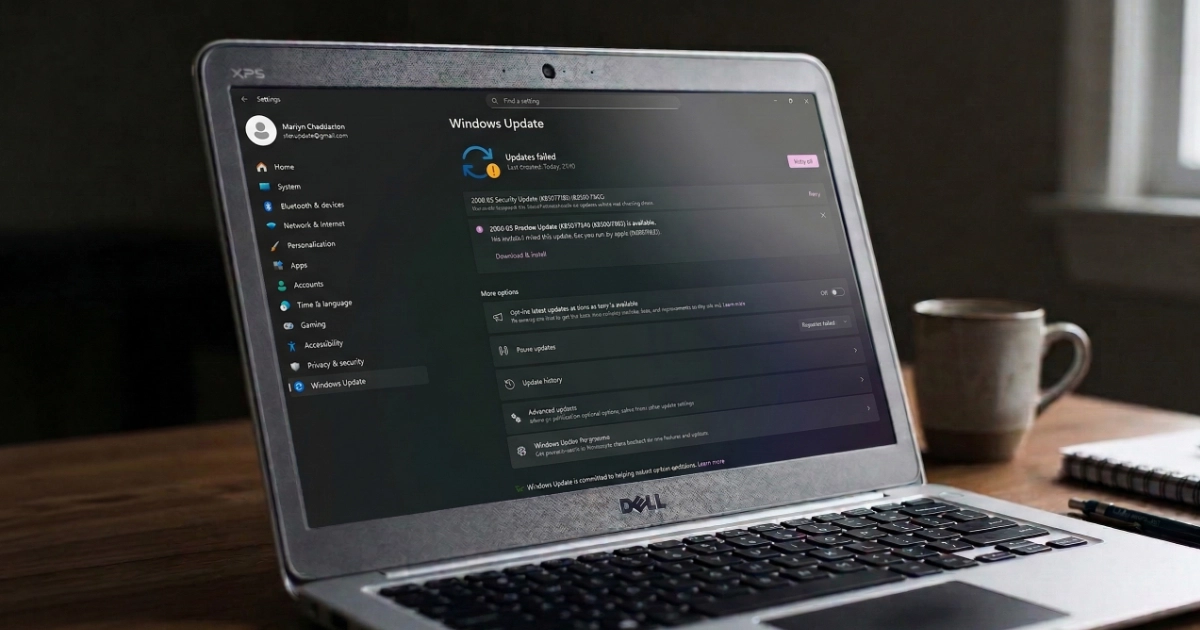
Before installing software, transferring files or setting up email, open Settings > Windows Update and select Check for updates.
New laptops can sit in a warehouse for weeks or months, so there may be security patches, driver updates and reliability fixes waiting. Let the laptop restart when asked, then check again. One round of updates can reveal another.
If an update will not finish, use the steps in our guide to fixing stuck Windows updates.
3. Remove trialware before it hooks you in
Many laptops from HP, Dell, Lenovo, Acer and other manufacturers arrive with software you did not choose. Common examples include:
- McAfee or Norton trials that expire after 30 to 90 days and then push for payment.
- Manufacturer promotions and utilities that start with Windows but offer little value.
- “PC optimiser” or “driver updater” tools that use alarming warnings to create urgency.
Go to Settings > Apps > Installed apps to review the list. Look up anything you do not recognise before removing it. Trial antivirus is usually safe to uninstall, but useful manufacturer tools for firmware updates, keyboard controls or battery settings may be worth keeping.
Windows 11 includes Microsoft Defender. For most home users, it provides capable everyday protection without another paid antivirus subscription. Read our plain-English guide on whether you need McAfee or Norton.
4. Check that Windows Security is switched on
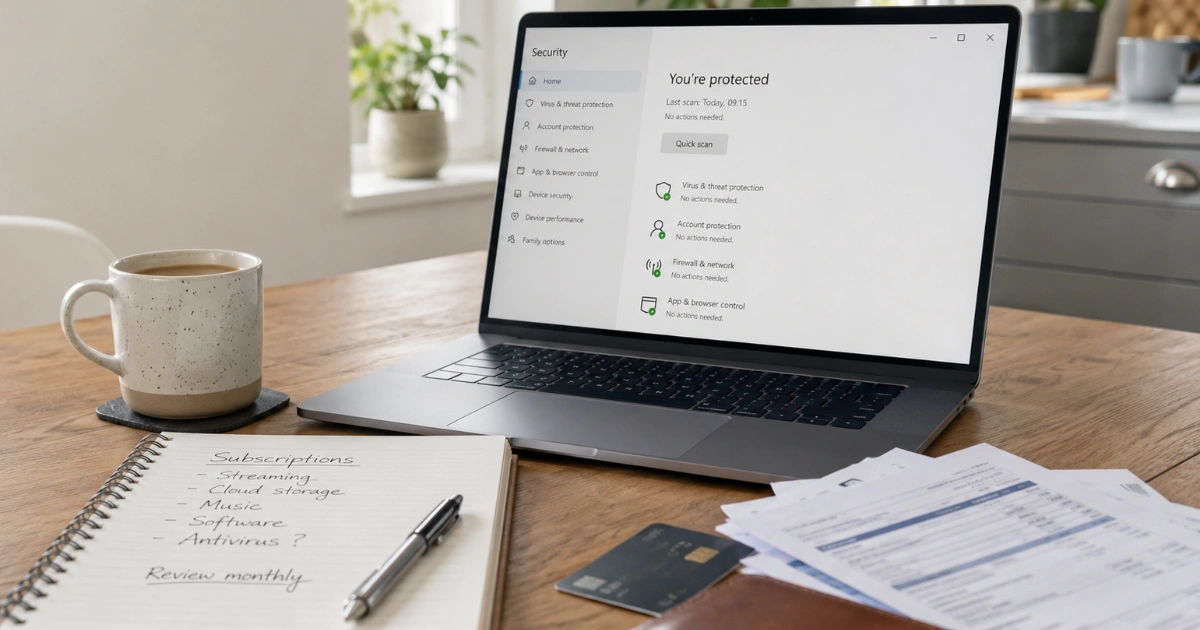
After removing any third-party security trial, open Windows Security from the Start menu. Check that these areas are active:
- Virus & threat protection
- Firewall & network protection
- App & browser control
Green ticks mean Windows is happy. If anything is amber or red, open that section and follow the recommended action. It can take a short while for Microsoft Defender to switch itself back on after another antivirus product is removed.
5. Set up OneDrive, but understand what it is doing
When you sign in with a Microsoft account, OneDrive may offer to back up your Desktop, Documents and Pictures folders to the cloud. This can protect those files if the laptop is lost, stolen or fails, but check the storage available first.
Free Microsoft account
Usually includes 5GB. That may hold documents, but is rarely enough for years of photos and videos.
Microsoft 365
Many plans include 1TB per person, giving far more room for photos, documents and backups.
If you exceed the allowance, OneDrive stops syncing and displays warnings. Check the storage before copying a large collection from your old PC.
OneDrive also uses Files On-Demand. A file can appear in File Explorer while its full contents remain online. To make an important folder available without internet access, right-click it and choose Always keep on this device.
Cloud sync is useful, but it is not the whole backup plan. Deleting or changing a synced file can affect every connected device. Keep a separate copy of anything irreplaceable.
6. Install only the software you actually need
Now install the applications you use regularly. For many home users, that means:
- A web browser: Microsoft Edge is already installed, while Chrome and Firefox are alternatives.
- Microsoft 365 or LibreOffice if you need word processing and spreadsheets.
- Software required for work, study, hobbies or a printer.
Edge can open most PDF files, so you may not need a separate PDF reader. Download software only from the developer’s official website or the Microsoft Store. Be cautious with sponsored search results, download portals and websites offering “free” versions of paid programs.
7. Set up your email carefully
Hotmail, Outlook.com and Live accounts can be used through Outlook on the web, the Outlook app or Microsoft 365 Outlook. Gmail and Yahoo work well in a browser, or you can add them to an email app if you prefer.
For a personal-domain or broadband-provider email address, have the account password and any required server details available. Browser-based webmail is often the simplest starting point.
Before wiping an old laptop, confirm you can both send and receive email on the new one. Also check that contacts and any locally stored mail folders have appeared; these do not always transfer automatically.
8. Do not wipe the old laptop straight away
Once your files appear on the new laptop, leave the old computer untouched for at least a couple of weeks. Open a selection of documents and photos, check your email, and confirm that browser bookmarks and any specialist program data have transferred.
It is common to discover later that one folder was missed or an old program stored its files somewhere unexpected. The old laptop is your safety net until you have checked properly.
Only then should you reset, recycle, sell or pass it on. A proper reset matters because simply deleting visible files does not prepare a computer safely for a new owner.
9. Add a physical backup
OneDrive can protect synced documents and photos, but a second backup is sensible for anything that cannot be replaced, especially family photos.
An external hard drive is a straightforward option. Connect it regularly, copy or back up your important folders, safely eject it, and store it away from the laptop. A drive left permanently connected can be affected by theft, electrical damage or malicious software at the same time as the computer.
If you also have tapes, slides or old photos you want to preserve, see the local Marple Memories digitisation service.
10. Skip the things a new laptop does not need
You do not need to activate Windows separately
A laptop from a reputable retailer should activate automatically when it connects to the internet. An unexpected caller asking for payment to activate Windows is a scam.
You do not need a registry cleaner or “PC booster”
These utilities rarely provide a meaningful benefit and can create new problems. Windows already handles routine maintenance.
You do not need to defragment an SSD
Almost every modern laptop uses solid-state storage. Windows optimises it automatically; old-fashioned manual defragmentation is unnecessary.
When the new laptop setup does not go smoothly
If Windows Update gets stuck, email will not connect or something seems wrong from the start, deal with it early. Setup problems are usually easier to resolve before months of files and software have accumulated.
Still under warranty?
If the laptop has a possible hardware fault — unusual noises, physical damage, charging trouble, random shutdowns or a screen problem — contact the retailer or manufacturer while it is covered.
Keep the box, charger, receipt and order emails until you are confident everything is working. Do not open or attempt a hardware repair on a brand-new machine.
New laptop setup summary
| Step | Why it matters |
|---|---|
| Take setup slowly | Avoids account and privacy mistakes |
| Run Windows Update | Installs security, driver and reliability fixes |
| Remove trialware | Prevents clutter, pop-ups and surprise renewals |
| Check Windows Security | Confirms built-in protection is active |
| Understand OneDrive | Prevents storage and sync surprises |
| Install only what you need | Keeps the laptop tidy, fast and easier to maintain |
| Set up email carefully | Avoids login problems and missing messages or contacts |
| Keep the old laptop briefly | Provides a safety net for missed files |
| Add a separate backup | Protects irreplaceable files and photos |
| Skip unnecessary jobs and software | Avoids ineffective tools and unnecessary maintenance |
Need a Hand Setting Up Your New Laptop?
I can set up your new computer properly, install updates, transfer files from your old machine and make sure your accounts, email, security and backups are working.
You will also get a clear explanation of what has been set up and how to use it confidently.
I’m based in Marple and cover Stockport, SK6 and the surrounding area.