My Email Says My Storage Is Full. Do I Need to Pay?
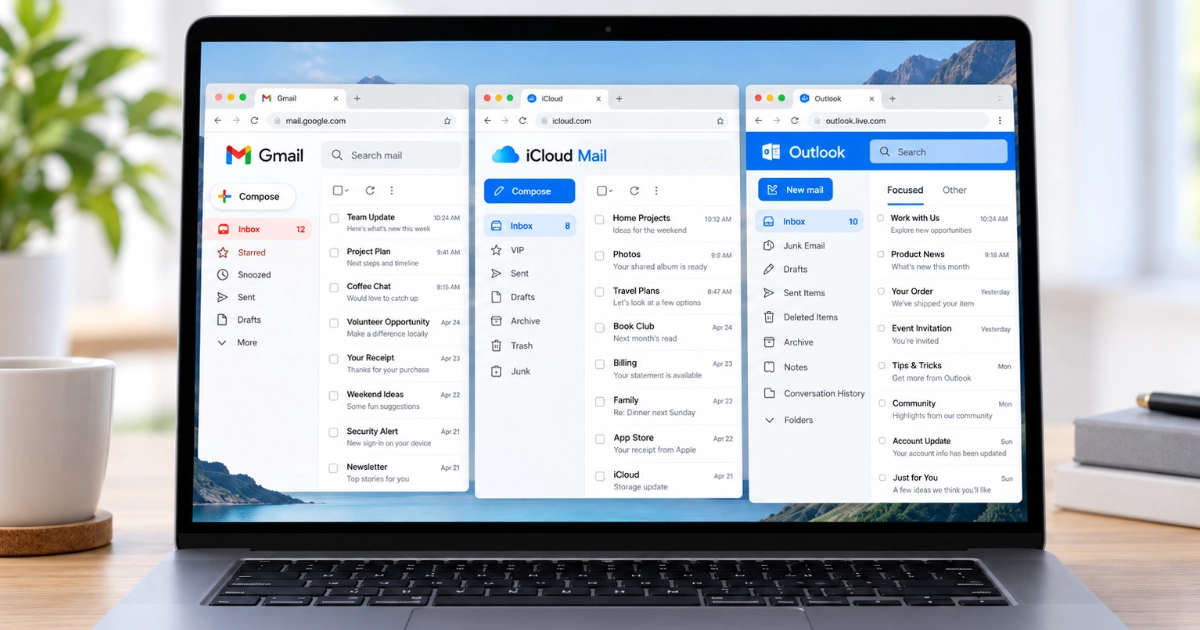
Why Gmail, Outlook and iCloud can run out of space, what your photos may have to do with it, and when paying for more storage actually makes sense.
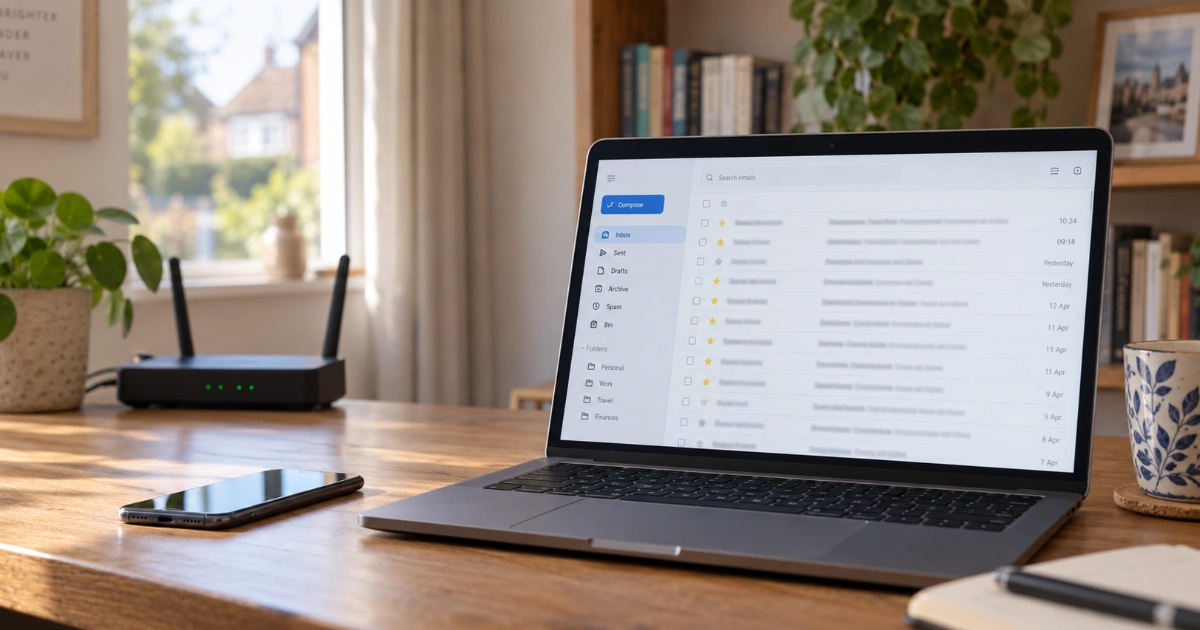
I've had two people contact me recently after receiving warnings that their email storage was nearly full. Understandably, both were worried that their email was about to stop working.
In one case, paying for some additional storage was absolutely the sensible answer. The account was also being used to store years of photographs, and that was where much of the space had gone.
In the other, there was no need for another subscription at all. A bit of housekeeping freed up plenty of space.
The important thing is this: before paying for more storage, find out what is actually using the space. And increasingly, that isn't necessarily your email.
In a hurry?
- Don't immediately pay for more storage. Check what's actually using it first.
- Your allowance may be shared between email, photos, files and backups.
- Don't start deleting photos unless you're sure they're safely stored somewhere else.
- If the storage is genuinely being used for things you want to keep, paying for more space can be perfectly sensible.
- If the warning arrived by email or text, open the service normally rather than clicking a link in the message.
- "Free email" doesn't always mean unlimited storage
- How much free storage do you actually get?
- First, find out what is actually using the space
- Why photographs may be the real culprit
- Option 1: Clean things up
- Option 2: Pay for more storage
- Option 3: Change how you're using the account
- What happens if you ignore the warning?
- Was the warning genuine?
- Your before-you-pay checklist
- So, should you pay?
"Free email" doesn't always mean unlimited storage
Services such as Gmail, Outlook.com and iCloud Mail are usually described as free email services.
They are, but there are limits to what you get for free.
For plenty of people those limits are enough for many years. The complication is that the storage associated with your email account may also be used for photographs, documents, phone backups and other files.
That means a warning telling you that your Google, Microsoft or iCloud storage is nearly full may have surprisingly little to do with the number of messages sitting in your inbox.
How much free storage do you actually get?
The three big services work slightly differently.
| Service | Free storage | What uses it? |
|---|---|---|
| Google / Gmail | 15 GB | Shared between Gmail, Google Drive and Google Photos, as well as things including WhatsApp and Android device backups |
| Microsoft / Outlook.com | 15 GB email storage plus 5 GB cloud storage | Email has its own allowance, while OneDrive files, photos and Outlook attachments use the separate cloud allowance |
| Apple / iCloud | 5 GB | Shared between things including iCloud Mail, iCloud Photos, iCloud Drive and device backups |
Google's standard 15 GB allowance is shared between Gmail, Google Drive and Google Photos. WhatsApp backups on Android and data managed through Android's backup settings can also count towards it. When the account reaches its storage limit, Gmail can no longer send or receive messages, Drive cannot create or upload new files and Google Photos stops backing up new photographs and videos.
Microsoft is slightly more complicated. A free Outlook.com account has 15 GB of mailbox storage and a separate 5 GB Microsoft cloud storage allowance. Outlook.com attachments count towards that cloud allowance. Most importantly, Microsoft says that when the cloud storage allowance is exceeded, "You will not be able to send or receive email in Outlook.com", even if the email mailbox itself still has space available.
Apple gives an iCloud account 5 GB of free storage. It can be used for things including iCloud Mail, iCloud Photos, iCloud Drive and device backups. If iCloud storage runs out, an iCloud Mail address can no longer send or receive email until space is made available again.
So when somebody tells me:
"I can't understand how my email can possibly be using 15 GB."
Quite often, it isn't.
First, find out what is actually using the space
Before deleting anything or agreeing to another monthly subscription, look at the storage breakdown.
Open Google One and look at Storage.
This shows how much of the account is being used by Gmail, Google Photos, Drive and other items. Google's storage manager can also help identify large emails, files, photos and backups that may be worth reviewing.
Outlook.com and Microsoft
In Outlook.com, go to Settings, then Account, then Storage.
This shows how much mailbox storage you're using and which folders are taking up the most space.
The same screen can also help with a clean-up. Outlook lets you see storage by folder and, if appropriate, permanently remove everything in a folder or only messages older than 3, 6 or 12 months. Be careful with those options, though: they permanently delete the selected messages rather than simply moving them to Deleted Items.
Remember that Microsoft cloud storage is separate. If Outlook says your Microsoft storage is full, check that allowance too. Filling it can stop Outlook.com sending and receiving mail even when the mailbox itself is below its 15 GB limit.
iPhone or iPad
Go to Settings, then your name, then iCloud.
You'll see how much iCloud storage you've used and what is consuming it. Tap Storage or Manage Storage for more detail.
That five-minute check is often enough to tell you whether you have an email problem, a photo-storage problem or simply years of accumulated clutter.
Your photographs may be using far more space than your email
This is particularly common with Google accounts.
An Android phone may have been quietly backing up photographs to Google Photos for years. Somebody can have thousands of photographs and videos stored there without really thinking about where they're being kept.
Then one day Gmail produces a warning saying the Google account is 90% or 95% full.
It can feel as though Gmail has suddenly filled up, when Gmail may only represent a small part of the total.
The same principle applies to Apple. An iPhone may be using iCloud for photographs and device backups as well as email.
This is why I wouldn't recommend starting by blindly deleting hundreds or thousands of emails.
First look at the storage breakdown. Find out whether the space is being used by:
- email and attachments
- photographs and videos
- cloud files
- phone or app backups
- deleted items that haven't yet been permanently removed
Once you know that, the right answer is usually much clearer.
Option 1: Clean things up
Sometimes the account really is just full of things that are no longer needed.
It might contain years of marketing email, old messages with enormous attachments, files that were uploaded temporarily and forgotten about, or thousands of items sitting in Deleted Items, Spam or the bin.
But concentrate on large items, not simply the number of items.
Deleting 5,000 tiny text emails might free surprisingly little space. A handful of messages containing large photographs, videos or attachments could use far more.
Deleted items matter too. In Gmail, messages in Spam and the bin still count towards your Google storage. Google also warns that the storage figure can take time to update after a large clean-up.
Be careful before emptying bins
Permanently deleting something is very different from simply moving it into the bin.
Google's storage-management tool says items removed from Gmail and Drive through its clean-up process are permanently deleted and can't be recovered. Google Photos keeps deleted items in its bin for 60 days if they were backed up, or 30 days if they were not, unless you empty the bin sooner.
So don't empty every bin simply because you're trying to make the storage meter move.
Check what's in there first.
Option 2: Pay for more storage
There can be a reluctance to pay for something when an account has always been described as "free".
But paying for additional storage isn't automatically a bad deal.
If you have years of photographs that you genuinely want stored in Google Photos, iCloud or OneDrive, then you aren't really just using an email service. You're using cloud storage too.
In that situation, paying for some additional capacity may make considerably more sense than repeatedly deleting things you actually want to keep.
That was the right answer for one of the people I helped recently. Their storage wasn't being wasted. They were genuinely using it for their photo library. The subscription was therefore providing something useful.
What I wouldn't do is press Upgrade simply because a warning has appeared without first checking what is taking up the existing space.
If most of it turns out to be unnecessary files, old attachments or things you no longer need, paying every month to keep them probably isn't the best answer.
Option 3: Change how you're using the account
There is a third possibility.
Perhaps you don't actually want every photograph from your phone automatically uploaded to that particular cloud service. Perhaps the same photographs are being stored in several places. Perhaps large files have accumulated in cloud storage that would be better kept elsewhere.
Or perhaps you've simply reached the point where the free allowance is no longer suitable for the way you use the service.
This needs more thought than simply pressing Delete.
Be particularly careful with photographs
Before removing large numbers of photographs from Google Photos, iCloud Photos or another cloud service, make sure you understand what will happen.
A synchronised photo library is not necessarily the same thing as having a separate backup copy.
For example, deleting photographs from Google Photos can also remove them from other devices using Google Photos with backup switched on.
If you aren't certain whether something is safely stored somewhere else, don't delete it just to make a storage warning disappear.
This is where the distinction between sync and backup becomes important.
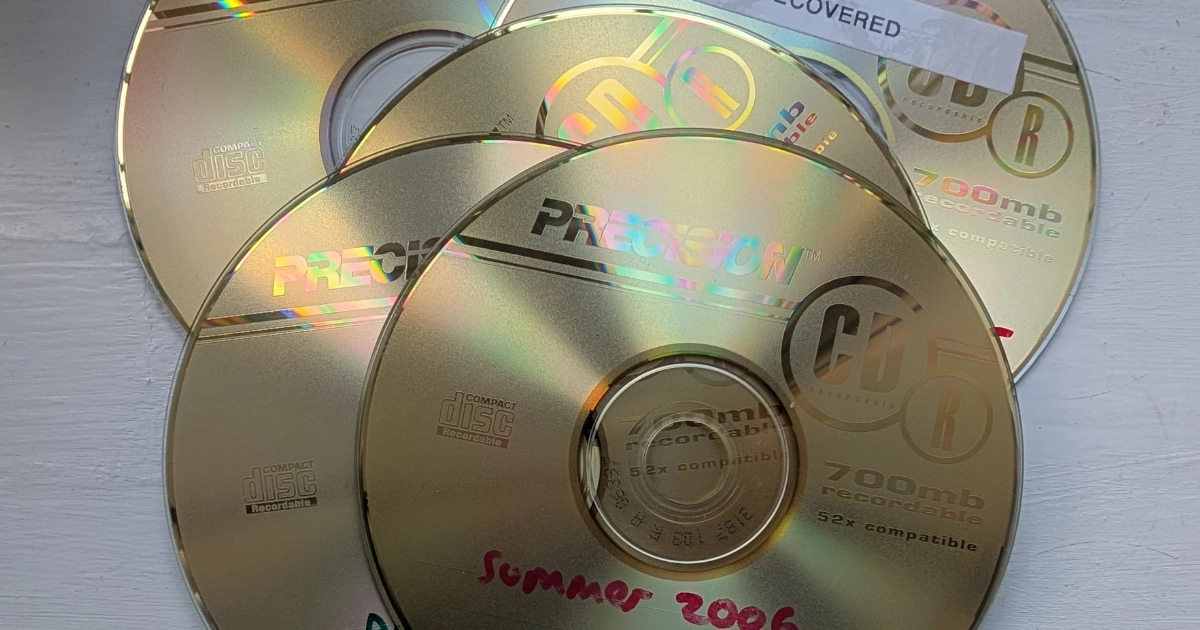
If irreplaceable photographs matter to you, my guide to old photo CDs and DVDs also explains the useful 3-2-1 principle: keep three copies, on two different types of storage, with one somewhere else.
What happens if you ignore the warning?
This is worth taking seriously, although it usually isn't an emergency when the first warning appears.
Once Google storage reaches its limit, Gmail can't send or receive messages. Messages sent to the account are returned to the sender, while Google Photos stops backing up new photos and videos and Drive stops accepting new files.
Microsoft behaves similarly. If either the relevant mailbox allowance or Microsoft cloud storage is full, Outlook.com can't send or receive email. Incoming messages are returned to the sender and have to be sent again after storage has been freed.
Apple says that when iCloud storage is full, an iCloud Mail address can't send or receive messages until more space is made available.
So reaching 100% isn't something I'd ignore.
Don't leave an account over its limit indefinitely
There can also be longer-term consequences.
Google says that if an account remains over its storage quota for two years or longer, its content may ultimately be removed, and that it gives at least three months' notice before content becomes eligible for deletion.
Microsoft says that if a personal OneDrive remains over its storage quota for six months, the OneDrive and its files may be deleted.
Those are long-term policies, not something that happens the moment a 90% warning appears.
The sensible response is neither panic nor ignoring it. It's to find out what is using the space and deal with it before the account actually fills.
One more thing: was the warning genuine?
Storage warnings are real, but fake "your mailbox is full" messages are also an obvious way to persuade somebody to click a link and enter their password or payment details.
If you receive an unexpected message saying something like:
"Your mailbox is full. Click here immediately to avoid losing your email."
don't use the link in the message if you're unsure about it.
Instead, open Gmail, Outlook, your Microsoft account or your iPhone settings in the normal way and check the storage figure there.
The National Cyber Security Centre gives similar advice: if you have doubts about a message, contact the organisation directly using details from its official website rather than the links, addresses or numbers in the message.
If a message looks suspicious, Scam First Aid takes you through what to check without asking you to enter any personal details.
Your before-you-pay checklist
Print this and work through it before deciding anything.
Storage Warning Checklist
Before touching anything
- Warning checked in the service itself, not through a link in a message
- Storage breakdown opened: Google One, Outlook settings, or iPhone settings
- Biggest user of space written down: ____________________
- Email, photos, files and backups considered separately
If it is clutter
- Large attachments dealt with first, rather than lots of small emails
- Bins and Deleted Items checked before emptying, not after
- Nothing deleted from a photo library without a second copy elsewhere
- Storage meter given a day or two to catch up before worrying
If it is worth keeping
- Cost of the next plan up checked, and the renewal date noted
- Decided whether a second copy of the photos exists anywhere else
- Setup reviewed, so the same warning doesn't return in six months
Remember: a warning at 80% or 90% is a prompt to look, not an emergency, and never a reason to enter your password after clicking a link.
So, should you pay?
There isn't one answer that applies to everyone.
If your storage contains things you genuinely want to keep, such as a large photograph library, paying for additional storage may be completely reasonable.
If most of the space is being taken up by things you don't need, cleaning it up may solve the problem without another monthly payment.
If the same problem keeps coming back, it may be worth looking at how your photos, email, backups and cloud storage are set up rather than continually deleting things or increasing the allowance.
And if your email address itself belongs to your broadband provider, there's another question worth asking: do you want your main email address tied to a company you may one day leave? I've covered that separately in Virgin Media email is moving to Junara.
The important thing when a storage warning appears is not to panic and not to immediately reach for a credit card.
Find out what is using the space first. Then decide whether you need more storage, less clutter, or a better setup.
Need help sorting it out?
If your email has stopped working, you're getting storage warnings, or you're not sure whether it's safe to start deleting things, Email & Account Rescue is £59.
I'll check what is actually using the storage, get the email working again where possible, and help you decide whether cleaning things up, changing the setup or paying for more storage is the sensible option.
If the message that started all this looks suspicious, don't enter any passwords or card details. Check it with Scam First Aid first, or send it to me and I'll take a look.
I’m based in Marple and cover Stockport, SK6 and the surrounding area.