When Your Printer, Smart Plug or Thermostat Refuses to Connect
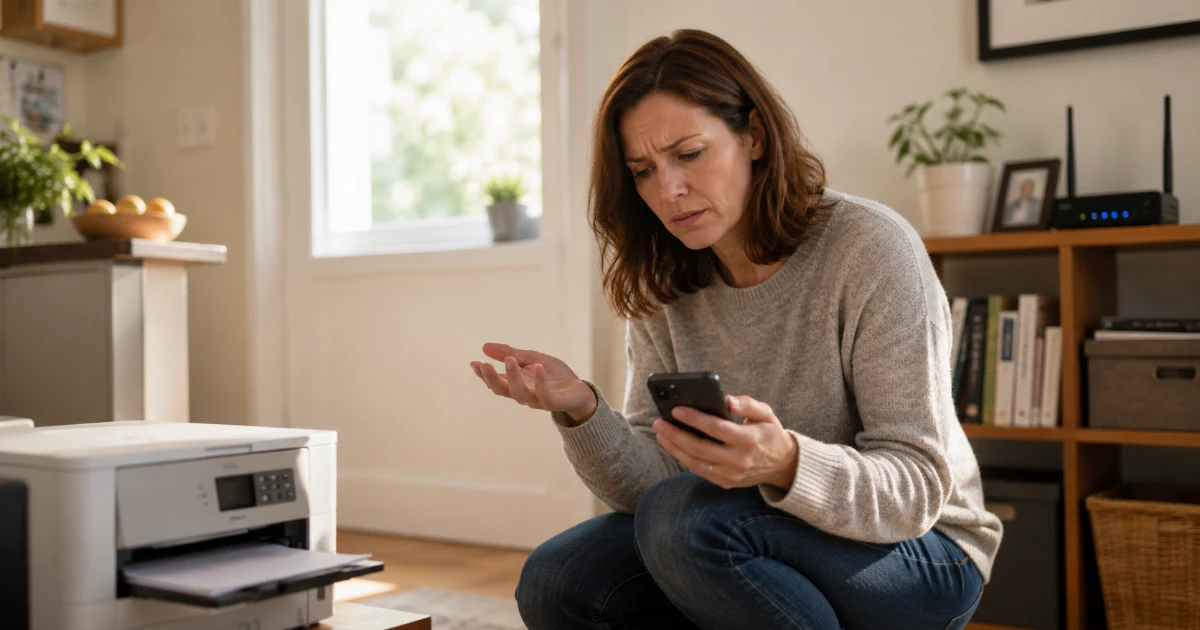
Most modern routers broadcast more than one type of Wi-Fi signal. Your phone, tablet and laptop usually handle that without you having to think about it. Older and simpler devices are not always that clever.
A lot of printers, smart plugs, thermostats, cameras and other household devices only understand 2.4 GHz Wi-Fi. When they cannot find it properly, or when the router tries to be too clever about how devices connect, they may simply refuse to join the network.
This comes up more often than people expect. I sorted it out for someone recently: a perfectly good printer that had worked fine for years suddenly refused to connect after a new router arrived. The printer was not broken. It just could not cope with the way the new router had been set up.
Quick signs this may be your problem
- Your phone and laptop connect fine, but one printer or smart device will not.
- The problem started after a new router, broadband switch or router reset.
- The device instructions mention 2.4 GHz only.
- The device connects during setup, then drops off later.
Why does this happen?
When you get a new router, whether from BT, Sky, EE, Virgin Media, BRSK, YouFibre or another provider, it will often come with a feature called band steering, smart connect, smart Wi-Fi or something similar.
The idea is simple: instead of showing separate 2.4 GHz and 5 GHz Wi-Fi networks, the router shows one network name and decides which band each device should use.
For modern phones, laptops and tablets, this is usually fine. For older printers and cheaper smart devices, it can cause problems.
The device may connect and then drop off. It may connect during setup but disappear a few hours later. It may refuse to connect at all. From your point of view, the router looks fine, your phone and laptop work, and only one awkward device is misbehaving.
The frustrating bit: it often looks like the printer, plug or thermostat is faulty, when really it is struggling with the router's Wi-Fi settings.
What types of device run into this?
Anything made before about 2017 is worth checking. Older printers are the most common culprit, but the same issue can affect budget smart plugs, security cameras, smart bulbs, baby monitors, robot hoovers, smart thermostats and older Echo or Google Home devices.
It is also common with cheaper newer devices. Many low-cost smart-home products still only support 2.4 GHz Wi-Fi, even if they were bought recently.
If the instructions mention 2.4 GHz only, that device may need a simpler Wi-Fi setup than your router currently provides.
The usual fix: give 2.4 GHz its own name
The most reliable solution is to separate the router's Wi-Fi bands so that the 2.4 GHz network has its own name.
For example
Instead of just having:
SmithFamilyWiFi
You might have:
SmithFamilyWiFi-2.4
SmithFamilyWiFi-5G
Then you connect the older printer, plug, camera or thermostat specifically to the 2.4 GHz network.
Your phones and laptops can usually stay on the normal or 5 GHz network. The older device gets the simpler 2.4 GHz network it understands, and everything becomes much more reliable.
How to deal with it on common routers
The exact menus vary by provider and router model, and they can change when providers update the firmware. These are good places to start.
BT Smart Hub 2
Login: 192.168.1.254
Try: Temporarily turn off 5 GHz, connect the device while only 2.4 GHz is available, then turn 5 GHz back on.
Sky SR203 or SR204
Login: 192.168.0.1
Try: Look for the option to synchronise 2.4 GHz and 5 GHz settings. Untick it, then give each band a separate name.
EE Smart Hub Plus
Login: 192.168.1.254
Try: Go to Advanced Settings, then Wireless. Look for Compatible WiFi, which is designed to help older devices connect.
Virgin Media Hub 3, 4 or 5
Login: 192.168.0.1
Try: Go to Advanced Settings, then Wireless. If allowed, rename the 2.4 GHz network so it is easy to recognise.
BRSK or YouFibre
Login: usually on the router label
Try: Look for WiFi, Wireless, WLAN or SSID settings. Disable Smart WiFi, Band Steering, Smart Connect or Mesh Steering if those options are available.
On some routers, full band separation is limited or hidden. If those options are not available, a separate 2.4 GHz access point can sometimes be the cleaner long-term fix, especially if you have several older smart-home devices.
Check the Wi-Fi security mode too
There is another setting that can catch people out: Wi-Fi security.
Some newer routers use WPA3, or a mixed WPA2/WPA3 mode. That is good for newer devices, but some older printers and smart-home devices do not like it.
If your router gives you the option, try setting the 2.4 GHz network to WPA2-Personal. This is often more compatible with older equipment.
I would not normally weaken security across your whole network unless there is a good reason. But for a separate 2.4 GHz network used only for older household devices, WPA2 is often the practical choice.
If you cannot separate the bands
Some ISP routers do not give you full control, or the settings are hidden away. In that case, there are still a few things worth trying.
Try WPS
If your router has a WPS button, some older devices can use that to connect.
- Press the WPS button on the router.
- Start WPS setup on the printer, camera or other device within a couple of minutes.
- Wait while the device tries to join the network.
This does not always work, but it can be useful with some printers and cameras. I would not leave WPS enabled permanently if your router gives you the option to turn it off afterwards.
Temporarily disable 5 GHz
Some routers let you temporarily turn off the 5 GHz Wi-Fi band. This can help during setup because your phone or tablet is then forced onto the 2.4 GHz network while you configure the smart plug, thermostat, printer or camera.
Once the device is connected, you can usually turn 5 GHz back on.
Check the Wi-Fi mode
If your router gives you more advanced Wi-Fi options, check the wireless mode for the 2.4 GHz band.
Some very old devices struggle with newer Wi-Fi standards. If you see options such as 802.11n, mixed mode, Wi-Fi 4, Wi-Fi 5 or Wi-Fi 6, try using a more compatible mixed mode for the 2.4 GHz network.
Use a separate access point
For devices that really will not cooperate with the main router, a small separate access point can be the cleanest solution.
This can be set up as a simple 2.4 GHz-only Wi-Fi network just for older devices. It avoids constantly changing the main router settings and can be more reliable long term.
A powerline adapter with built-in Wi-Fi can also work well in some houses, especially if the device is far from the main router.
IoT devices and guest networks
While you are in the router settings, it is worth knowing about guest networks.
A guest network is normally used to give visitors internet access without giving them full access to your main home network. But some people also use a guest network for smart-home devices such as plugs, bulbs, cameras and thermostats.
This can be a sensible security precaution, especially with cheaper smart devices. Your computers, phones and tablets stay on your main network, while the smart devices sit on a separate one.
The setting is usually called Guest Network or Guest WiFi. Not every router handles guest networks in the same way, so this is not always the answer. But it is worth knowing about.
Take a quick photo of the current Wi-Fi settings. That gives you a way back if the router menu is confusing or something does not behave as expected.
Changing the main Wi-Fi name or password can disconnect devices that are already working, so it is best to make one change at a time and test as you go.
If you get stuck
Router menus vary a lot, and providers do move settings around when they update the firmware. So if the instructions above do not quite match what you see on screen, you are not necessarily doing anything wrong.
In many cases, the device itself is fine. It just needs the router to present a simpler, more compatible Wi-Fi network.
Need Help Getting an Older Device Connected?
If a printer, smart plug, camera or thermostat will not join your Wi-Fi, I can check the router settings and get the device connected properly.
This is often a quick fix once the 2.4 GHz, security and smart Wi-Fi settings are visible.
I’m based in Marple and cover Stockport, SK6 and the surrounding area.