Mods, downloads and dodgy links: a PC safety guide for teenagers and parents
How to enjoy modding, gaming and experimenting with your computer without falling for dodgy downloads, fake websites and account-stealing scams.
Gaming PCs are wonderful things.
You can customise almost everything, install mods that completely transform your favourite games, experiment with unfamiliar software, learn to code and discover things you never knew your computer could do.
Sometimes you'll even break something and have to work out how to fix it.
And that's exactly the sort of curiosity I'd encourage.
But there's a difference between experimenting with your computer and accidentally allowing somebody else to take advantage of that curiosity.
At Marple Tech Help, I regularly encounter computers that have accumulated unwanted applications, advertising software and occasionally more serious security threats. I've also seen the problems that can arise from trusting unfamiliar downloads or giving account access to the wrong people.
This guide isn't about stopping teenagers from experimenting. It's about helping them do it confidently, recognise potential dangers and recover when something goes wrong.
It's also for parents who want to support their children, even when they don't understand every game, mod or application they're using.
First, a confession: I was quite good at breaking computers myself
When I was about nine or ten, back in the early 1990s, my mum, who was a teacher, brought home a PC from school.
I'd already spent years using computers, starting with a Commodore 64 and then an Amiga 500+, but this was one of my first experiences with a PC. It was completely different from the machines I knew, and I was fascinated.
Naturally, I wanted to explore everything.
I investigated the buttons, examined the unfamiliar connections around the back and eventually discovered a little switch on the power supply marked 110V/240V.
I wondered what that did.
Unfortunately, I decided to find out while the computer was switched on.
One flick. A loud bang. A flash of green light. A puff of smoke.
And that was the end of my PC adventures for the day.
I never made that particular mistake again!
To be absolutely clear, experimenting with mains electricity or power supplies is genuinely dangerous. I was fortunate the consequences weren't worse.
But my curiosity survived, even if the power supply didn't.
Over the following years, I spent plenty of time tinkering with Windows, deleting important system files and DLLs, changing settings I didn't understand and occasionally making a complete mess of things.
Then I'd have to work out how to fix them, largely without the benefit of the internet.
I learnt an enormous amount from those mistakes.
I wouldn't want today's teenagers to miss out on that same opportunity to experiment, make mistakes and learn.
Learning to distinguish a worthwhile experiment from an unnecessary risk is simply another part of becoming good with technology.
Here are some of the habits I'd encourage.
1. The biggest download button might be the wrong one
You've found the perfect Minecraft mod, animated wallpaper or useful little application.
You reach the download page.
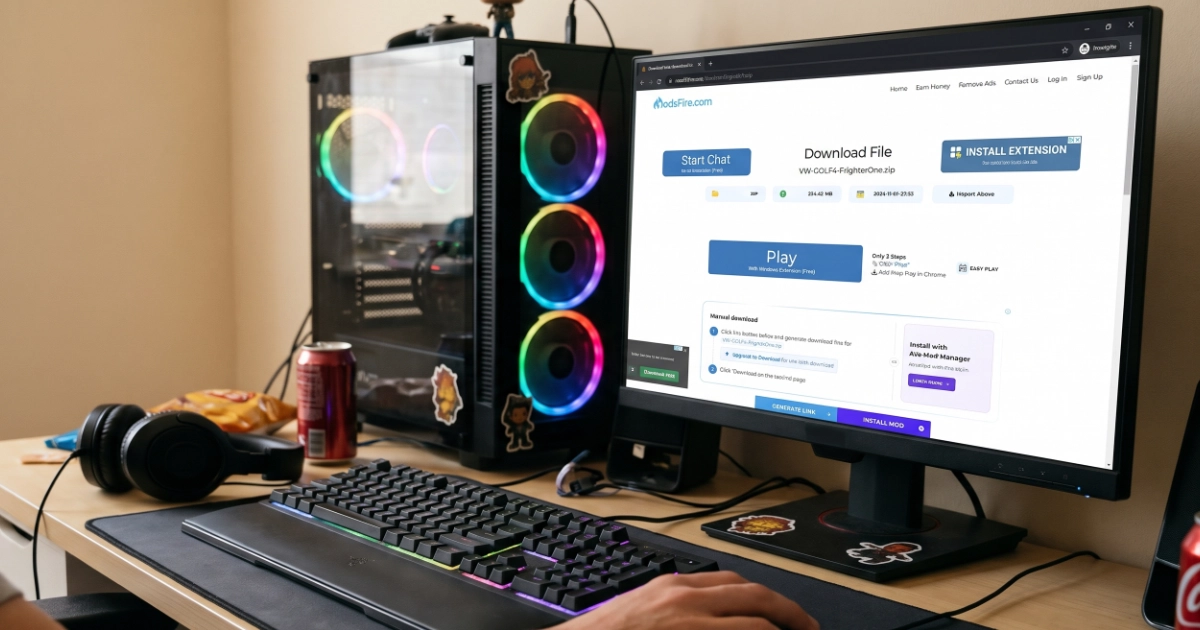
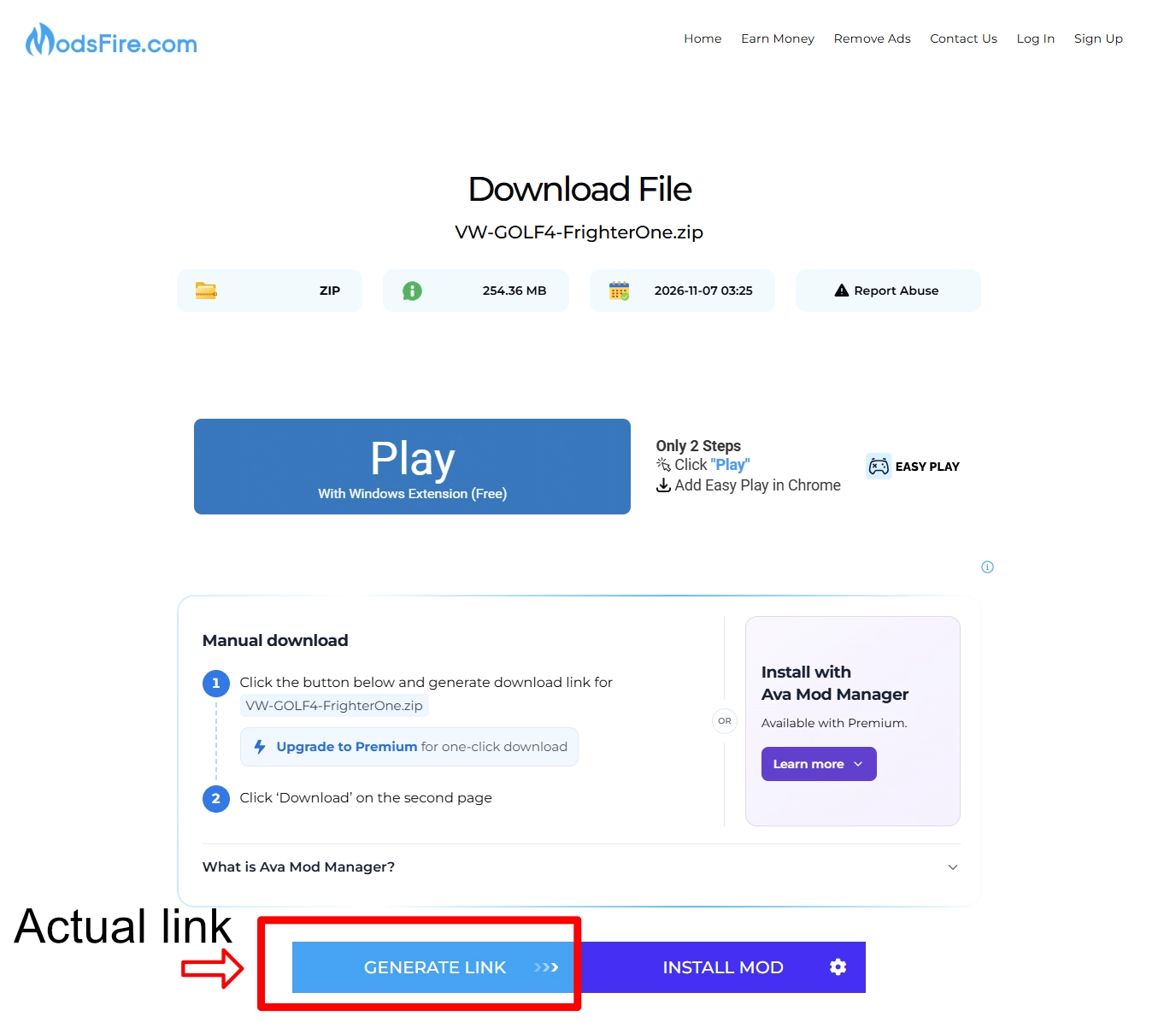
Suddenly, you're confronted with four enormous green DOWNLOAD buttons, two flashing advertisements, a countdown timer and a warning that you need to update something first.
Somewhere amongst all this is the actual download link.
Sound familiar?
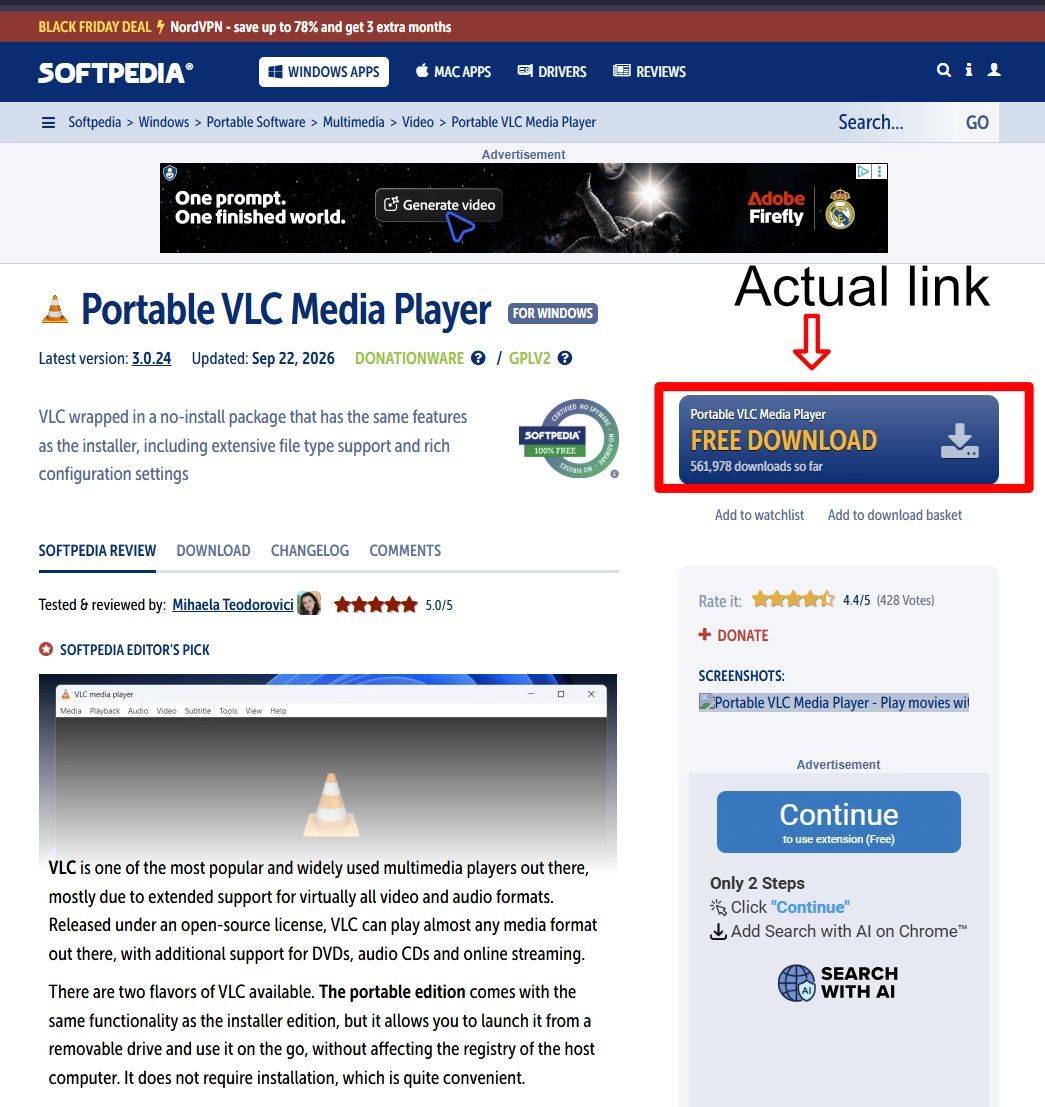
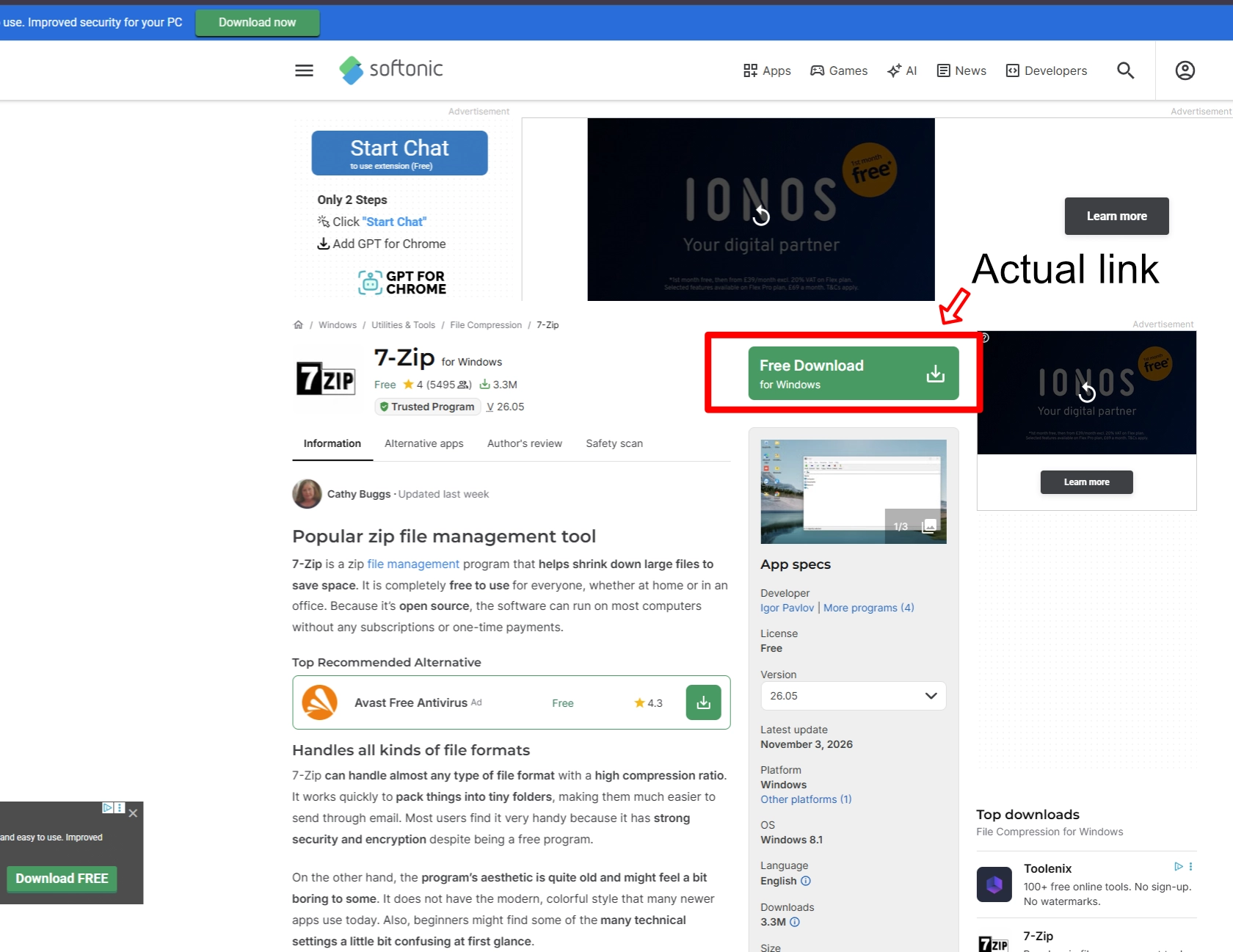
Some websites deliberately display advertisements that look like download buttons. Click the wrong one and you could find yourself downloading something entirely different.
Sometimes that's just an annoying application. Other times it could be something more harmful.
Which button gets you the file?
Two more examples from the same morning
Before downloading anything:
- Check that you're on the genuine developer's website or another trustworthy source.
- Look carefully at buttons and links. Hovering over a link on a PC will often show where it leads.
- Be suspicious if clicking Download opens an unrelated website or downloads something unexpected.
- Avoid installing extra download managers unless you understand why they're needed.
- Remember that a sponsored Google result isn't automatically the official website.
If a website makes it unnecessarily difficult to identify the genuine download, consider finding another source.
And don't feel silly if you've clicked the wrong button before. These pages are designed to confuse people, including experienced computer users.
2. Mods are brilliant, but choose your sources carefully
Minecraft, The Sims, Skyrim and countless other games become even more interesting when you start exploring mods.
Some add new worlds or characters. Others improve graphics, introduce features or completely change how a game works.
There are incredibly talented developers creating and sharing this software, often for free.
But the popularity of mods also makes them an attractive target for criminals.
Imagine somebody on Discord invites you to a new Minecraft server. They explain that you need to download a special modpack before joining.
It might be legitimate.
Alternatively, somebody could be using that download to distribute malware.
For Minecraft, established platforms such as Modrinth and CurseForge are generally better starting points than unfamiliar websites or files shared in private messages.
But even established platforms aren't completely risk-free.
How can you tell whether a mod is trustworthy?
There isn't a single test that guarantees a download is safe, but you can investigate:
- How established is the project? Has it existed for some time, or did it appear yesterday?
- Is it actively maintained? Recent updates and a consistent history are useful signs, although older, perfectly functional mods might not need frequent changes.
- Are people actually using it? A substantial download history can provide reassurance, but numbers alone don't prove anything.
- What are people saying? Check recent comments, issue reports and community discussions. Are users reporting unexpected behaviour?
- Can you identify the developer? Do they have a genuine website, established profile or GitHub repository? Can you see a history of previous projects?
- Does the download make sense? A normal mod shouldn't unexpectedly require unrelated applications, mystery installers or disabled antivirus protection.
None of these checks is conclusive, and a brand-new project isn't automatically suspicious.
The idea is to build up a reasonable picture rather than blindly trusting a download button.
When genuine mods were used to spread malware
In June 2023, a malware campaign known as Fractureiser affected Minecraft mods distributed through platforms including CurseForge.
Attackers used malicious uploads and compromised accounts to distribute infected files.
The malware could steal account credentials and other information.
The important point is that users could encounter malicious software through what appeared to be an ordinary mod download.
CurseForge published information about the incident, including advice and detection tools for affected users.
That doesn't mean you should avoid modding.
It means a familiar platform isn't an absolute guarantee of safety, and keeping an eye on security announcements from the communities you use is worthwhile.
3. Free games, cheats and Robux generators deserve particular caution
This is an area I'd really encourage young gamers to understand.
The internet is full of offers for cracked games, free premium features, aimbots, cheats, Roblox executors and programs claiming to generate unlimited Robux.
A Roblox executor is a tool used to run scripts inside Roblox, often to cheat or modify how a game behaves.
Some of these downloads are simply fake. Others may contain software designed to steal passwords, gaming accounts and information stored in your browser.
An offer might look something like this:
"FREE ROBUX GENERATOR! WORKING!"
Or:
"NEW UNDETECTED AIMBOT. DOWNLOAD NOW!"
You might even see instructions saying that antivirus software will incorrectly identify the download as dangerous and must be switched off first.
It's true that legitimate software can sometimes trigger incorrect antivirus warnings. This is known as a false positive.
But criminals also use that explanation to persuade people to disable the very protection that might stop their malware.
Roblox itself warns that free Robux generators are scams. You can read its official advice.
There's another consequence worth considering too. Using cheats and unauthorised tools can get your gaming account suspended or permanently banned, even when the software itself isn't malicious.
Think about the trade-off. Is an advantage in one game worth potentially losing the account, purchases and progress you've spent years building?
That doesn't mean every unofficial application is malicious. There are plenty of legitimate community-created tools.
But downloads obtained through piracy websites, unfamiliar cheat sellers, random YouTube descriptions and unknown Discord servers deserve particular scrutiny.
4. Be careful when a friend asks you to download something on Discord
Here's a scam that's worth knowing by name.
"Can you test my game?"
You receive a Discord message from somebody you know.
They explain that they've been developing a game and would love you to try it.
There's a link to download the game, perhaps with a password to open the ZIP file.
It sounds like a perfectly reasonable request, especially if you know the person enjoys programming.
But their Discord account might have been stolen.
The download could actually contain an information stealer, a malicious program designed to collect passwords, login sessions and other valuable information.
Once an attacker gains access to another Discord account, they can send similar messages to that person's friends.
That's how the scam can spread through a gaming community.
This is a real scam, not a hypothetical one
Security company Malwarebytes documented this technique in January 2025 in an investigation titled "Can you try a game I made?" Fake game sites lead to information stealers.
The campaign involved messages inviting people to test games, convincing imitation game websites and downloads containing information-stealing malware.
Some of the malicious downloads were distributed through compromised accounts, making them appear more trustworthy.
The attackers were particularly interested in stealing Discord credentials and login sessions, which could then be used to target the victim's friends.
This doesn't mean you should refuse to try a friend's game.
It means checking that the request is genuine before running unfamiliar software.
Contact your friend another way, such as by text message or a phone call. Don't rely solely on the Discord account that sent the link.
What about password-protected ZIP files?
There are legitimate reasons to password-protect an archive.
But if an unexpected Discord message provides a ZIP file and its password, be cautious.
Encrypted archives can prevent security software from examining their contents until they're opened.
Malwarebytes specifically documented password-protected downloads being used in the fake game-testing campaign.
That doesn't automatically make the file dangerous, but it removes one opportunity to inspect it before extraction.
A friendly message and a familiar username aren't proof that a file is safe.
Back to contents5. Don't give strangers access to your accounts
Sometimes you don't need to download anything to get into trouble.
You might be offered free Discord Nitro, an exclusive Minecraft server, rare in-game items or early access to a new game.
All you need to do is verify your account.
You're sent a link to a website that looks just like Discord, Steam or another familiar service.
But the login page could be fake.
Entering your username and password might hand those details straight to somebody else.
A safer habit is to open the genuine service yourself rather than signing in through an unexpected link.
Signing in with Discord or Google
Some websites legitimately offer buttons such as "Sign in with Discord" or "Continue with Google".
These systems can be convenient and secure.
However, you're sometimes being asked to grant another application access to information or features associated with your account.
Before approving access, check that you trust the application and understand what it's requesting.
You can review connected applications in Discord under User Settings > Authorized Apps.
Be careful with QR-code logins
Discord also allows users to sign in by scanning a QR code.
That's useful when you're logging into your own computer.
But if somebody sends you a QR code and asks you to scan it to verify your identity, you could be approving a login to your account on somebody else's device.
Never approve a login request you didn't initiate yourself.
And never share passwords, login codes, recovery codes or account access tokens with another person.
Use different passwords for important accounts, ideally stored in a password manager, and enable two-factor authentication or passkeys where supported.
Our guide to passkeys and how they're replacing passwords explains how they work.
6. Watch out for fake CAPTCHA tests
You've probably seen websites asking you to prove you're human by ticking a box or identifying traffic lights in photographs.
Unfortunately, criminals have found ways to imitate these verification pages.
One technique, often called ClickFix, displays a fake CAPTCHA or browser security check.
If a verification page asks you to open the Windows Run box, paste something in and press Enter, stop and close the page.
It might claim these steps are necessary to verify that you're human. The Run box can execute a command pasted from your clipboard.
The website may already have copied a malicious command to your clipboard without you realising it.
Following those instructions can cause your computer to run malicious software.
A genuine CAPTCHA should not require you to run Windows commands to prove you're human.
This is particularly useful to recognise because fake verification pages can look remarkably convincing.
PowerShell, Command Prompt and the Windows Run box aren't dangerous in themselves. They're powerful tools that are brilliant for learning about Windows.
The important thing is understanding what a command does before running it.
7. Learn what you're actually downloading
One of the simplest ways to become more confident with computers is to understand file types.
For example:
.jpgand.pngare common image formats..zipfiles are containers that hold other files..exeand.msifiles are commonly used for Windows applications and installers..batand.ps1files can contain commands and scripts..jarfiles can run Java code and are used by many legitimate Minecraft mods.
None of these extensions automatically means a file is dangerous.
But a picture and a program are very different things.
A file named wallpaper.png is not the same as wallpaper.png.exe.
Windows can hide known file extensions, which makes misleading filenames harder to spot.
To show them in Windows 11, open File Explorer > View > Show > File name extensions.
Remember that downloading a ZIP file doesn't make its contents safe.
You don't need to memorise every extension. Just develop the habit of checking what you're opening.
8. Understand what Windows security warnings are telling you
We've all experienced it.
You're trying to install something, Windows interrupts, and your immediate instinct is to click whatever makes the message disappear.
But some warnings deserve a closer look.
"Do you want to allow this app to make changes to your device?"
This is a Windows security feature called User Account Control, or UAC.
It appears when an application requests permission to perform an action requiring administrator privileges.
That's not automatically suspicious. Plenty of genuine installers need administrator access.
But it means the program is asking for permission to make changes that an ordinary application might not be allowed to make.
Look at the application name and publisher.
If the publisher is shown as Unknown, Windows hasn't been able to verify an identified software publisher through a trusted digital signature.
That doesn't mean the program is necessarily malicious. Smaller developers and hobbyist projects may be unsigned.
But it is a reason to investigate before clicking Yes.
Ask yourself whether you recognise the application, where it came from and whether it makes sense for it to require administrator access.
"Windows protected your PC"
You might also encounter a warning from Microsoft Defender SmartScreen.
SmartScreen helps identify suspicious downloads and applications, including programs that don't yet have an established reputation.
Sometimes a perfectly legitimate new or lesser-known application triggers this warning.
In the familiar blue warning window, you may see a More info link. Selecting it can reveal additional information and a Run anyway button.
That button overrides the warning and allows the application to run.
It's worth knowing where the button is, but that doesn't mean you should automatically use it.
Before choosing Run anyway, check where the file came from, whether you recognise the developer and why Windows might be warning you.
If the software is unfamiliar or the download came from a questionable source, it's sensible to investigate further.
Should you disable your antivirus?
Be especially wary of unfamiliar software that insists you disable Microsoft Defender, exclude an entire folder from scanning or turn off other security settings.
A false positive is possible, but the claim should be investigated rather than accepted.
A security warning isn't necessarily a verdict that something is malicious. It's an opportunity to stop and make an informed decision.
Back to contents9. Learn to investigate suspicious downloads
Sometimes you've checked the source and developer but still aren't entirely sure whether a file is trustworthy.
One additional tool worth knowing about is VirusTotal.
What about VirusTotal?
VirusTotal is a free service that can check files and website addresses against multiple security tools and databases.
For a teenager interested in computing, exploring a VirusTotal report can be a useful introduction to how security researchers investigate suspicious files.
However, there are two important limitations.
A clean result doesn't guarantee a file is safe.
New or carefully disguised malware may not yet be detected. Occasionally, legitimate software can also trigger warnings.
Don't upload private or personal files.
Files submitted to VirusTotal's public service may be shared with security partners and could become accessible to other users or researchers.
Never upload schoolwork containing personal information, private photographs, financial documents, password files or confidential material.
Where a report already exists for a file, you may be able to inspect it without uploading another copy.
VirusTotal is another piece of evidence, not a certificate that a download is safe.
And if you've already got several reasons to distrust a program, you don't need to prove it's malicious before deciding not to run it.
10. Don't believe every performance booster
Every gamer would love a faster computer.
Unfortunately, some websites make promises that should immediately make you suspicious.
"DOUBLE YOUR FPS!"
"FIX EVERY DRIVER IN ONE CLICK!"
"MAKE YOUR OLD PC RUN LIKE NEW!"
Some legitimate tools can improve performance, but many so-called PC boosters, registry cleaners and driver update programs offer little practical benefit.
Some introduce unwanted advertising, exaggerate problems or demand payment to fix issues they claim to have discovered.
For graphics drivers, start with the official NVIDIA, AMD or Intel website.
For other hardware, use Windows Update or the manufacturer's support pages.
Be particularly sceptical of any program claiming to have found hundreds of serious problems and then asking you to pay to repair them.
A computer can become slow for all sorts of reasons. Installing another optimiser isn't necessarily the answer.
11. Watch what websites and browser extensions are allowed to do
Have you ever visited a website that tells you to click "Allow" before watching a video or downloading something?
Sometimes that button is actually asking for permission to send notifications.
Once granted, an untrustworthy website might start displaying misleading advertisements, fake virus warnings or messages pretending to come from Windows.
Browser extensions can cause similar problems.
Some legitimately improve your browsing experience. Others may change your search engine, insert advertisements or request permission to read information from websites you visit.
Only install extensions you need, check their permissions and remove anything unfamiliar or no longer useful.
It's also worth remembering that HTTPS in a website address means the connection is encrypted. It doesn't prove the website itself is trustworthy.
12. Make experimentation safer and mistakes easier to fix
The solution to these risks isn't to stop experimenting.
A better approach is to make mistakes easier to recover from, while keeping important information and accounts protected.
Keep proper backups
Losing a Windows installation is inconvenient.
Losing years of photographs, schoolwork, game saves or creative projects can be much worse.
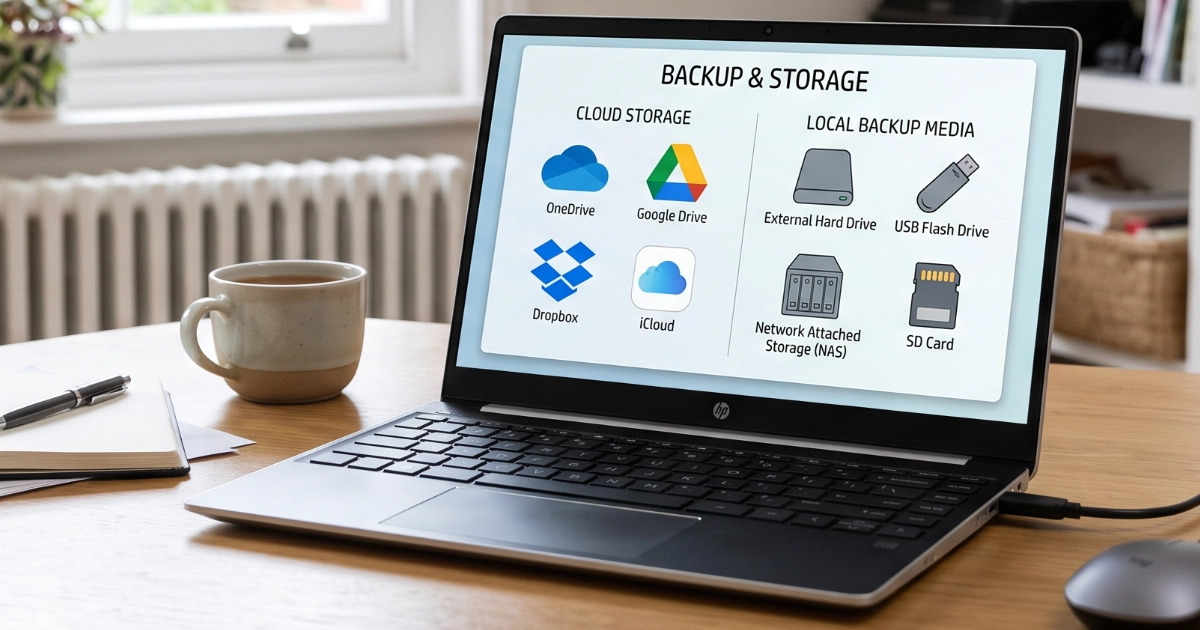
Make sure important files are backed up somewhere separate from the computer.
Cloud synchronisation can be useful, but it isn't always the same as having an independent backup.
Our guide to why backups matter and how to protect your files explains how to build a sensible backup routine.
Learn how Windows recovery works
Windows has built-in recovery tools that can help when experiments go wrong.
System Restore, for example, can sometimes reverse problematic system changes without affecting personal documents.
It's worth learning how restore points work before you need one. System Protection may need to be enabled first.
A restore point isn't a substitute for a proper file backup, but it can be another useful safety net.
Consider a standard Windows account
Using a standard account for everyday activity, with administrator permissions available when genuinely needed, introduces a useful checkpoint before major changes.
It's not a complete security barrier, and some unwanted applications can still run without administrator access.
But it can reduce the likelihood of making major system changes accidentally.
Discover Windows Sandbox
For technically curious teenagers, this is where things can get particularly interesting.
Windows Sandbox, available on supported Windows 11 Pro, Education and Enterprise editions, provides a temporary Windows environment where you can experiment without directly modifying your normal Windows installation.
Close the Sandbox and its temporary contents are discarded.
It may need to be enabled in Windows Features, and hardware virtualisation must be supported and enabled.
Windows Sandbox isn't available on Windows 11 Home.
It also isn't an absolute security barrier. Some resources, including network connectivity, may still be accessible from the sandbox, so don't treat it as permission to run known malware.
But for learning how Windows works and experimenting with reasonably trusted software, it's a fantastic tool.
Try a virtual machine
Another option is a virtual machine, using software such as VirtualBox or other suitable virtualisation tools.
A virtual machine lets you install another operating system, experiment with Linux, learn about networking or practise installing and repairing Windows.
You can even deliberately make changes that would be inconvenient on your main computer, then restore an earlier virtual machine snapshot.
Again, virtualisation doesn't guarantee complete protection from malicious software.
But it's a brilliant way to develop technical skills without continually rebuilding your everyday computer.
Keep Windows and your applications updated
Security updates matter.
They help fix vulnerabilities that criminals might otherwise exploit.
It's also worth checking that Windows Security is working properly.
For most home Windows 11 users, Microsoft Defender provides a capable starting point without needing an additional paid antivirus subscription.
Our guide to why you can stop paying for antivirus explains this in more detail.
Back to contents13. What if something has already gone wrong?
First, don't panic.
Not every unfamiliar application is malicious, and a slow computer isn't automatically infected.
But there are warning signs worth investigating.
These include unfamiliar applications appearing, persistent advertising, browser settings changing without explanation, security software being disabled or unexpected account login alerts.
Sometimes there are no obvious symptoms at all.
If you suspect you've installed something malicious
Stop running the suspicious application.
If you have good reason to suspect a serious infection, disconnect the computer from the internet to limit further communication.
Avoid entering passwords or signing into important accounts on that computer until you've established that it's safe.
In Windows Security, open Virus & threat protection > Scan options and run a full scan.
For another check, you can select Microsoft Defender Antivirus (offline scan).
This restarts the computer and scans outside the normal Windows environment, which can help detect malware that might otherwise interfere with scanning.
Save your work first, and make sure you have access to any BitLocker recovery key that might be needed.
But there's something particularly important to understand about modern password-stealing malware.
A clean scan doesn't always mean your accounts are safe
Some malicious programs are designed to run quickly, collect information and send it to an attacker.
They might steal passwords stored in your browser, or something called a session token.
A session token is information that a website uses to remember you've already signed in.
If somebody steals a valid session token, they may be able to access an account without entering your password or completing a fresh two-factor authentication check.
That's why even accounts protected by two-factor authentication can sometimes be compromised.
And because some information stealers run briefly and then disappear, a later antivirus scan might find nothing.
If you suspect this has happened:
- Use another, trusted device to change important passwords. Start with your main email account, because it can often be used to reset other accounts.
- Sign out of other sessions and devices wherever the service supports it. Check Discord, Steam, Google, Microsoft and any other important accounts. Changing your password doesn't always revoke every existing session.
- Review connected applications and remove access you don't recognise.
- Enable or review two-factor authentication and passkeys, and check your account recovery details.
- Check recent account activity, including unfamiliar purchases, messages or changes to security settings.
- Warn your contacts if messages or suspicious links may have been sent from your account.
If payment details may have been exposed, check your transactions and contact your bank or card provider where appropriate.
For serious suspected infections, a clean installation of Windows from trusted installation media may be the most reliable route back to a trustworthy computer, alongside securing affected accounts.
Removing malware doesn't undo information that has already been stolen.
Don't keep it to yourself
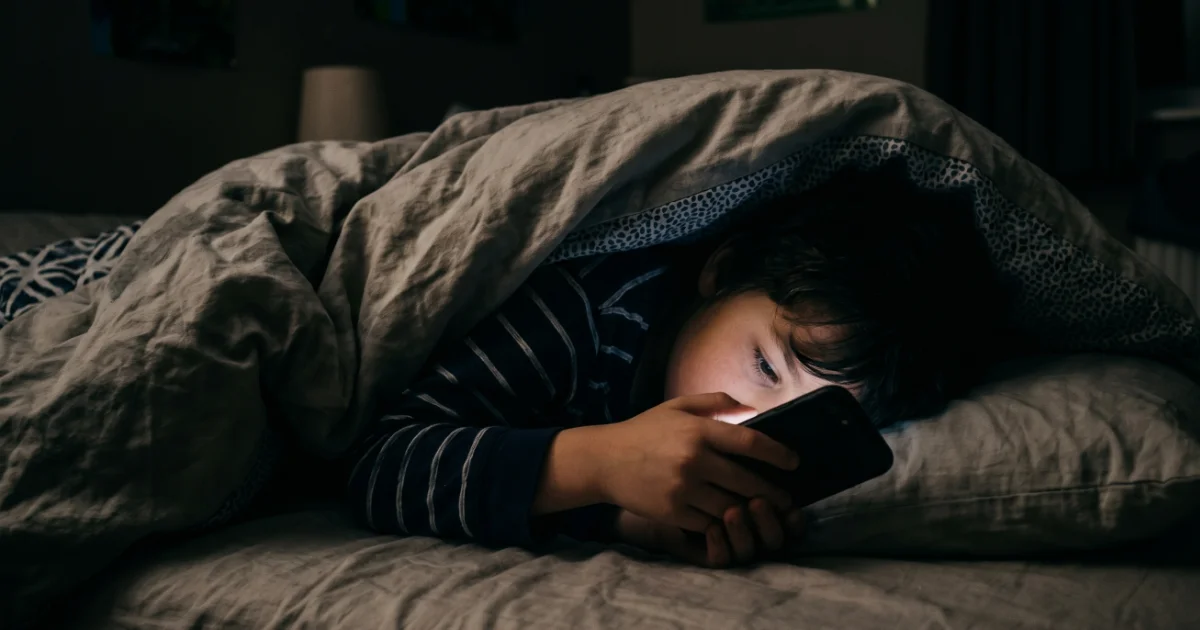
If you're a teenager reading this and you've downloaded something suspicious, please tell somebody you trust.
Not because you're in trouble, but because time can matter.
A stolen account might be accessed within minutes. Somebody could start sending malicious messages to your friends, changing account details or trying to take over other accounts.
The sooner you act, the better your chances of limiting the damage.
You don't need to understand exactly what went wrong before asking for help.
And don't be embarrassed. Scams are designed to deceive people, including experienced computer users.
Our free Scam First Aid tool can help you work through sensible next steps.
A word for parents: encourage the curiosity
You don't need to understand every Minecraft mod, Discord bot or experimental application your teenager discovers.
You don't need to supervise every download either.
In fact, trying to control every aspect of their computing experience can sometimes work against what we're trying to achieve.
We want young people to become confident, capable and independent users of technology.
That means encouraging them to explore, experiment and occasionally make mistakes.
But it also means helping them recognise when something isn't quite right.
We shouldn't aim to raise children who never break their computers. We should aim to raise children who understand what they're doing, know how to recover from mistakes and recognise when someone is trying to take advantage of them.
Five questions worth exploring together
Instead of automatically saying "Don't download that", try asking a few questions together.
1. Where did you find it?
Was it the developer's genuine website? Did somebody share it on Discord? How do we know we can trust the source?
2. What does it actually do?
Is this a normal mod, an application that needs installing, or something asking for extensive permissions?
3. Why does it need that access?
Does a wallpaper really need administrator permissions? Why does an unfamiliar website want access to a Discord account?
4. What are other people saying about it?
Are there genuine reviews, community discussions, warnings or reports of problems? Can we find out more about the developer?
5. What would happen if something went wrong?
Could we uninstall it? Do we have backups? Would we know how to restore Windows?
Sometimes you'll know the answers.
Sometimes your teenager will know considerably more about the software than you do.
And sometimes neither of you will know, which is a perfect opportunity to investigate together.
That's how technical confidence develops.
Make it safe to admit mistakes
This might be the most important advice I can give parents.
If your teenager downloads something suspicious, compromises an account or accidentally breaks Windows, try not to make their first thought:
"I'm going to be in so much trouble."
Because if they're afraid of the consequences of admitting a mistake, they may try to hide it.
And that could allow a relatively small problem to become much more serious.
A better response is often:
"Right, let's work out what's happened and see how we can fix it."
That doesn't mean there shouldn't be sensible boundaries, particularly for younger children.
Parental controls and account restrictions can provide useful protection, although they're no substitute for understanding and communication.
Our guide to parental controls and why they don't always work as expected explores that in more detail.
But as children get older, the aim should increasingly be to help them make good decisions independently.
I'd much rather see a teenager who understands how to investigate a suspicious download than one who simply knows they're not allowed to install anything.
I certainly wouldn't have learnt as much about computers if I'd been discouraged from exploring anything I didn't already understand.
Although, with hindsight, somebody probably should have told nine-year-old me to leave that power supply switch alone.
Back to contentsThe gaming PC safety checklist
Before installing your next mod, wallpaper, game add-on or application, remember these ten things.
- Check the source. Is this the genuine developer's website or a reputable download platform?
- Watch for fake download buttons. Make sure you're downloading what you actually wanted.
- Be wary of free cheats and premium content. Especially anything asking you to switch off antivirus protection.
- Don't automatically trust Discord messages. Even a friend's account could be compromised.
- Know what you're downloading. Check the file type, developer and recent reports about the project.
- Don't run mystery commands. A CAPTCHA shouldn't need PowerShell or the Windows Run box.
- Protect your accounts. Use unique passwords, two-factor authentication and sensible app permissions.
- Pay attention to warnings. Understand what Windows is asking before approving an action.
- Keep backups. Make sure your important files can survive an experiment that goes wrong.
- Ask questions and speak up. Getting advice early is better than dealing with a compromised computer or stolen account later.
One final thought
Computers are there to be explored.
Some of the best technical skills come from curiosity, experimentation and learning how to repair something you've accidentally broken.
I certainly made my share of mistakes, and I learnt from nearly every one of them.
But an important part of becoming confident with technology is knowing the difference between a worthwhile experiment and an unnecessary risk.
So install mods. Experiment with Linux. Customise Windows. Learn to code. Try something new.
Just remember that not everyone offering a download, a free upgrade or a helpful-looking link has your best interests at heart.
Be curious. Be adventurous. Be just a little suspicious.
And perhaps leave the voltage switches alone.
Written by Martyn, Marple Tech Help.
I provide friendly, practical computer support in Marple and the surrounding Stockport area. My aim is to help people understand their technology, solve problems and develop the confidence to use it properly.
If you're worried about something your teenager has downloaded, or their computer has started behaving strangely, I can help check the computer, investigate unwanted software and work through the steps needed to secure their accounts.