Back to School Laptop Buying Guide: What Does Your Child Actually Need?
Buying a laptop for secondary school or sixth form should not start with processor names, RAM or even budget.
Start with one question: what subjects are they doing?
That decides far more than whether one laptop has a slightly faster processor than another. A student mainly writing essays, using Google Classroom, researching online and revising has very different needs from someone studying Product Design, Computer Science, Music Technology, Photography or Media.
For the first student, a relatively inexpensive laptop may do everything they need for years. For the second, buying too cheaply can mean discovering six months later that an important piece of software simply will not run.
So before deciding how much to spend, work out what the laptop actually needs to do.
In a hurry?
For ordinary schoolwork, start around £250 for a Chromebook or £450 to £550 for Windows. For specialist subjects, check the required software before buying anything.
- Check with the school before buying anything
- The four main choices
- How much should you actually spend?
- What to actually look for
- Things that matter less than shops make them sound
- Used and refurbished can be a very good option
- Remember: it will probably get dropped
- Set it up properly before the first day
- The before-you-buy checklist
- The sensible answer
Prices and product details checked August 2026.
Check with the school before buying anything
This is worth ten minutes.
Some schools specify particular devices. Others have laptop or Chromebook schemes with monthly payments. Some use software that works best, or only works, on a particular operating system.
Sixth form subjects can introduce another layer. CAD packages, programming environments, music software, video editing tools and exam or assessment software may all have specific requirements.
Also check what software the school already provides. Eligible students can get Microsoft 365 Education through their school, and many schools provide their own Microsoft 365 accounts, Google Workspace accounts or other licences. Buying Microsoft Office alongside a new laptop may therefore be completely unnecessary.
Find that out before handing over another £80 or £100 at the checkout.
The four main choices
There are really four sensible routes for a school laptop.
Chromebook
For straightforward schoolwork, a Chromebook can still be extremely good value. They are simple, have excellent battery life and work particularly well with Google Classroom, Docs, Slides, homework platforms and video calls. An 8GB Chromebook with a decent Full HD screen can be a very capable everyday school machine without costing much.
The limitation is software. A Chromebook is built around web apps, so if a course requires a particular Windows or Mac application it can become the wrong machine very quickly. Computer Science, Product Design, engineering, media and music courses are the ones I would check with the school most carefully.
My view is fairly simple. A £200 to £300 Chromebook still makes excellent sense for school. I would be much more hesitant about spending £500 to £600 on one, because at that price you can buy a Windows laptop with 16GB of memory and 512GB of storage that will run essentially anything the school asks for. Unless the school specifically recommends ChromeOS, that is usually the better use of the money.
Something happening in the background: Googlebook
Google announced a new laptop category in May 2026 called Googlebook, which it describes as bringing together the best of ChromeOS and Android. The first devices are arriving this autumn from Acer, Asus, Dell, HP and Lenovo.
These are being positioned as flagship machines rather than replacements for cheap school Chromebooks. Google is building them around its new Gemini Intelligence features, and the hardware requirements for those features include at least 12GB of memory and a qualifying high-end processor.
Nor is this the end of the Chromebook. Google says ChromeOS continues, and current Chromebook platforms receive up to ten years of automatic updates from the platform's release date.
So a new budget Chromebook bought this autumn should normally be supported for years, although it is still worth checking the model's update expiry date before buying. If you are buying a used Chromebook, that check becomes particularly important. Support runs from the device platform's release rather than from the day you buy it, so an apparently cheap older Chromebook may have considerably less useful life left.
Windows laptop
For most families who want one machine that can cover almost anything school might throw at it, Windows remains the safest choice. Word, Excel, Teams, specialist educational software, programming tools, CAD packages and creative applications are all well catered for. If requirements change between Year 7 and sixth form, Windows also gives you more room to adapt.
The downside is that the cheapest Windows laptops can be genuinely unpleasant to use. A £250 machine with 4GB of memory, tiny storage and a dim screen may technically run Windows 11, but that does not make it a good five-year school laptop.
The good news is that you do not need to spend £800 either. Around £450 to £550 is currently a very healthy part of the market, with new laptops offering 16GB of memory and 512GB of storage available around that level.
One extra check is worthwhile with newer Windows laptops using Snapdragon or other ARM processors. They can offer superb battery life, but if a course relies on older or specialist Windows software, confirm compatibility first.
Mac
A Mac can be an excellent school or sixth form laptop, but I would buy one because it suits the student rather than simply because they want one.
Apple's MacBook Neo has changed the sums considerably. It gives you a 13-inch Liquid Retina display, an A18 Pro chip, 8GB of memory and up to sixteen hours of battery life in an aluminium body. The range includes 256GB and 512GB storage options.
The MacBook Neo currently starts at £699 on Apple's UK consumer store. Apple's Education Store lists it from £599, but there is an important catch for secondary school families: not every parent qualifies.
Who actually qualifies for Apple education pricing?
Apple's UK education pricing is available to higher education students and parents buying for them, along with teachers and other education staff. Simply having a child at secondary school does not qualify you. If you happen to teach or work for an education institution, though, you should be eligible.
There are real trade-offs at this price too. The Neo has 8GB of memory and relatively modest connectivity, while the 512GB version adds Touch ID.
Compatibility still matters. Some Windows-only school software simply will not run on macOS, so check before committing. And while 8GB and 256GB is perfectly reasonable for essays, research and everyday creative work, it is not the machine I would choose for demanding video, 3D or other specialist workloads.
For those, a MacBook Air or a more capable Windows laptop is the better answer.
Which takes us back to the first question. What subjects are they doing?
iPad with a keyboard
An iPad can make a fantastic school device. It is light, has excellent battery life and is particularly good for handwritten notes, annotating PDFs, reading textbooks and drawing with an Apple Pencil.
But an iPad with a keyboard is not simply a laptop with a touchscreen. File management, some websites, coding tools, specialist applications and certain school workflows can all be more awkward than on Windows or macOS. Before choosing one as a student's only computer, make sure everything the school expects them to do works properly on iPadOS.
Also price the whole setup. The iPad itself may look competitively priced, but a keyboard case and Pencil can substantially increase the real cost. Apple's own Magic Keyboard Folio, for example, is around £249 on top of the iPad, although third-party keyboards can reduce that considerably.
How much should you actually spend?
These are the rough bands I would use at the moment. Laptop prices move constantly, so treat them as ranges rather than hard rules.
| Budget | What I would expect |
|---|---|
| Under £250 | Mainly Chromebooks or refurbished Windows laptops. I would be very wary of ultra-cheap new Windows machines. |
| £250 to £400 | Good Chromebook territory, and a strong budget for a refurbished business Windows laptop. Occasional good new Windows deals appear here too. |
| £400 to £600 | The Windows sweet spot. 16GB of memory, 512GB of storage and a decent modern processor should be achievable. |
| £600 to £900 | Better build quality, screens and battery life, or more processing power. The MacBook Neo sits at the bottom of this band. Worth considering for sixth-form students with heavier workloads. |
| £900 and above | MacBook Air, premium Windows machines, dedicated graphics and specialist creative or engineering hardware. Spend this because the workload justifies it, not because somebody in a shop says it is more future-proof. |
Decent 8GB Chromebooks currently sit around £250 to £300, while mainstream 16GB and 512GB Windows laptops can be found around £450 to £550. That is why I think the middle of the market offers much better value than it did a few years ago.
What to actually look for
Once you have settled on the operating system and roughly what you want to spend, these are the details I would concentrate on:
- 16GB of memory for Windows. If the laptop is supposed to last through several years of secondary school or sixth form, I would avoid buying a new 8GB Windows laptop unless the budget leaves no realistic alternative. ChromeOS and the entry MacBook Neo are different cases, so do not compare memory figures blindly across operating systems.
- 512GB of storage for Windows, or 256GB for lighter use alongside cloud storage. Chromebooks need much less.
- A decent screen. Full HD or better is an easy baseline, but brightness matters too. A cheap, dim panel is miserable under bright classroom lighting.
- Weight. Half a kilogram sounds trivial until it is carried with books and PE kit five days a week. Around 13 to 14 inches is usually the sweet spot.
- Realistic battery life. Manufacturer figures are best-case numbers, so do not buy something that only just claims eight hours and expect eight hours in the real world.
- A decent keyboard and solid hinges. This laptop may have thousands of words typed on it every week and will be opened and closed several times a day.
- A usable webcam and microphone. They do not need to be spectacular, but poor cameras and microphones are still common on cheap laptops and can make Teams, Google Meet, tutoring and recorded work unnecessarily painful.
- USB-C charging is a bonus. Being able to share a common charger or use a suitable USB-C power bank is genuinely useful. Check the wattage the laptop requires.
Things that matter much less than shops make them sound
You do not need a dedicated gaming graphics card for essays, homework, Teams and web browsing.
You probably do not need a touchscreen either.
A 16 or 17-inch screen may look impressive in a shop but makes considerably less sense once it has to fit into a school bag.
Be careful with processor badges
An advert shouting Core i7 does not automatically mean that laptop beats one labelled Core i5 or Ryzen 5. Generation, architecture and power limits all matter, and a newer mid-range chip can easily outperform an older supposedly high-end one.
For an ordinary student laptop, I would rather have a good screen, 16GB of memory, enough storage, long battery life and solid construction than pay extra for a processor whose performance will barely be noticed.
Dedicated graphics become important when the student is actually doing something that needs them: 3D modelling, certain CAD workloads, substantial video work, game development or, obviously, gaming. If that is the situation you are in, my guide to buying a gaming PC for your child covers the parts that genuinely matter.
Again, it comes back to the subjects.
Used and refurbished can be a very good option
A refurbished business laptop is often better made than a brand-new budget consumer machine at the same price.
Business-class ThinkPads, EliteBooks and Latitudes were designed to be carried around offices, opened constantly and used for years. They frequently have better keyboards, stronger hinges and easier repairability than cheap consumer models.
One important caveat: make sure it officially supports Windows 11
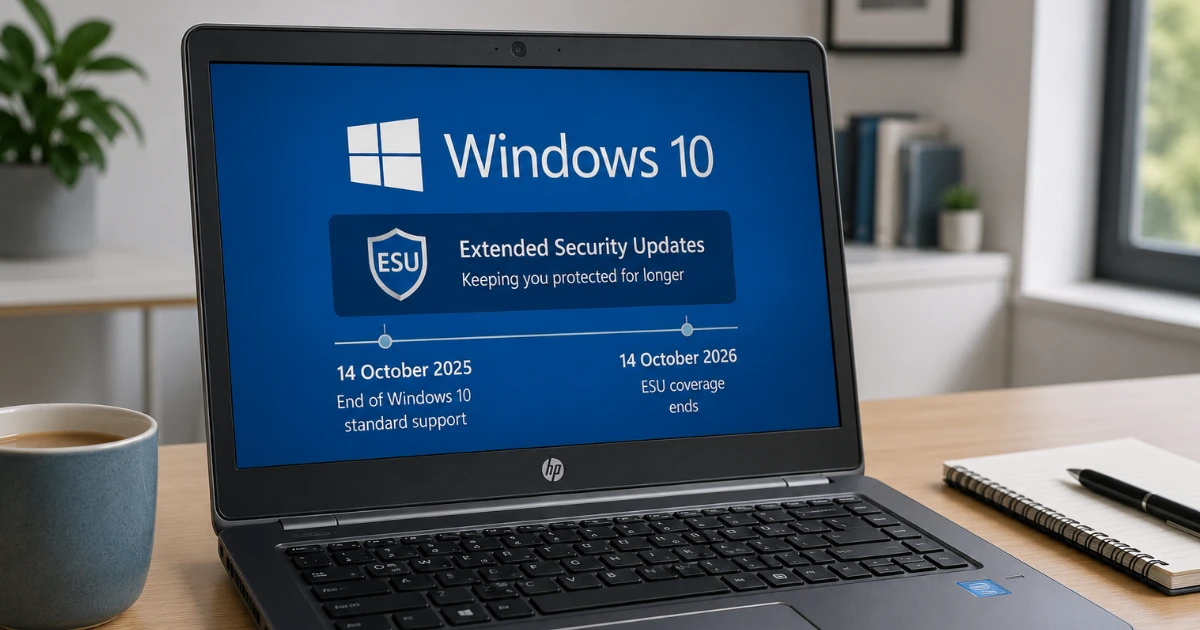
Normal support for Windows 10 ended on 14 October 2025, so a very cheap laptop stuck on Windows 10 is not the bargain it first appears to be. I would also be cautious of a seller who has simply forced Windows 11 onto unsupported hardware. Seeing Windows 11 installed does not mean the computer officially qualifies for it, and that is something I cover in more detail in Should you force Windows 11 onto an older PC?
Extended Security Updates can stretch the useful life of a Windows 10 PC you already own, but that is a very different thing from deliberately buying obsolete hardware today. If you are choosing a refurbished laptop now, I would still pick one that officially supports Windows 11.
Buying refurbished can save a substantial amount of money. Buying obsolete hardware because it happens to be cheap does not.
Remember: it will probably get dropped
This may matter more than the processor.
School laptops have a hard life. They are put into bags with books, carried between classrooms, left on tables, plugged and unplugged constantly, and occasionally introduced rather rapidly to the floor.
That makes hinge design, chassis strength and a decent protective sleeve more important than they sound.
Some education and business laptops are built with reinforced construction or spill-resistant keyboards, and I would take those features seriously.
For a more expensive laptop, accidental damage cover can also be worth considering. Check the excess, claim limits and exactly what is covered rather than simply ticking the insurance box at checkout.
A padded sleeve at £15 to £25 is still one of the cheapest pieces of protection you can buy.
Set it up properly before the first day
The job is not quite finished when the laptop comes out of the box.
On Windows or Mac, I generally prefer a younger student's everyday account not to have administrator rights, with a separate administrator account kept for installing software and making system changes.
Set up cloud backup or syncing for schoolwork from the start rather than after something has disappeared. Make sure account recovery information is correct, enable device tracking where available, install all operating system and firmware updates, and remove unnecessary trial software.
My guide to what to do first with a new laptop walks through those jobs in order.
For younger students, this is also the point to configure parental controls rather than trying to bolt them on six months later. I have a separate guide explaining why parental controls alone are not enough, and how to set them up sensibly.
The aim is not to lock a school computer down until it becomes unusable. It is to make sure a forgotten password, broken laptop or accidental deletion does not take a term's worth of work with it.
The before-you-buy checklist
Print this and take it with you, or keep it open while you compare models online.
School Laptop Checklist
Before you shop
- Subjects and any specialist software checked
- School asked about specified devices or a laptop scheme
- Software the school already provides confirmed, so you do not buy Office twice
- Operating system decided: ChromeOS, Windows, macOS or iPadOS
What to check on the spec
- 16GB memory and 512GB storage if buying new Windows
- Full HD screen or better, and bright enough for a classroom
- Around 13 to 14 inches, and light enough to carry all day
- Realistic battery life, not just the best-case figure
- Decent keyboard, solid hinges, usable webcam and microphone
- USB-C charging where possible, and the wattage it needs
- Chromebook update expiry date checked, especially if used
- Refurbished machines officially support Windows 11
After it arrives
- Everyday account set up without administrator rights
- Cloud backup or sync switched on for schoolwork
- Account recovery details correct and device tracking enabled
- All updates installed and trial software removed
- Parental controls configured for younger students
- Padded sleeve bought, and damage cover considered
The sensible answer
There is no single best laptop for school.
For one student the sensible answer might be a £249 Chromebook. For another it might be a £500 Windows laptop with 16GB of memory. Someone studying music or media may have a genuine reason to choose a Mac, and someone doing CAD or 3D work might need a significantly more powerful Windows machine.
The mistake is deciding on the laptop first and then trying to make the student's needs fit around it.
Start with the subjects. Check what the school expects. Then choose the simplest machine that comfortably does those things.
You may find you need considerably less laptop than the adverts suggest.
Would you rather somebody checked the requirements first?
Tech Concierge provides independent computer buying advice without selling the hardware or taking commission. Full Computer Concierge, £89. We talk about what the subjects actually need, I research and recommend specific models, help you find a sensible price, then set the laptop up properly once it arrives.
Already bought one? Setup only, £59. That covers setup and updates, transferring files and photos from an old machine, getting accounts and cloud storage sorted, parental controls where they are wanted, and a plain-English explanation of what has changed.
The aim is simple. Your child starts the term with a laptop that does what their subjects need, backed up properly, rather than the most expensive thing in the shop.
I’m based in Marple and cover Stockport, SK6 and the surrounding area.