Why Two-Factor Authentication (2FA) Is Essential for Email Accounts
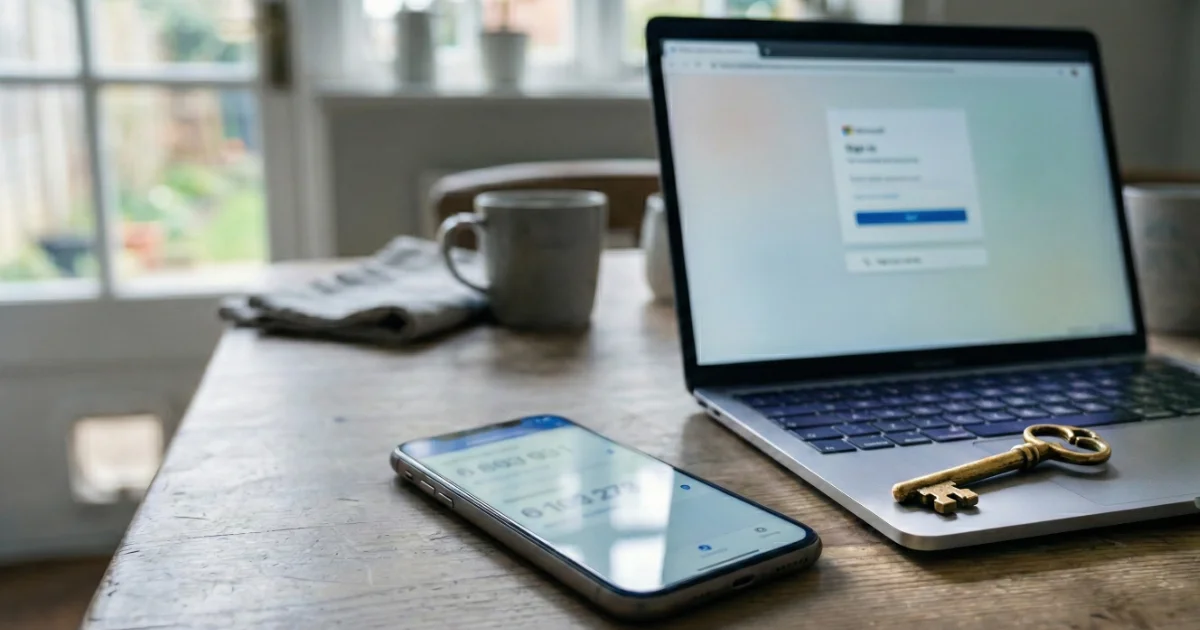
Whether you use Outlook, Gmail, or iCloud, your email account is the “master key” to your digital life. Securing it properly is one of the most important steps you can take.
Quick Summary
- Your email is the key to everything else (banking, social media, photos).
- Passwords alone are not enough (they get guessed, reused, or leaked).
- 2FA stops attackers even if they have your password.
- It takes <10 minutes to set up and saves days of stress.
Why email security matters so much
I regularly help people who have lost access to their email accounts. In most cases, the pattern is exactly the same:
- The password was guessed, reused, or leaked.
- The attacker signed in.
- They changed the password.
- They added their own recovery phone number or authentication app.
- The original owner is locked out.
At that point, recovery becomes extremely difficult. The simple preventative step that avoids most of this? Properly configured Two-Factor Authentication (2FA).
Your email is the "master key"
Your email account is rarely “just email” anymore. It is the hub for your online identity, linked to:
- Password resets for shopping, banking, and social media.
- Cloud storage containing private photos and documents.
- Travel bookings, tax records, and school accounts.
If someone gains access to your email, they can often reset the passwords for almost everything else you use online.
What is 2FA?
Two-Factor Authentication adds a second layer of security to your account. Instead of logging in with just:
- Something you know (your password)
You also need:
- Something you have (your phone or an authenticator app)
Even if someone knows your password, they cannot access your account without that second factor. It is similar to needing both a key and a fingerprint to unlock a door.
Does this apply to Gmail or iCloud?
Yes. Whether you use Gmail, iCloud, Outlook, Yahoo, or any other provider, the risk is the same. All major providers support 2FA. The setup screens look slightly different, but the principle is identical.
How 2FA is usually set up (Microsoft example)
- Sign in at account.microsoft.com/security.
- Go to Advanced Security Options and turn on Two-Step Verification.
- Choose to use an authenticator app.
- Scan the QR code using your chosen app.
Do not skip the recovery code
During setup, you will be given a Recovery Code (or Backup Codes). This is critical.
Print it or write it down and store it somewhere safe at home. If your phone is lost, replaced, or damaged, this code may be the only way back into your account.
The mistakes I see most often
2FA works extremely well, but only if it is maintained properly. These are the pitfalls I encounter most frequently in my Tech Rescue work:
The “New Phone” Trap
People upgrade their phone and wipe the old one before transferring their authenticator app. Their digital key disappears with the old device.
Outdated recovery details
The recovery mobile number on file belongs to an old SIM card or a number they no longer use.
Relying only on text messages
SMS verification is better than nothing, but app-based authentication is far more secure.
Ignoring security alerts
Most major providers send automatic alerts if:
- Your password is changed.
- A new device signs in.
- Recovery details are updated.
- Two-factor authentication settings are modified.
If you receive one of these alerts and you did not make the change, act immediately. However, do not click links inside the email. Security alert emails are commonly imitated by scammers.
It is much safer to open a new browser window and go directly to your provider’s official website instead. The earlier you intervene, the easier recovery tends to be.
A simple security check
Log into your email account today and ask yourself:
“If someone guessed my password tonight, could they lock me out completely?”
If the answer is yes, your security needs improving.
Need help setting it up?
If you are unsure about the process, I can help. I can review your security, set up 2FA correctly, check your recovery details, and provide a backup plan so you never get locked out.