How to Fix Stuck Windows Updates on Windows 11

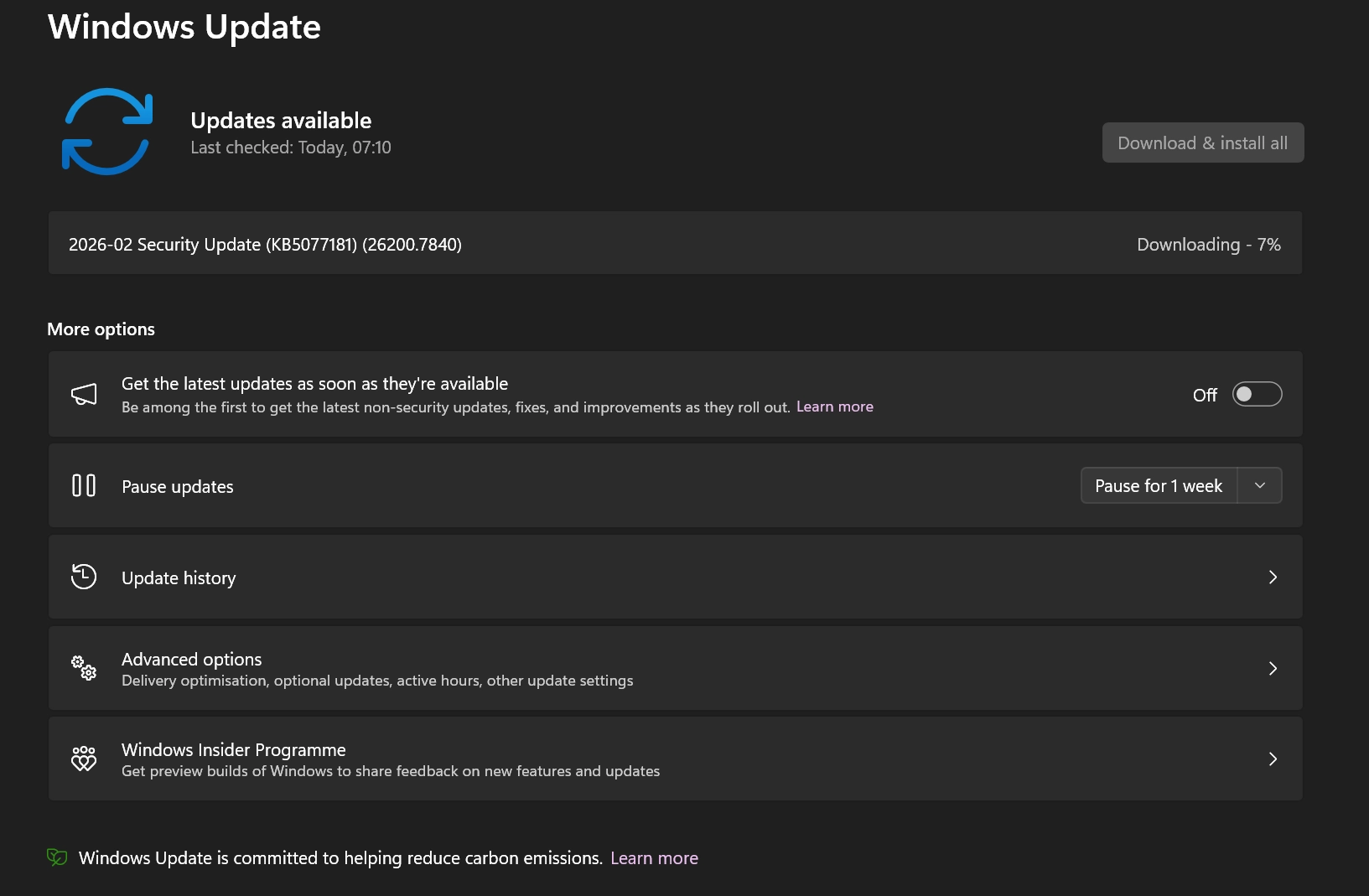
A typical Windows Update problem where updates repeatedly fail to install.
Most people don't think about Windows updates until they stop working. On Windows 11, it's quite common to see updates fail repeatedly — sometimes for weeks or even months.
Over the past few weeks, I've seen this on quite a few machines around Marple. Several PCs I've worked on recently had Windows updates failing quietly in the background. Most people only discover it when something else goes wrong or the computer starts behaving strangely.
Often the computer works normally, so people ignore it — until something else breaks.
What You Might See
- "Updates failed" or "Retry all" messages in Settings
- Error codes such as 0x800f0831
- Updates stuck at 0%, 7%, or 100%
Many people simply ignore the problem, but that leaves your computer missing important security fixes and can cause future updates to fail as well.
The good news is that in many cases the issue can be fixed by resetting Windows Update and repairing the system files Windows relies on.
The steps below are the same ones I use when fixing this problem on client machines, and they are safe to try at home if you're comfortable using Command Prompt.
Before You Start
Step 1 — Repair Windows System Files
First, we check that the Windows update system itself isn't damaged.
- Click Start
- Type cmd
- Right-click Command Prompt
- Choose Run as administrator
In the black window that opens, type or paste the following command and press Enter:
DISM /Online /Cleanup-Image /RestoreHealth
This tool checks Windows' internal system files and repairs anything that might be preventing updates from installing properly. It can take 5–15 minutes and may appear to pause or freeze at certain percentages. That's completely normal — just let it run.
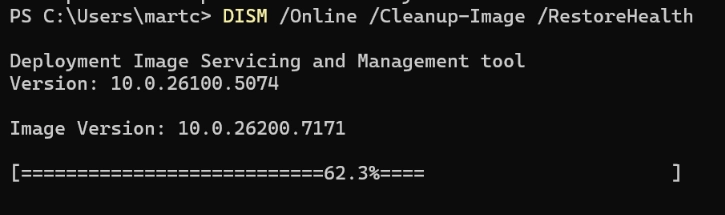
The DISM scan may appear to pause at certain percentages. This is normal — let it finish.
When it finishes, type this second command and press Enter:
sfc /scannow
This performs an additional system file check. If it reports that it found and repaired errors, that's actually a good outcome — it means the problem was identified and fixed.
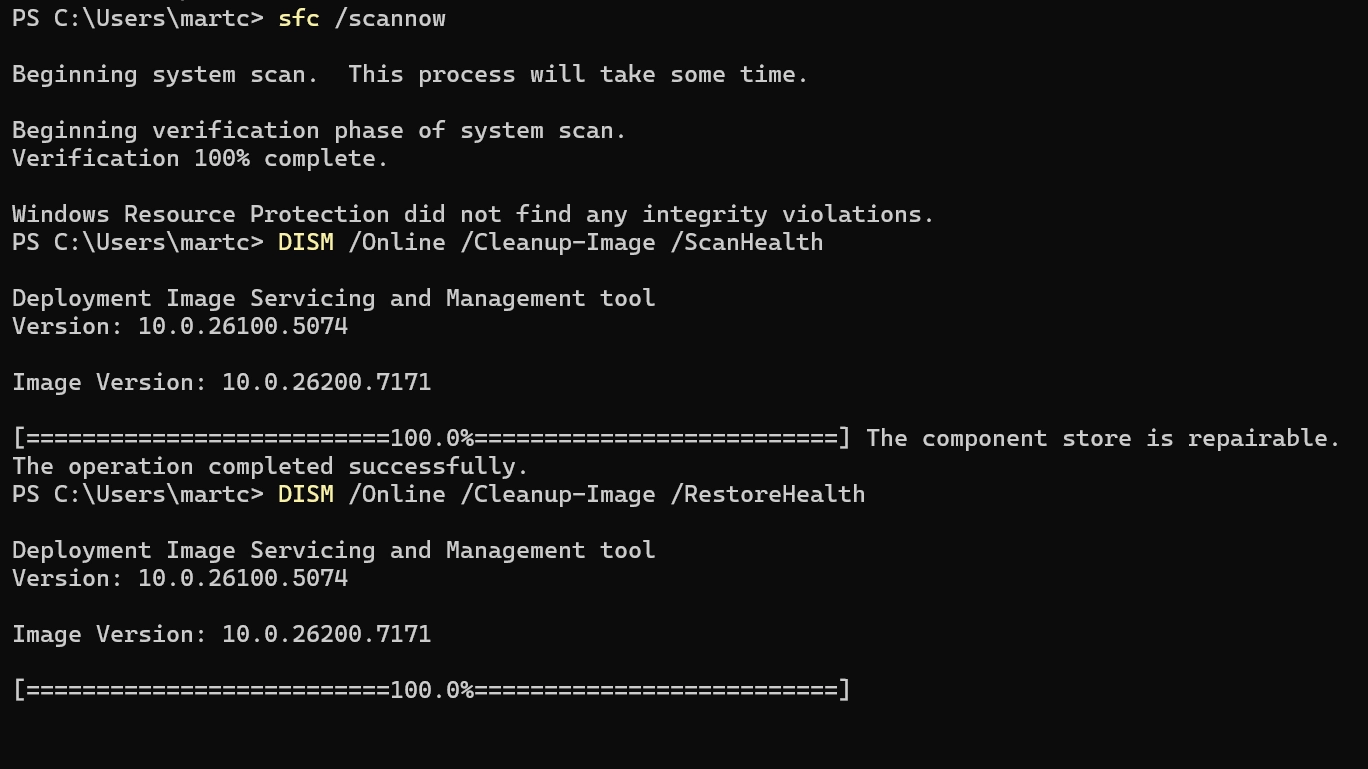
Example of the DISM and SFC scans completing on a machine.
Step 2 — Reset the Windows Update Cache
If updates are still failing, the next step is to clear the update download cache — the temporary files Windows uses when downloading updates.
In the same Administrator Command Prompt, run the following commands. Press Enter after each line:
net stop wuauservnet stop bitsnet stop cryptsvc
Note: If a service says it "could not be stopped" or is "stopping", simply restart your computer, open Command Prompt as administrator again, and retry Step 2.
Next, type these two commands to rename the old update folders. This forces Windows to rebuild its cache from scratch:
ren C:\Windows\SoftwareDistribution SoftwareDistribution.oldren C:\Windows\System32\catroot2 catroot2.old
Finally, restart the update services:
net start wuauservnet start bitsnet start cryptsvc
Step 3 — Restart Your Computer
Restart your PC normally.
Once it has restarted, go to:
Settings → Windows Update → Check for updates
Windows will rebuild its update cache and attempt to download and install the updates again.
If Updates Still Won't Install
Occasionally an update fails because of a problem with a specific update package rather than Windows itself.
Every Windows update has a unique reference number called a KB number (for example KB5077181).
You can search for any KB number in Microsoft's Update Catalog:
Microsoft Update Catalog: catalog.update.microsoft.com
Download the update that matches your version of Windows, run the installer, and restart when prompted.
When to Call in Help
If you're not comfortable running commands, or the update still refuses to install after trying the steps above, it's worth getting help before the problem gets worse.
Stuck updates can sometimes be a symptom of a deeper issue, such as:
- A failing drive
- A driver conflict
- Corrupted system files that need more than a simple reset
At Marple Tech Help, I deal with problems like this regularly as part of a broader check on a PC's health. That can include:
- Repairing Windows system files
- Removing broken update packages
- Checking for disk or driver issues
- Making sure your PC is fully up to date and properly protected
If you're in Marple or the surrounding area and would rather have someone take care of it for you, you can find out more on my Tech Rescue page.
Need Help With Windows Updates?
If updates keep failing or your computer is behaving strangely, I can diagnose and fix the problem as part of a full PC health check.
No jargon. No unnecessary costs. Just practical help from someone who deals with this every day.