The Christmas Tech MOT: help your parents in one calm session

If you’re visiting family over Christmas, there’s a decent chance you’ll end up doing tech support at some point.
It’s usually the same problems: Wi-Fi that drops out, a laptop that’s suddenly “slow”, pop-ups everywhere, and phones full of confusing notifications. The best way to deal with it is to do a quick yearly Tech MOT instead of fixing things one by one.
Start at Step 1 and work down.
If you only do 3 things
- Back up photos and WhatsApp
- Turn on automatic updates
- Write down the scam rules (including 159, and “never install remote access for a caller”)
1) The Safety Net (do this first)
Before you update anything, protect the important stuff. Photos and WhatsApp are the ones that cause real stress when they vanish.
Back up photos (and sanity-check it’s working)
- iPhone / iPad (iCloud Photos): Settings → [your name] → iCloud → Photos →
turn
on Sync this iPhone/iPad.
Then: Settings → [your name] → iCloud → Manage Account Storage (make sure there’s space).
Quick check: open Photos and look for a status like “Updating…” or “Synced”. If it’s stuck for days, something’s off. - Android (Google Photos): Google Photos → Profile icon → Photos settings →
Backup → turn it on.
Double check the Google account is the right one (lots of people have two).
Quick check: Google Photos → Profile icon, you’ll usually see a backup status like “Backup complete” or “X items remaining”.
Back up WhatsApp (people forget this)
- WhatsApp (iPhone): WhatsApp → Settings → Chats → Chat Backup → Back Up
Now.
Optional: enable Include Videos (uses more storage, but it’s often worth it). - WhatsApp (Android): WhatsApp → More options (⋮) → Settings → Chats → Chat
backup → Back up.
It will also show which Google account it’s backing up to. Worth checking.
Digital legacy (quick, but worth doing)
Not cheery, but practical. A small amount of setup can save families a huge headache later.
- Apple (Legacy Contact): Settings → [your name] → Sign-In & Security → Legacy Contact.
- Google (Inactive Account Manager): Google Account → Data & privacy → “More options” → Make a plan for your digital legacy / Inactive Account Manager.
2) Updates & basic housekeeping
Once the backups are sorted, updates are safe.
Turn on automatic updates
- iPhone / iPad: Settings → General → Software Update → Automatic Updates → turn on both toggles.
- Android: Settings → System → System update.
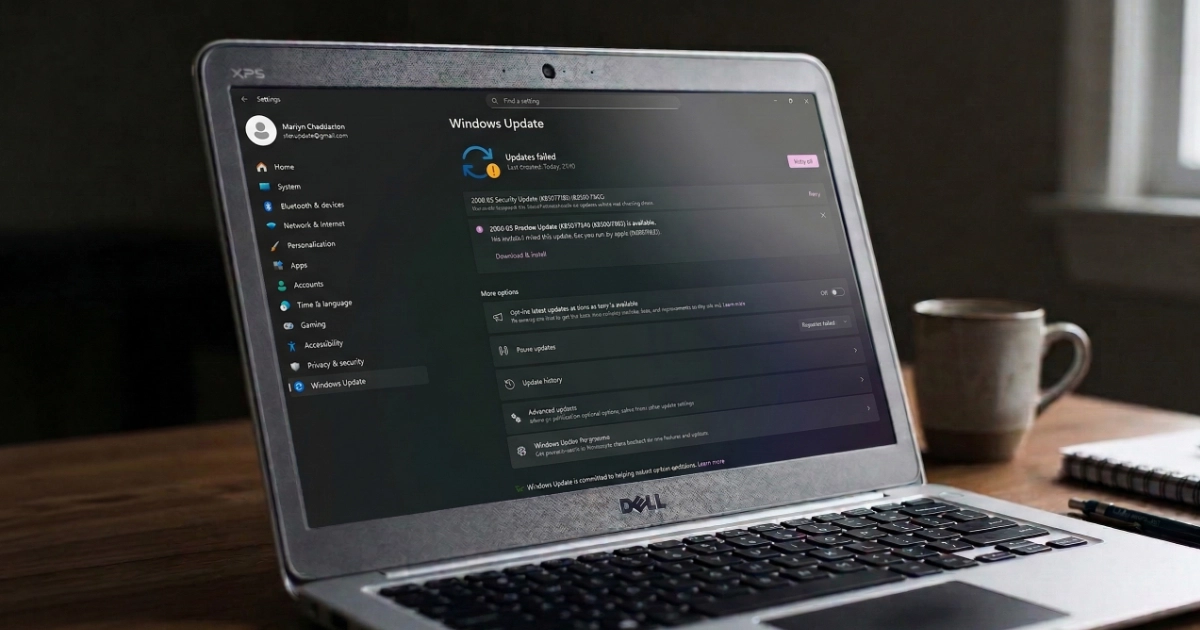
Play Store → Profile → Manage apps & device → Update all. - Windows: Settings → Windows Update → Check for updates → enable the automatic options you see there.
- Mac: System Settings → General → Software Update → enable Automatic updates.
Make it easier to use (this cuts down future problems)
- Increase text size if they squint.
- Check ringtone and alert volumes are actually loud enough.
- Put the important apps on the first home screen page.
- Turn off noisy notifications from apps they don’t care about.
Quick tidy (optional)
If they’ve got a lot of random apps, remove the obvious rubbish. “Cleaner” and “boost” apps are rarely helpful and often cause more problems.
If you’re unsure, ask first, or leave it alone. Deleting the wrong thing causes drama.
3) The Security Shield (scams + pop-ups)
Step 1: Make their usual browser safer (pop-ups, fake buttons, and notification spam)
Most scams start the same way: a dodgy site, a pop-up, or a fake “Download” button. The aim here is to reduce the rubbish before it even shows up.
Chrome (most common)
- Safe Browsing: Chrome → Settings → Privacy and security → Security → Safe Browsing → Enhanced protection (or Standard).
- Stop notification spam (this is the big one): Chrome → Settings → Privacy
and
security → Site settings → Notifications.
Set to Don’t allow sites to send notifications (or keep “Ask”, then remove any dodgy sites already listed under “Allowed”).
If they’ve already been hit by notification spam, this is usually the fix. - Install one ad blocker (strongly recommended): An ad blocker reduces fake
download buttons and “virus alert” pop-ups.
Common reputable options include: uBlock Origin Lite, AdGuard, Ghostery.
Keep it simple: install one blocker, not three. Avoid random “coupon”, “shopping”, “video downloader”, “PDF converter”, “cleaner” extensions unless you really trust them.
Quick check after installing: revisit a news site and see if the page is calmer and less pop-up heavy.
Microsoft Edge
Edge is basically Chrome under the hood, plus some built-in protection.
- Turn on SmartScreen and security: Edge → Settings → Privacy, search and services → enable Microsoft Defender SmartScreen and Enhance your security on the web.
- Stop notification spam: Edge → Settings → Cookies and site permissions → Notifications → set to Don’t allow.
- Install one ad blocker: Same idea as Chrome. Use the Edge Add-ons store and install one reputable blocker.
Safari (iPhone/iPad)
Safari works best with a proper content blocker.
- Install a content blocker from the App Store (search “content blocker”).
- Enable it: Settings → Safari → Extensions / Content Blockers → switch it on.
- If pop-ups still appear: Settings → Safari → turn on Block Pop-ups.
Optional “best blocking”
If someone is genuinely open to switching, Firefox with uBlock Origin is still a very clean setup for blocking junk. Totally optional though. Most people are fine sticking with Chrome/Edge once the settings above are done properly.
Step 2: The rule that stops the worst scams (remote access)
If someone phones and asks them to install remote access (AnyDesk, TeamViewer, or anything similar) so they can “fix the bank / computer / Wi-Fi”, it’s a scam.
This is how a lot of people lose money. The caller gets access to the screen, talks them through logging in, and pressures them into moving money “to make it safe”.
Rule: only allow remote help from family or a trusted technician. Never from a cold caller.
Step 3: 159 and 7726 (what they actually do)
These two are worth saving in contacts. People sometimes see them mentioned and think “that sounds suspicious”, so here’s the plain-English version.
159 (bank call-back number)
If someone rings claiming to be from your bank, it can be hard to tell if it’s real. Scammers can sound convincing and they will often pressure you to act quickly.
159 is a safe way to contact your bank. You hang up, dial 159, and you’ll be connected through to your bank using trusted routing. It removes the “are they really from the bank?” problem.
Good rule of thumb: if anyone calls about money, don’t stay on the call. Hang up, then call back using a trusted route.
7726 (report scam texts)
7726 spells SPAM on a keypad. You forward suspicious texts to 7726, and it helps the mobile networks identify and block scam senders.
It’s useful for texts like:
- “Pay a small fee to reschedule your delivery”
- “Your parcel is held”
- “Urgent action needed”
- “You’ve been charged £X, click here”
Forwarding won’t fix everything instantly, but it helps reduce how much of this gets through over time.
Step 4: Lock down email (this one matters)
Email is the master key for password resets. If someone gets into email, they can often get into everything.
- Turn on 2-step verification
- Add a recovery phone number and recovery email
- Make sure they can still get in if they lose the phone
If you’re helping someone older, do a quick test: sign out and make sure they can sign back in without panic.
4) Money-saving: the Wallet Audit
Cancel subscriptions they don’t use
- iPhone: Settings → [your name] → Subscriptions
- Android: Play Store → Profile → Payments & subscriptions → Subscriptions
Look for free trials, duplicates, and things they don’t recognise. If something looks suspicious, don’t cancel blindly. Open it, check what it is, and then cancel properly. If in doubt, ask me.
Broadband sense-check (2 minutes)
- Run a speed test
- If it’s poor, check router placement (Step 6)
- If they’re paying a lot, they might be out of contract
- If they qualify for cheaper tariffs, it’s worth checking
5) Set up Remote Support (so you don’t do emergency visits)
This is the bit that saves you the most time later.
Windows: Quick Assist (simple and built-in)
- Press
Win + Ctrl + Qto open Quick Assist - Do one practice run while you’re there
- Pin it to Start so it’s easy to find next time
Screen sharing (good enough for most fixes)
FaceTime, WhatsApp or Meet screen share is often all you need so you can guide them.
Proper remote control
Chrome Remote Desktop is a solid option, especially if they already use Chrome.
Tip: put a shortcut on the desktop or home screen called REMOTE HELP so it’s obvious.
6) Quick hardware checks
- Charging port only works “at an angle”? Pocket lint is often the culprit. Use a wooden cocktail stick (not metal) to gently clear it.
- TV looks like a soap opera? Turn off motion smoothing (often TruMotion / MotionFlow / Auto Motion Plus).
- Wi-Fi weak? Move the router out from behind TVs, radiators, and corners. Open space and a bit of height helps.
- Laptop crawling? Check storage isn’t full (Windows Settings → System → Storage). A full drive makes everything miserable.
7) The Fridge List (print this)
The Tech Rules (Fridge Version)
- If it stops working: turn it off and on again.
- Dial 159: If “the bank” phones: hang up and dial 159 and follow the prompts.
- If a site asks to allow notifications: NO.
- If a courier texts a redelivery fee: assume scam and ask first.
- If a pop-up says “virus detected” with a phone number: close it, restart, and call someone you trust.
- If anyone asks you to install AnyDesk / TeamViewer (remote access): NO.
- Before you click Pay or Download: call a trusted family member (or Marple Tech Help).
- 7726: Forward scam texts to report them, then delete.
- Keep one ad blocker installed in the browser, and don’t install random extensions.
- If you feel rushed or pressured: stop and ask someone you trust.
Final tip: teach, don’t just do
If you grab the device and fix everything at lightning speed, you’ll get the same call next week. Slow down, let them tap the buttons, and write down the two or three steps they actually need.
If you get stuck, or you want it all sorted properly in one go, give me a shout and I can do a full Family Tech MOT visit.
Merry Christmas from Marple Tech Help.
Want me to do the Tech MOT for your parents?
I offer a Family Tech MOT visit: backups, updates, security checks, scam-proofing, plus a written summary of what’s been done (and what to do next).